How to Use WeChat
WeChat is the ultimate Swiss Army knife for China. It’s not just another messaging app; it’s an entire ecosystem of applications bundled together. Now envision putting together WhatsApp, PayPal, Uber and Yelp in a single web-based platform so that you can pay local street vendors in cashless RMB, book tickets for trains and translation of foreign text in real-time. Western mobile applications are blocked, and cash slowly is becoming obsolete, so you simply have to know how to use WeChat before your visit. Securely, set up this multi-facet tool before landing and ready for anything, from midnight taxi hailing and physical location sharing to reading value-scanning QR codes for food and all other daily native services.
How to Download and Register App
App Download and Installation
Download WeChat through GooglePlay
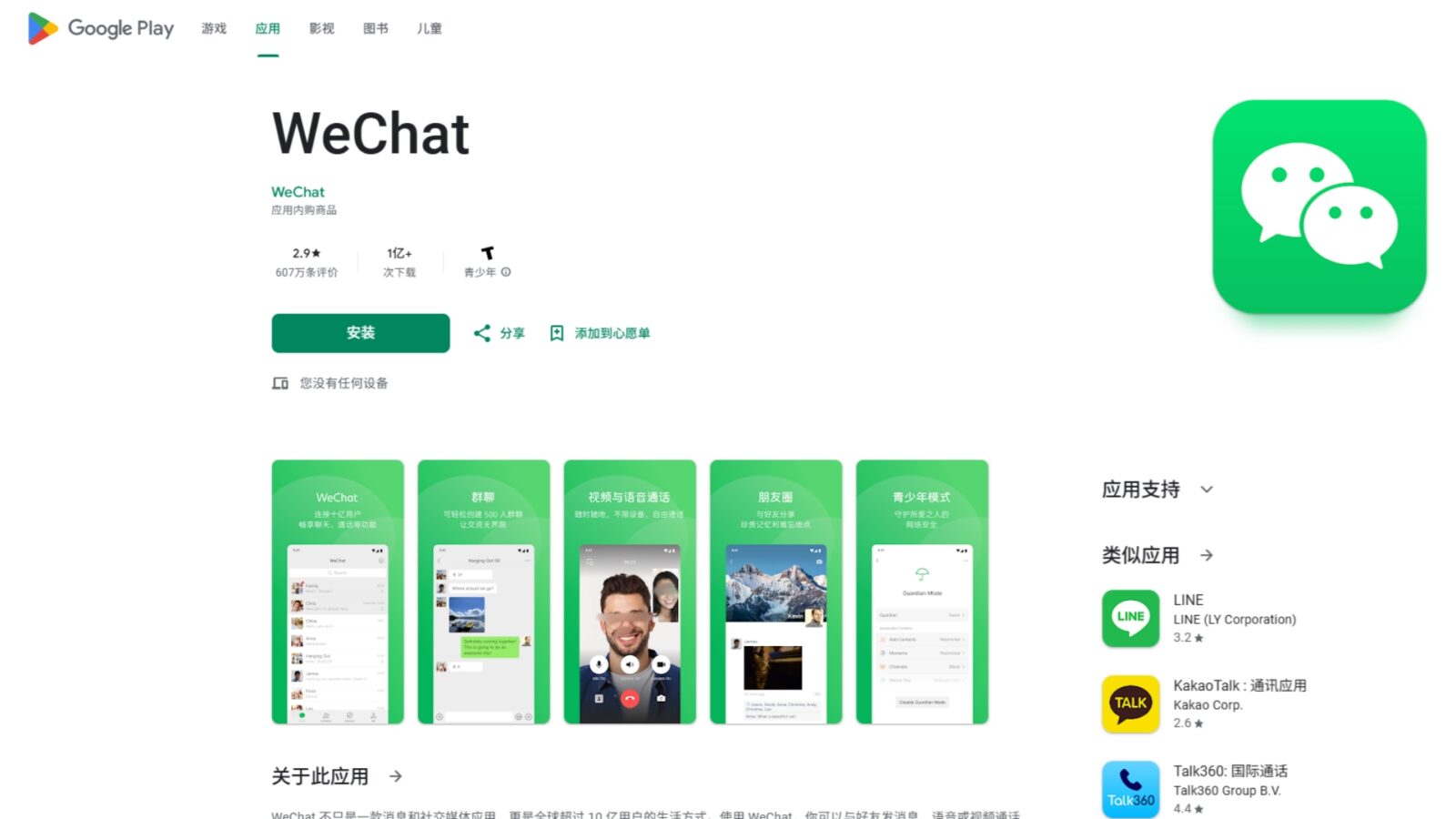
WeChat is free and on every major platform. Before you hit Install, spend 10 seconds confirming the publisher since there’s a few WeChat-style impostors in both the App Store and Google Play — even outright fakes. The real deal from Tencent is simple to confirm.
- ●Step 1 - Open the app store: Visit the App Store (iPhone) or Google Play (Android). Search for "WeChat".
- ●Step 2 - Verify the developer: Before tapping Install, confirm the developer reads Tencent Technology (Shenzhen) Co. Ltd.
- ○If another name appears, scroll past that result entirely.
- ●Step 3 - Install the app: Tap Get / Install, wait for the download, then tap to open.
- ●Step 4 - Start account creation: On the opening screen, tap Sign Up — not Log In.
- ○[PC] The WeChat desktop app (Windows / Mac) requires an existing mobile account to log in. It cannot operate standalone. Complete phone setup first, then download from weixin.qq.com.
Foreigner Account Registration Steps
Foreigner WeChat Account Registration Steps
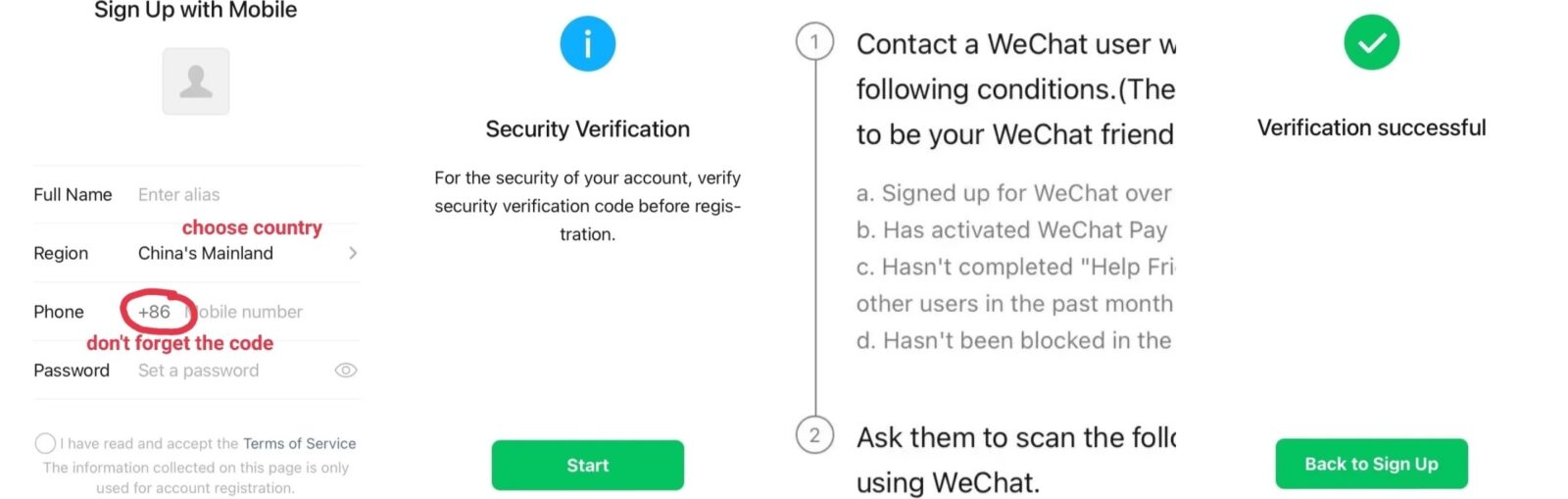
One of the biggest misunderstandings is that you need a Chinese number to sign up. You can use any international mobile number — US, UK, French, Australian, etc. But, there is a Security Verification step Tencent added recently for new accounts that many users get stuck on. Here’s how to get past it.
- ●Step 1 - Enter your phone number: Input the number with the country code (e.g. +1 for US, +44 for UK). Tap Next.
- ●Step 2 - Enter the SMS code: WeChat sends a verification code to the number. Enter it within 60 seconds.
- ●Step 3 - Pass security verification: If a Security Verification screen appears, this is normal for all new accounts.
- ○Ask a friend, hotel front desk, or a nearby traveller to scan your QR code.
- ○They open WeChat → tap Scan → point at your screen. The process takes about 30 seconds.
- ●Step 4 - Set your profile: Once verified, set a profile name and a password. The account activates immediately.
- ●Step 5 - Create a WeChat ID: Go to Me → WeChat ID → Set WeChat ID (optional but recommended).
- ○Use letters and numbers, 6–20 characters. This ID cannot be changed later, so choose deliberately.
- ○It allows people to find you without needing a phone number.
The Security Verification requirement has been in place since 2023 for most new account registrations. Tencent introduced it to reduce fake accounts — it is not a bug. For instance, the key facts are:
- ●The person scanning for you does not need to be a contact — any WeChat user works.
- ●Hotel front desk staff complete this in under a minute and are accustomed to the request.
- ●If no one is nearby, WeChat support can perform manual verification via email — but it takes 1–3 days. Register before leaving home to avoid this delay entirely.
- ●Accounts registered before 2023 are not affected by this requirement.
Primary App Interface Navigation
-

- WeChat Chats tab
-
- WeChat Contacts tab
-
- WeChat Discover tab
-
- Me tab in WeChat
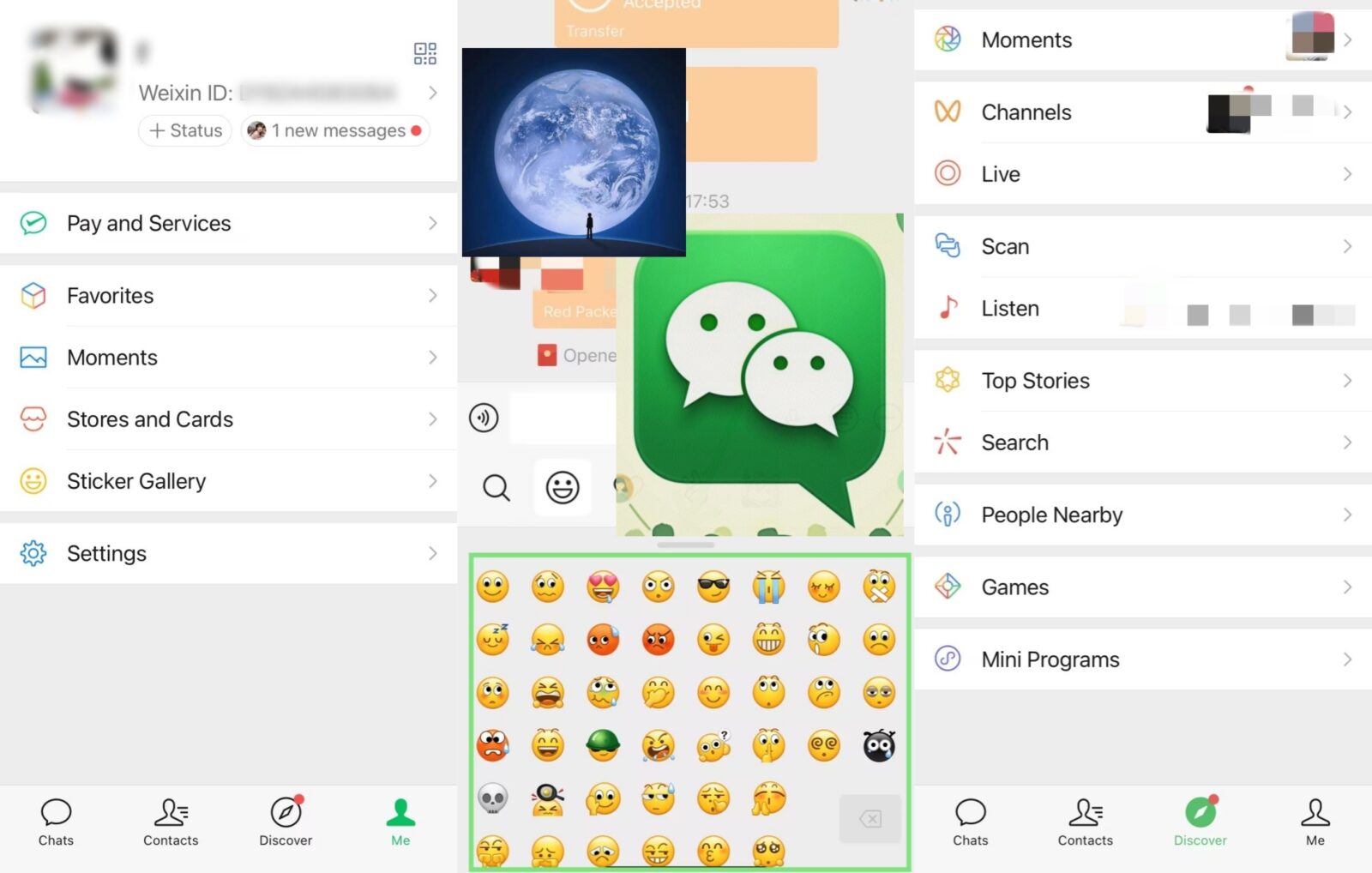
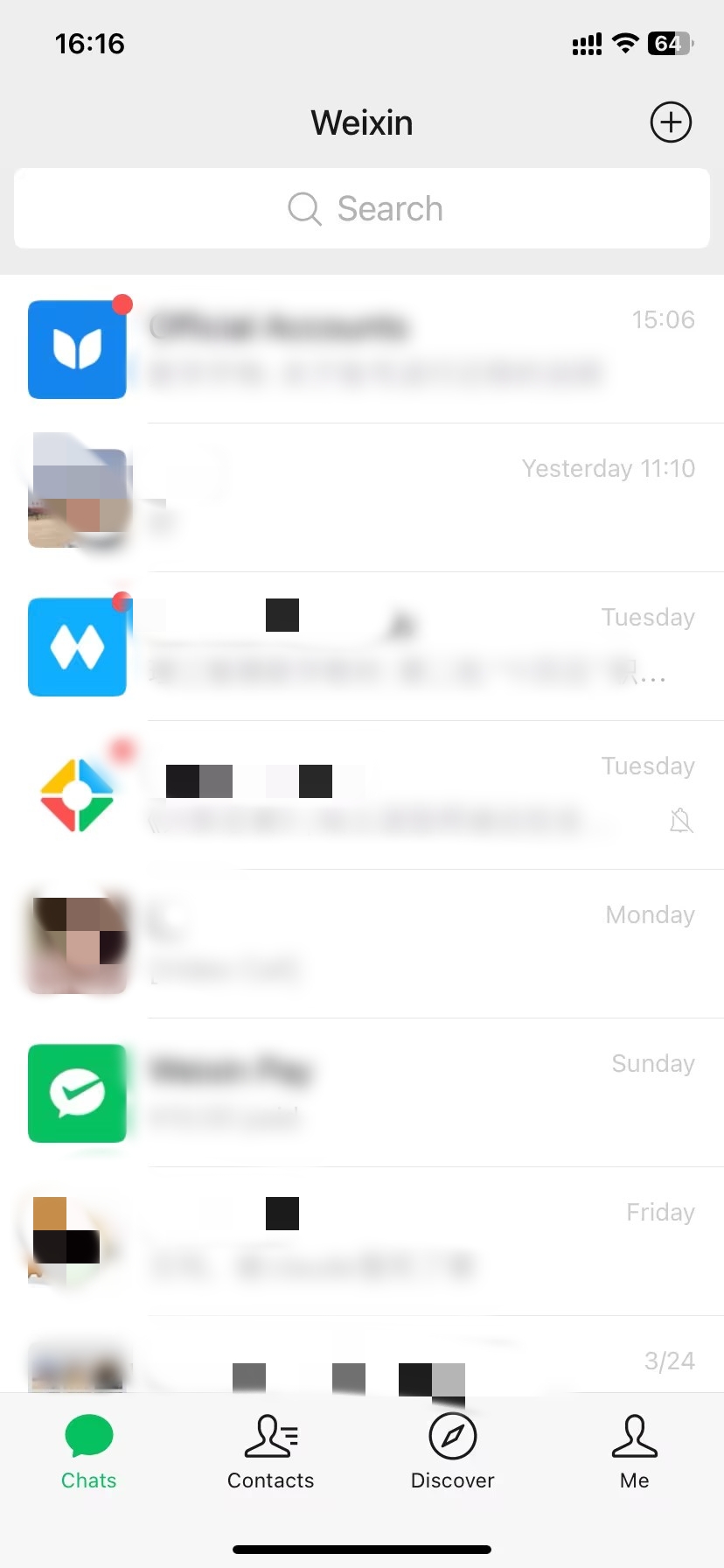
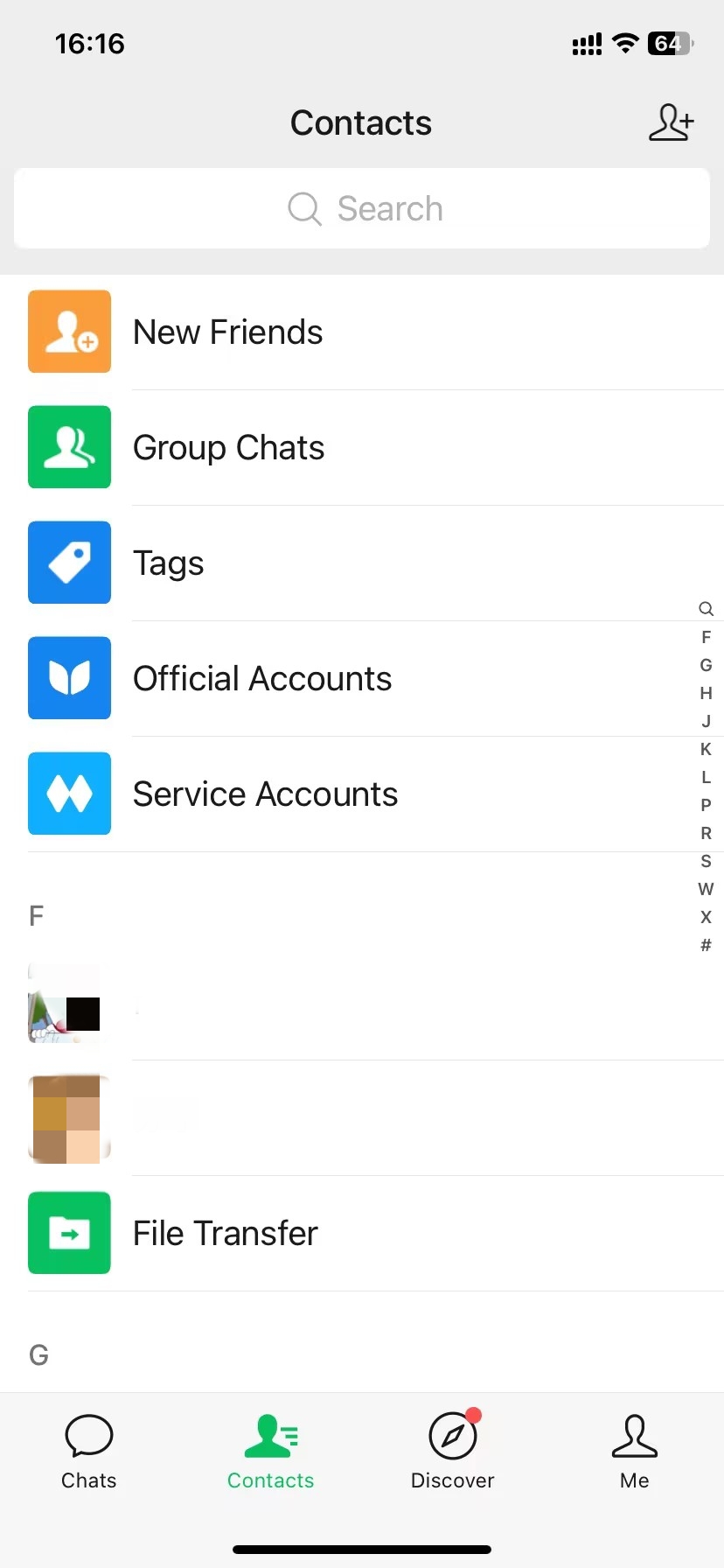
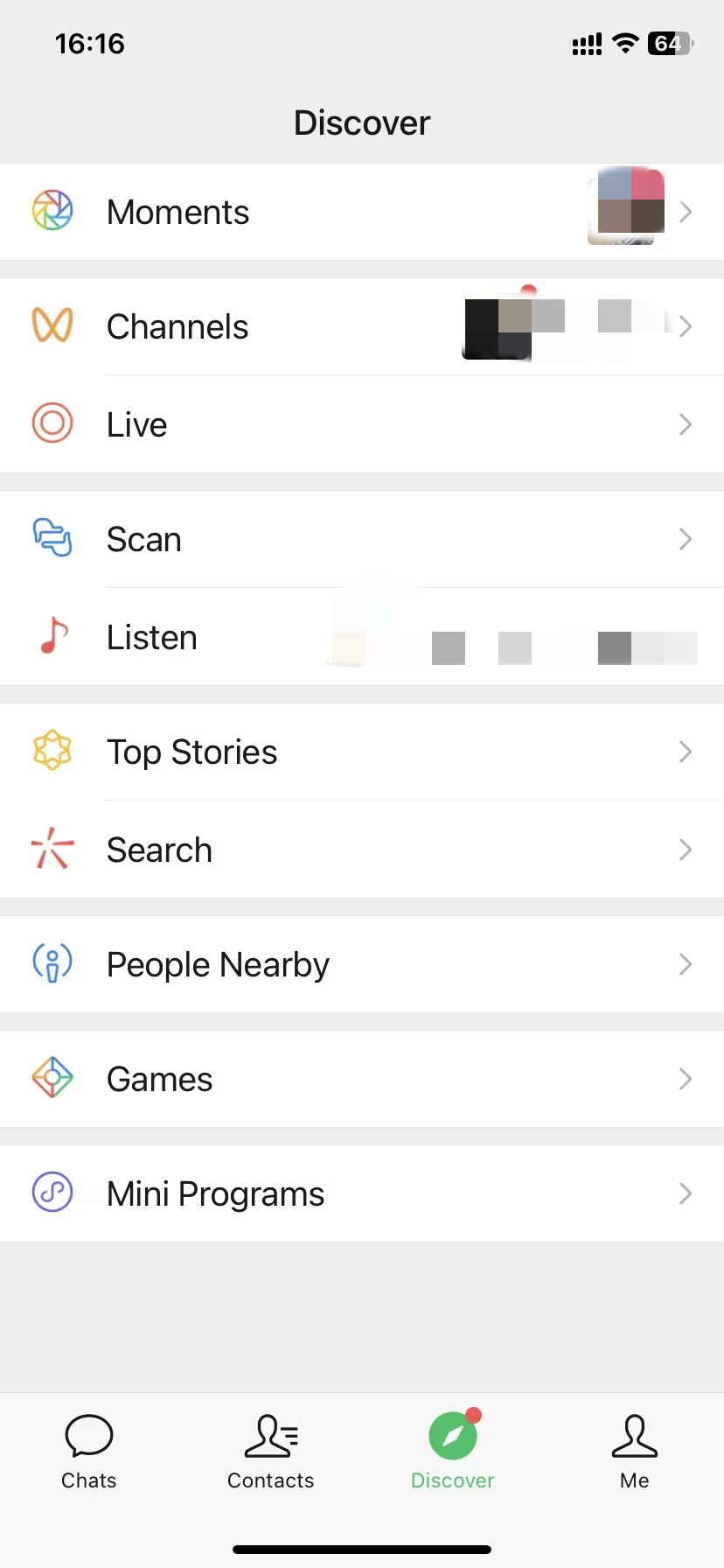
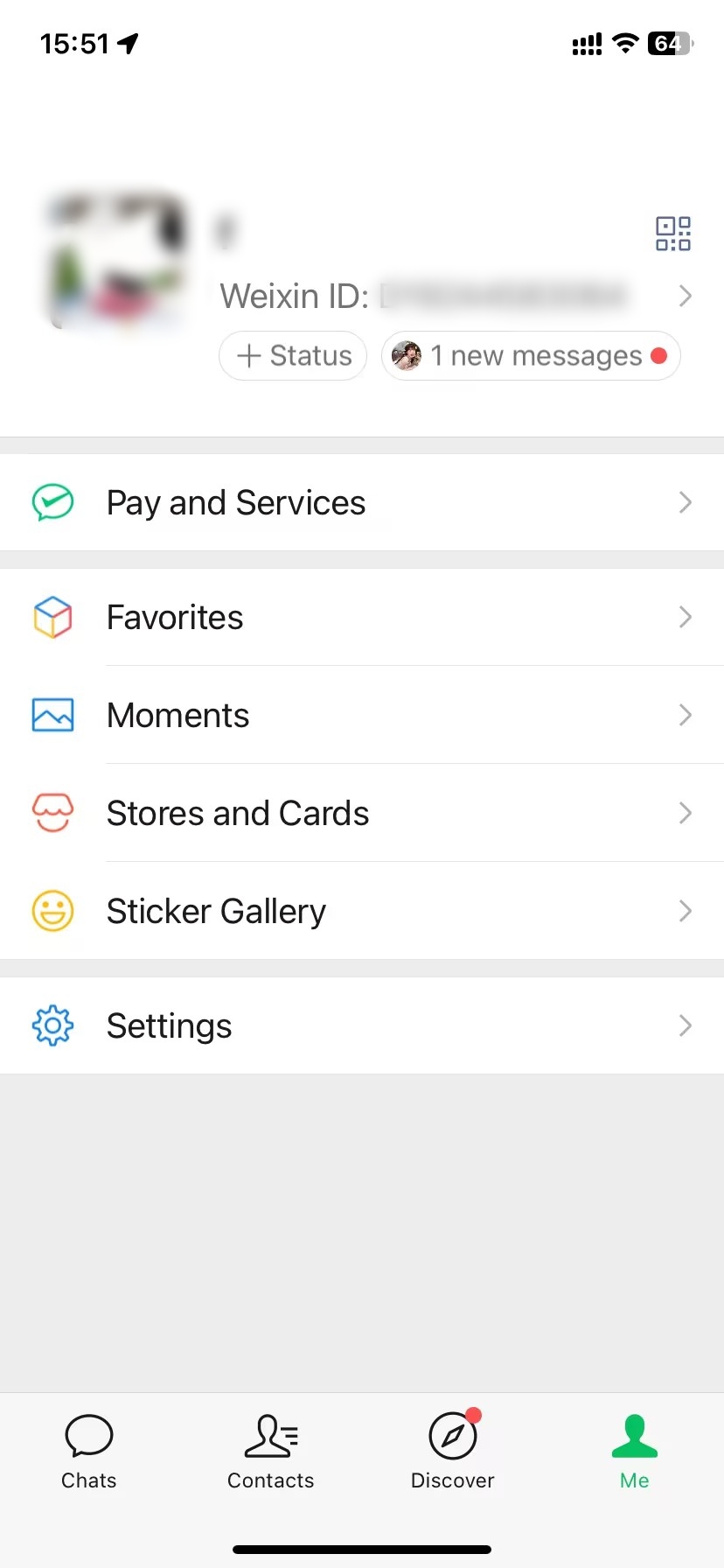
Don’t be daunted by the density of the information presented on WeChat when you first launch it. The layout makes sense–four bottom tabs control the app. Every feature in this guide exists in one of these four tabs in WeChat. Once you learn these tabs and their functions inside of them, the rest will fall into place in a couple of minutes of use.
- ●Chats tab (speech bubble icon, left): All conversations live here.
- ○The + button (top right) is the main action hub — scan QR codes, add contacts, and start new chats.
- ●Contacts tab (person icon): Your friend list. Tap any contact to view their profile or start a conversation.
- ●Discover tab (compass icon): WeChat's non-messaging features.
- ○Access Moments (social feed), Scan (QR reader), Mini Programs, and Search from here.
- ●4 - Me tab (profile icon): Your account hub.
- ○Pay (WeChat Pay), Settings, your personal QR code, and account preferences all live here.
Night Mode Theme Setup
-
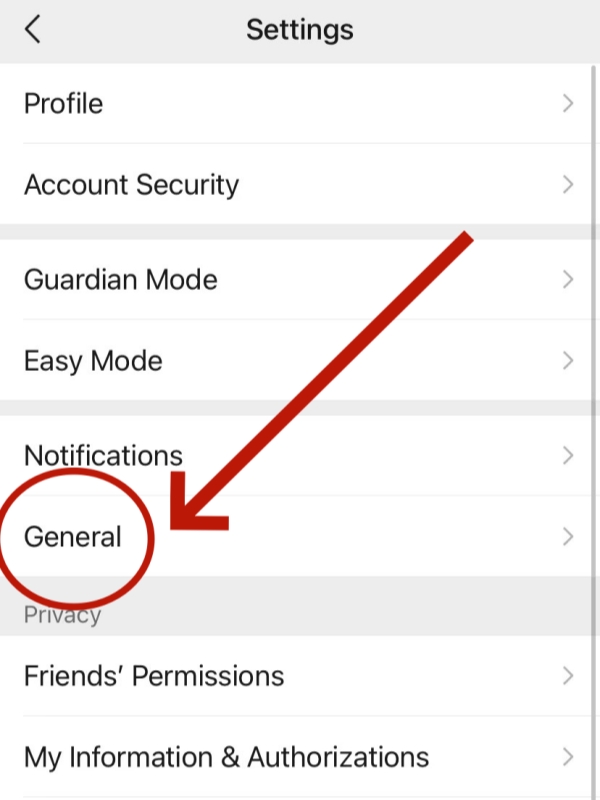

- Settings in WeChat
-
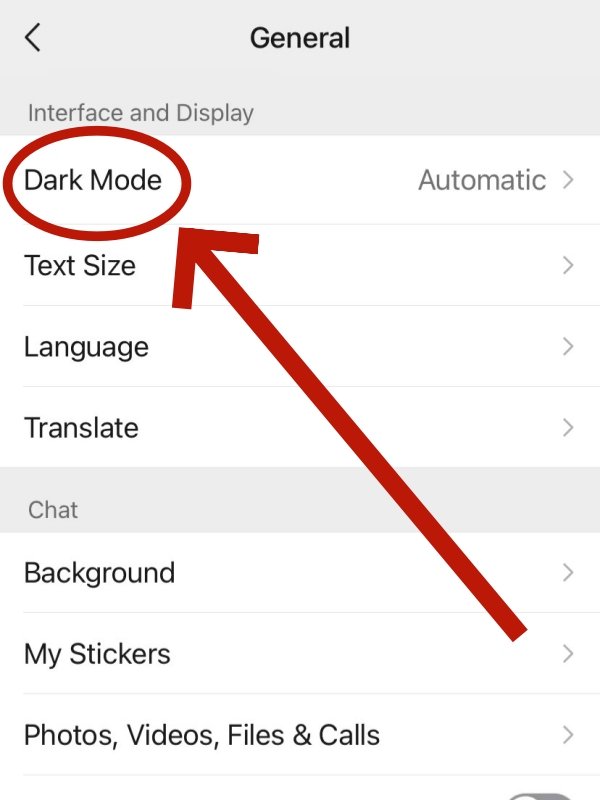
- Select the “Dark Mode“
-
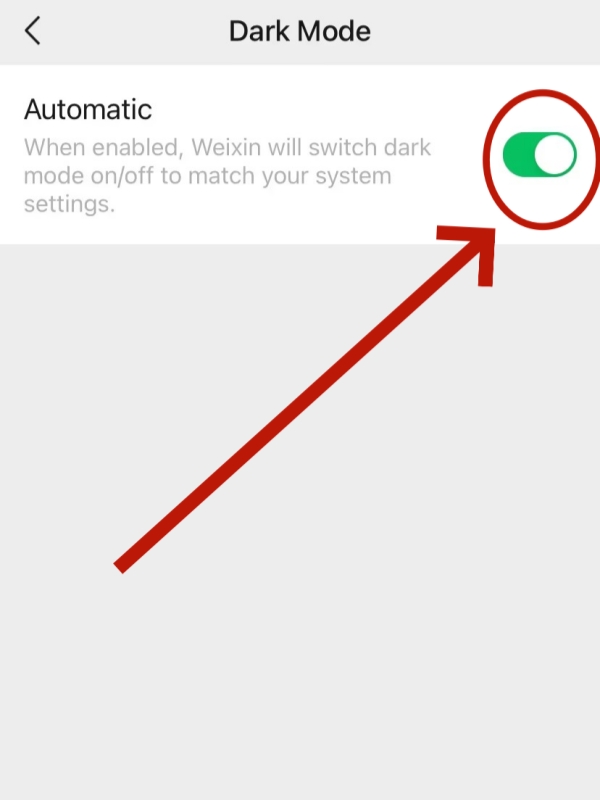
- Open the Automatic Bottom
-
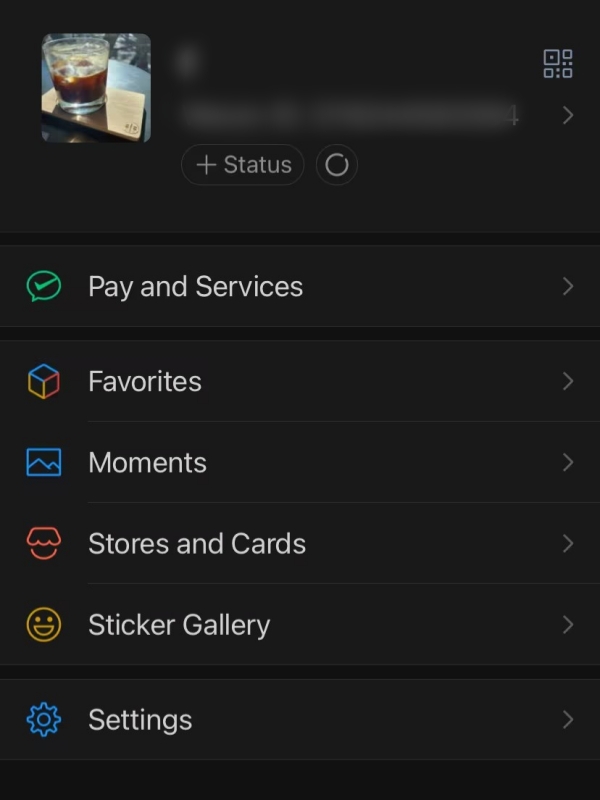
- WeChat Night Mode
There is no white in WeChat’s dark theme and it is applied to all screens in the app: chat, moments, mini programs, settings. While iOS devices will automatically sync with WeChat’s dark theme (i.e. set their system display to dark mode), Android devices do not automatically set the dark theme and have to be configured to do so manually.
- ●Step 1 - Access dark mode settings: Go to Me → Settings → General → Dark Mode.
- ●Step 2 - Select a preference: Choose On (always dark), Off (always light), or Follow System (mirrors the phone's display settings automatically).
- ○[iOS] Follow System is the default on iPhone. WeChat switches to dark mode at sunset automatically.
- ○[Android] Android users need to toggle dark mode manually inside WeChat on some device models, regardless of system settings.
🌙 Behaviour varies by device model and OS version — our WeChat night mode guide for all devices covers every configuration.
How to Set Up WeChat Pay Wallet
Before 2023, WeChat Pay for foreigners was complicated — to link an international card, you needed a Chinese bank account as a go-between. Things just got a lot easier. From 2023 onwards, you can officially bind an international Visa or Mastercard directly through WeChat. This means you can set up WeChat Pay independently, before you even leave your home country!
Foreign Credit Card Link
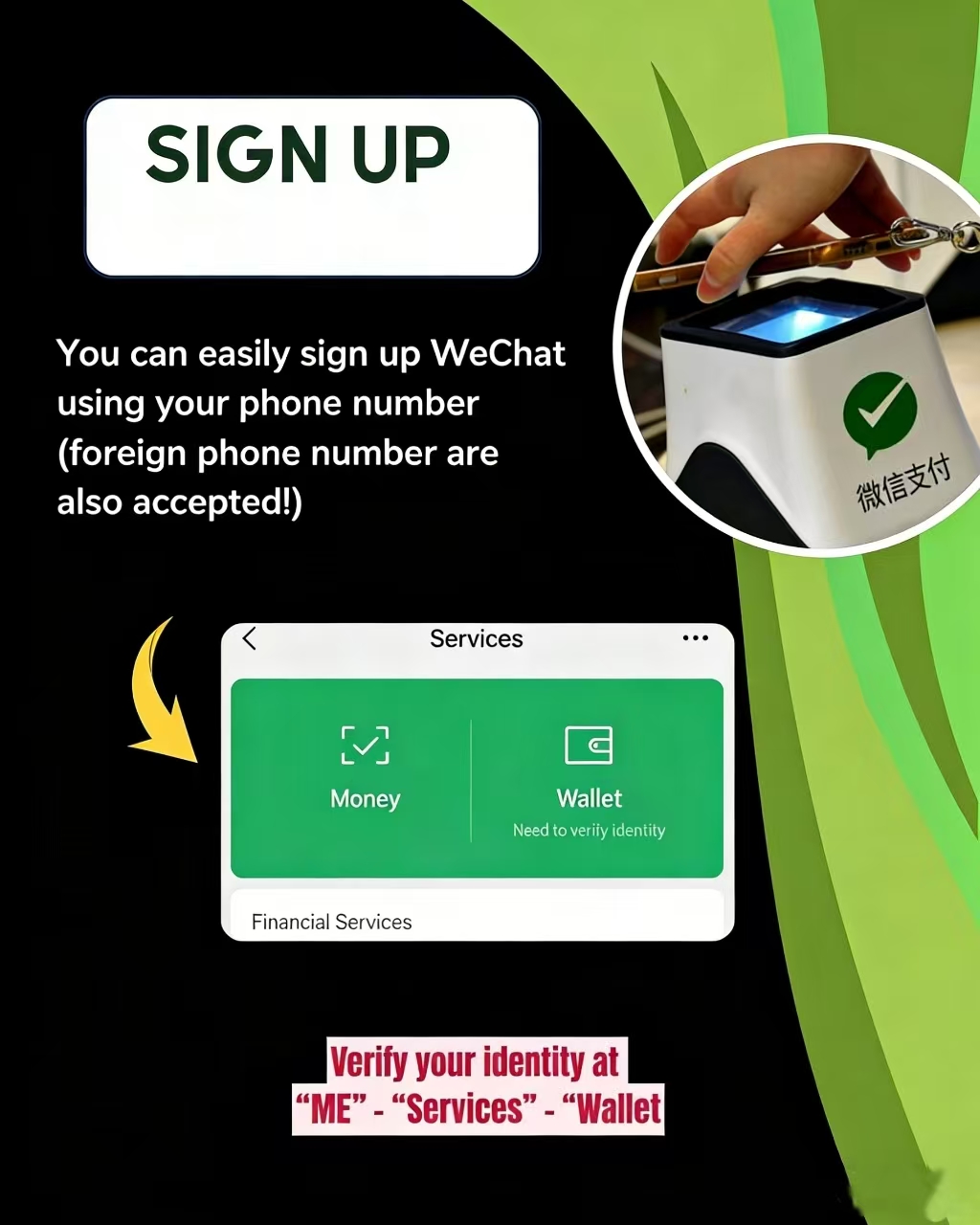
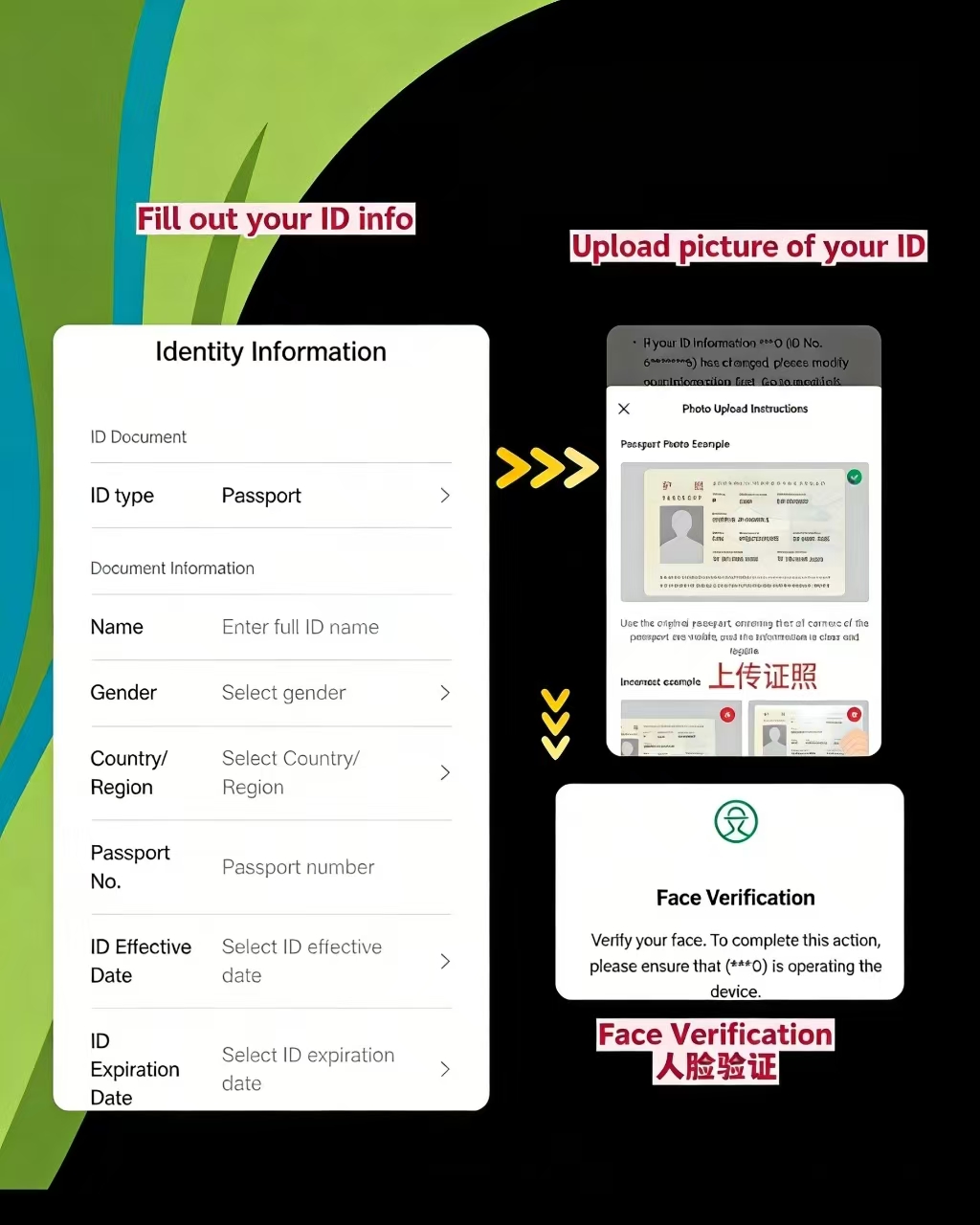
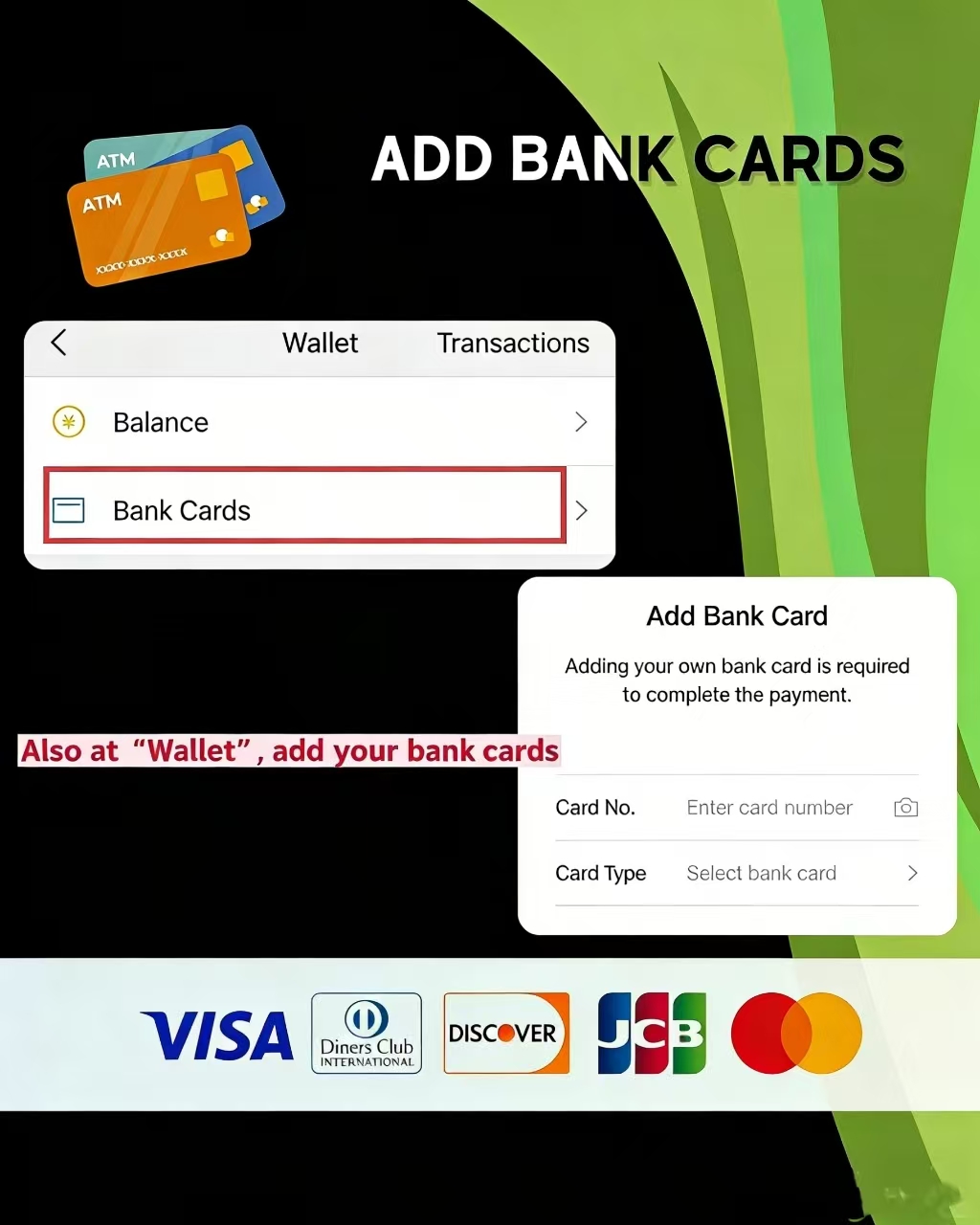
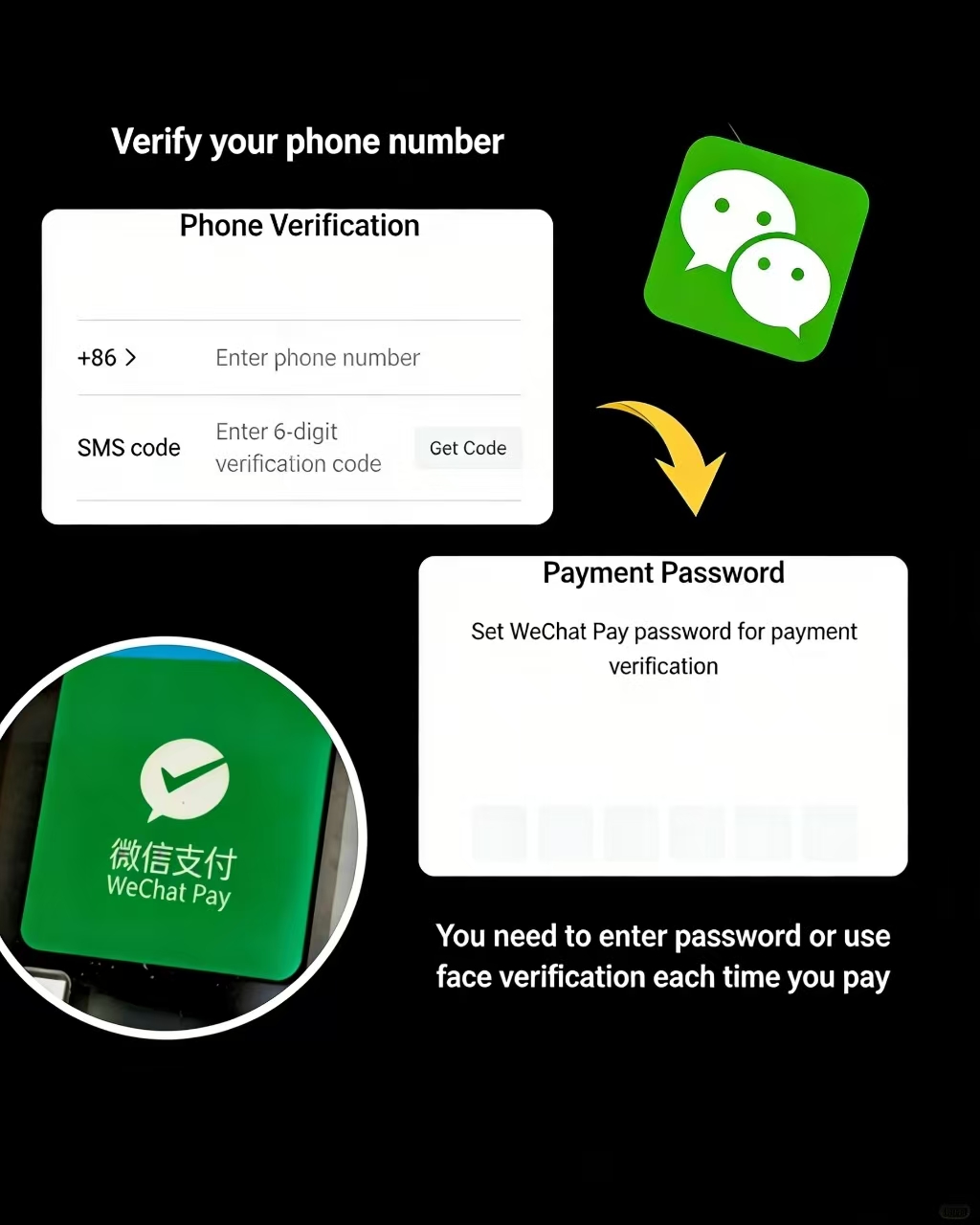
This step unlocks everything. Once a card is linked, travelers can pay anywhere WeChat Pay is accepted — and in major Chinese cities, that covers almost every shop, restaurant, market stall, and transport system.
- ●Step 1 - Open WeChat Pay: Tap Me → Pay. On the Pay screen, tap Wallet in the top right corner.
- ●Step 2 - Add a card: Tap Cards → Add a Card (+).
- ●Step 3 - Select card type: Choose Visa or Mastercard (both supported since 2023).
- ○American Express is not currently supported.
- ●Step 4 - Enter card details: Input the card number, expiry date, and CVV. Tap Next.
- ●Step 5 - Verify: Enter the SMS code sent to the WeChat-registered phone number. The card links immediately.
- ○[NOTE] Some regional US credit unions may decline. If the first card fails, try a different Visa or Mastercard before concluding that Pay is unavailable.
💳 Card binding errors and bank-specific issues are common — our step-by-step guide to adding a foreign credit card to WeChat Pay covers every error screen with solutions.
Wallet Balance Top Up
-
- Red Packet and Transfer
-
- WeChat Red Packet
-
- Transfer Money
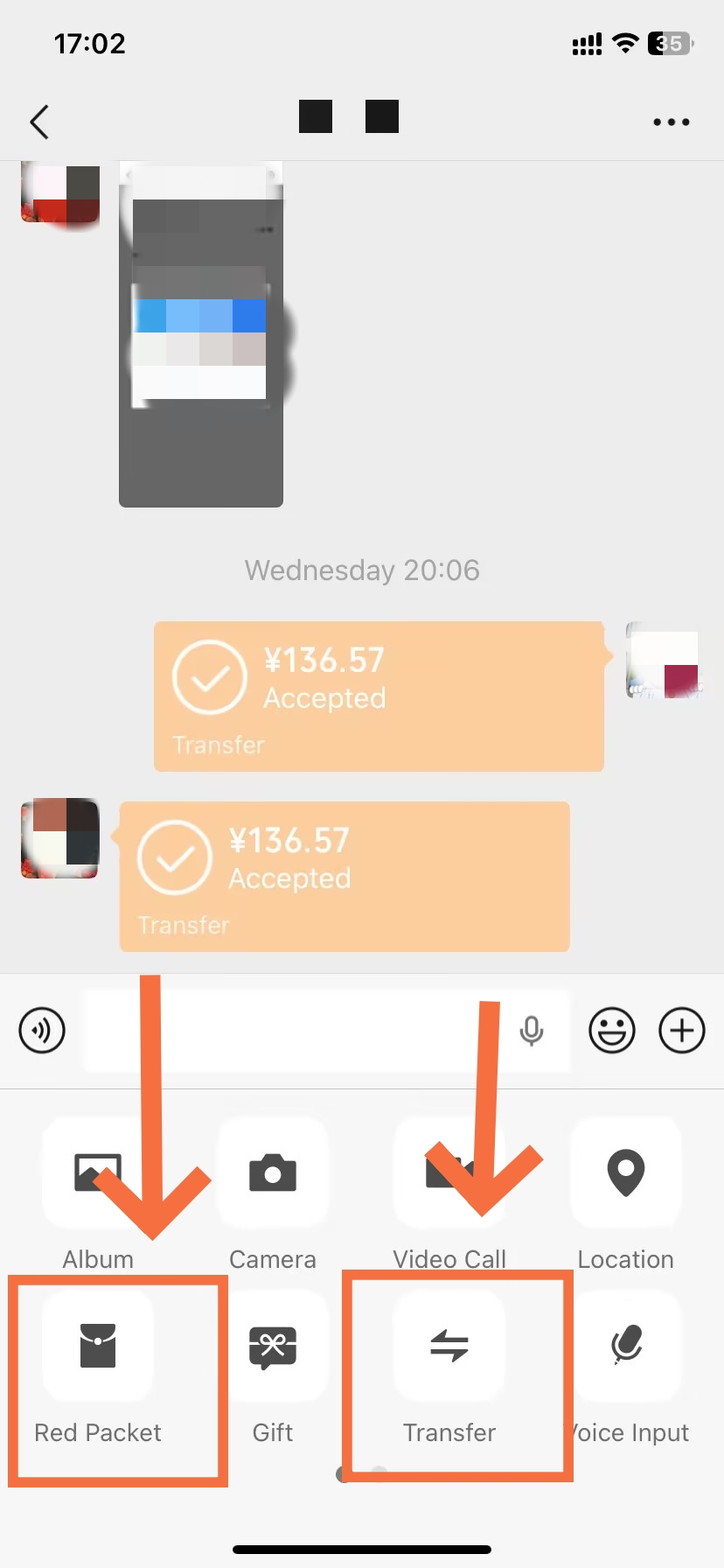
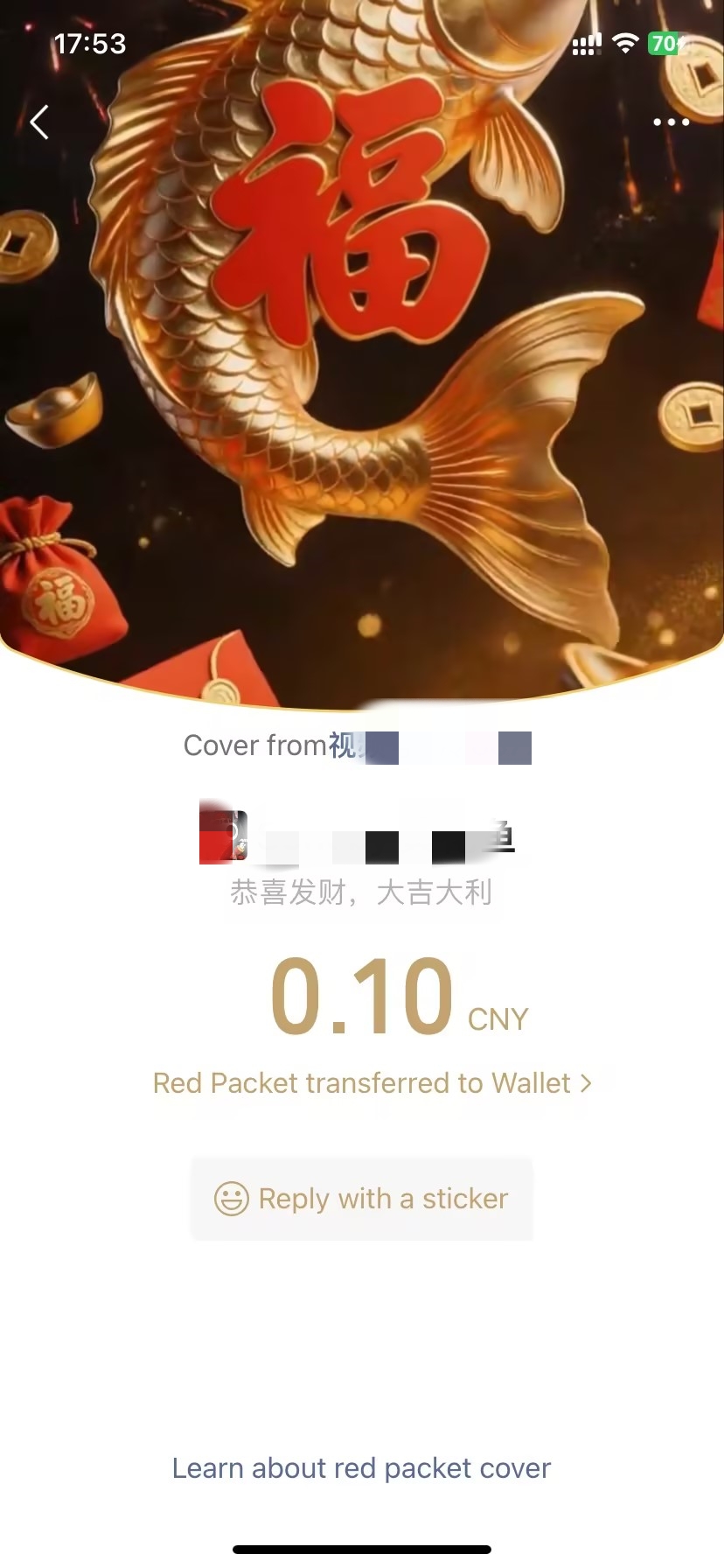
A linked international card works for almost every transaction in China. You only truly need WeChat Wallet Balance (stored RMB) for a few scenarios, including receiving Red Packets (红包). As foreign cards can’t top-up this balance, the main fee-free option is a direct transfer from a local contact.
- ●Step 1 -Request a transfer:Ask a WeChat contact who has a verified account linked to a Chinese bank card to send you RMB.
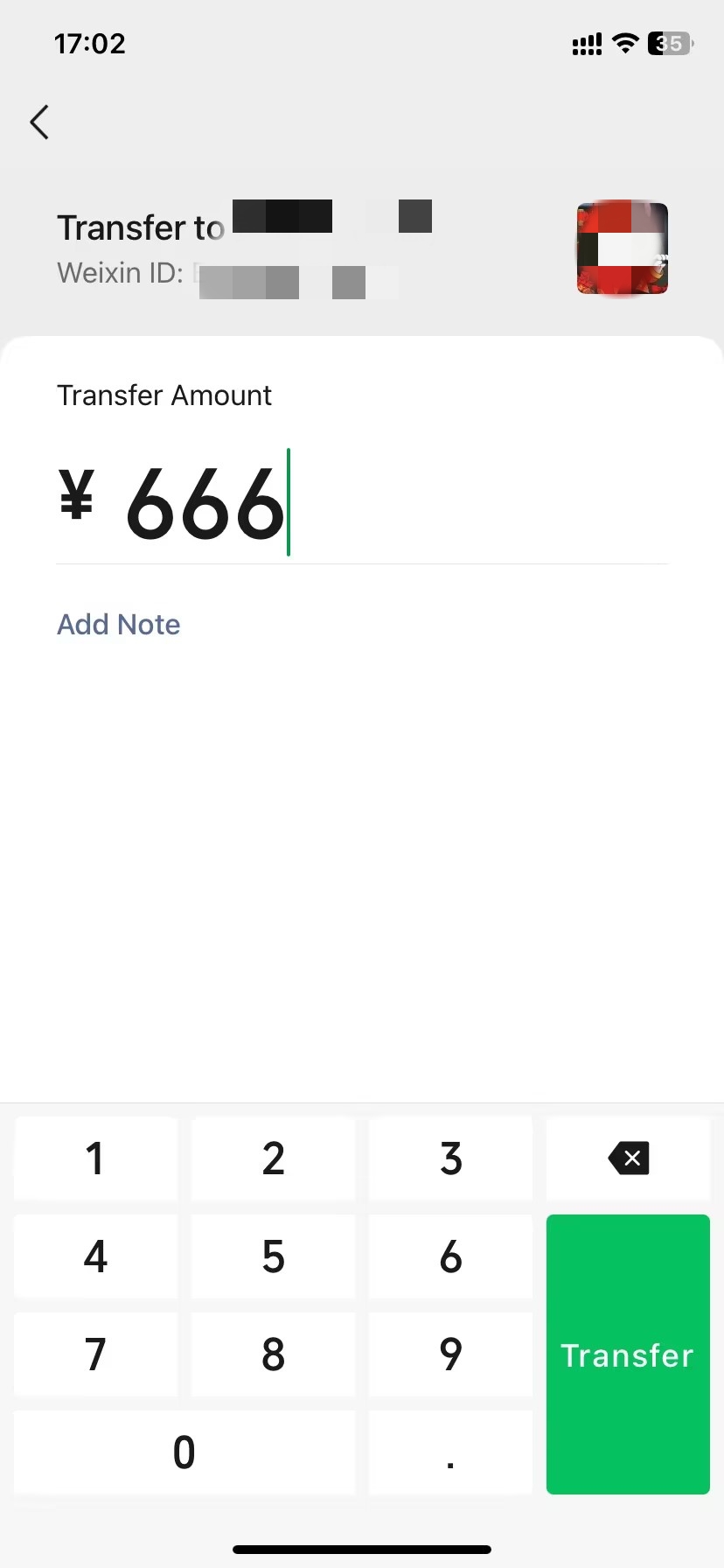
- ●Step 2 -The sender initiates:The sender opens your chat, taps the "+" icon, chooses Transfer, and enters the amount.
- ●Step 3 -Receive the funds:Once the sender confirms with their payment password, the funds land directly in your wallet balance within seconds.
- ●Step 4 -Spend before leaving:Any RMB in your wallet cannot be withdrawn to a foreign bank account under any circumstances. Spend this balance freely at merchants before leaving China.
💰 Multiple top-up methods exist depending on location — our full guide to topping up your WeChat Wallet walks through every available option.
In Store Payment Modes
-
- Merchant Scans Your QR Code
-
- You Scan the Merchant
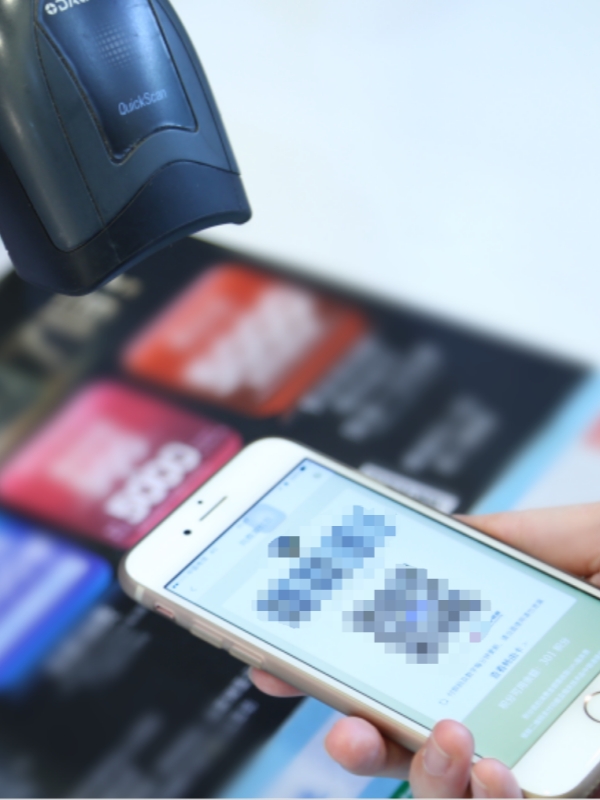
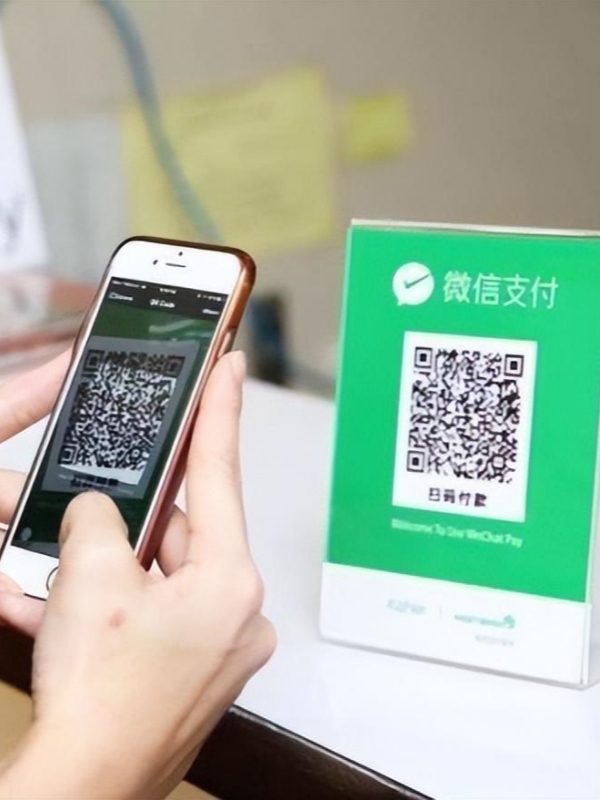
WeChat Pay operates in two directions — either the merchant scans the user, or the user scans the merchant. Both situations arise constantly in China. Knowing which mode to use before reaching the counter avoids unnecessary delays. The table below summarises when each method applies.
WeChat Pay In-Store: Two Payment Modes Compared
| Mode | How to Initiate | Typical Scenario |
|---|---|---|
| Show your QR code (merchant scans you) | Me → Pay → Your QR code appears. Hold screen up. | Supermarkets, chain restaurants, convenience stores (7-Eleven, FamilyMart), hotel checkouts — anywhere with a staffed counter and barcode scanner. |
| Scan the merchant's QR code (user scans merchant) | Tap + (top right) → Scan → Point at the merchant's printed QR code. | Street food stalls, market vendors, small shops, shared bikes, restaurant table-ordering, and self-service payment points. |
- For the Show QR mode: tap Me → Pay. The personal payment QR code loads instantly. Hold it up and let the cashier scan — payment deducts from the linked card or wallet automatically. A vibration confirms the transaction.
- For the Scan to Pay mode: tap the + button (top right of Chats) → Scan, or go directly to Discover → Scan. Point the camera at the merchant's QR code. The amount may auto-fill, or the merchant states the total and the user enters it manually before confirming.
📱 QR codes in China serve far more purposes than payment — our guide to every WeChat code scenario explains the full range: payments, venue entry, adding contacts, and more.
How to Add New Friends and Contacts
Contact Search and Addition
-
- Scan QR Code
-
- Search Unique WeChat IDs
-
- Bulk Adding by Mobile Contacts
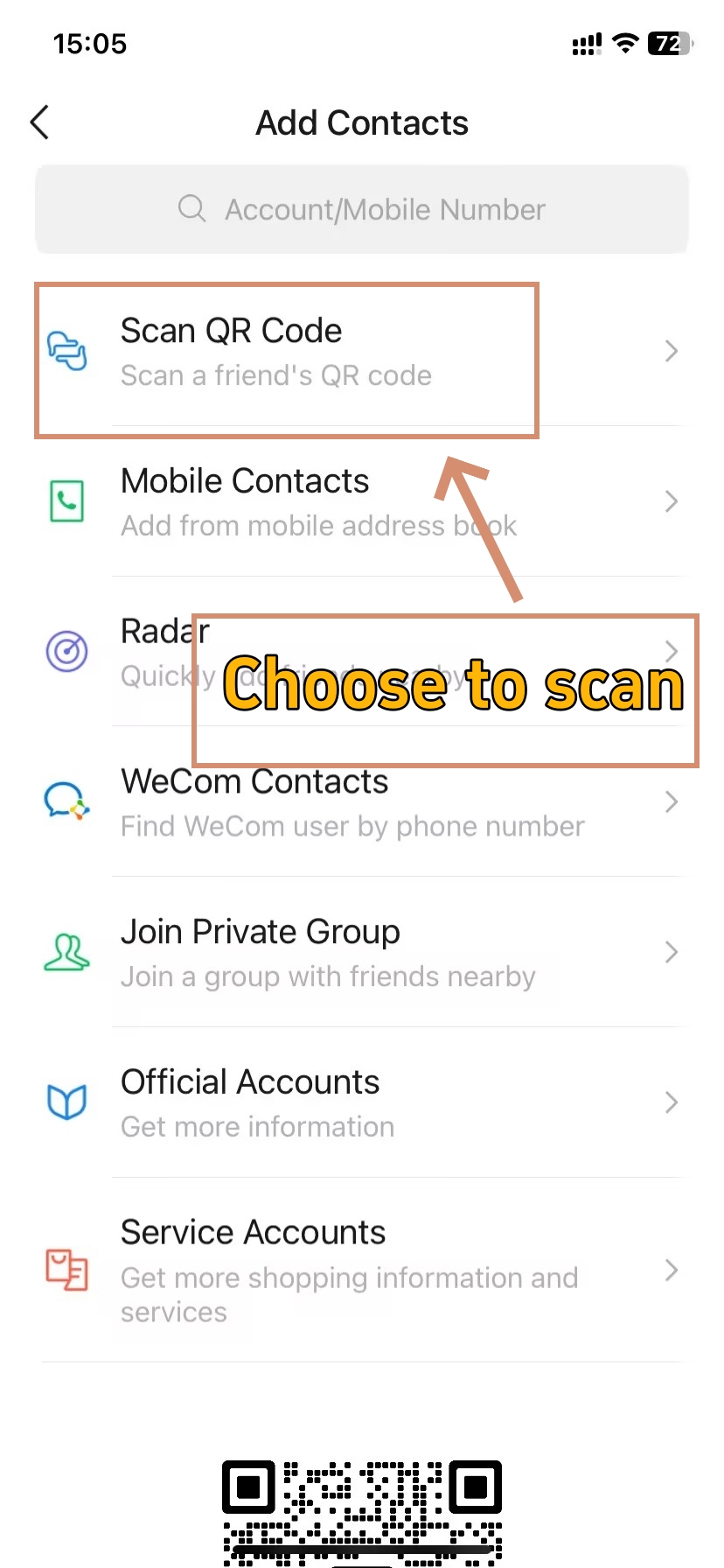
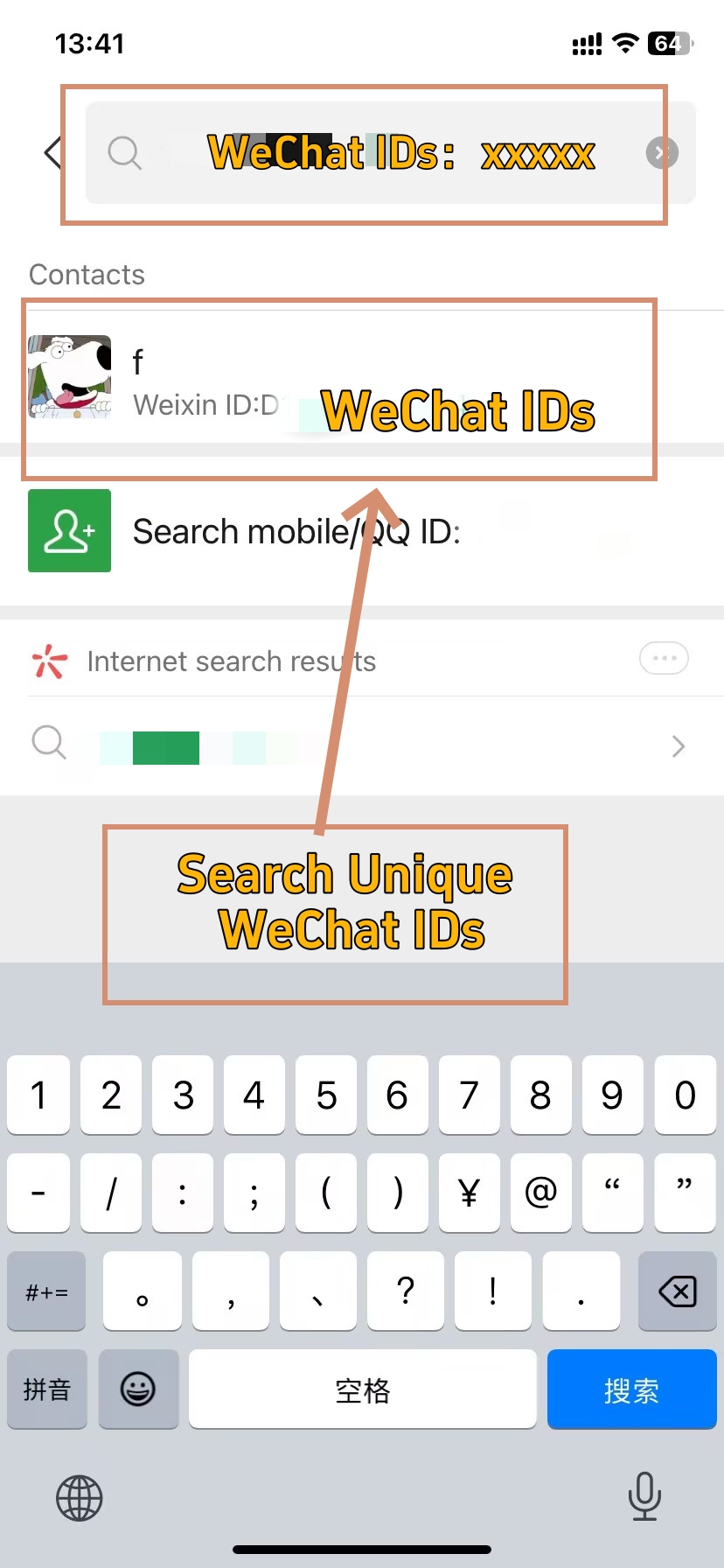
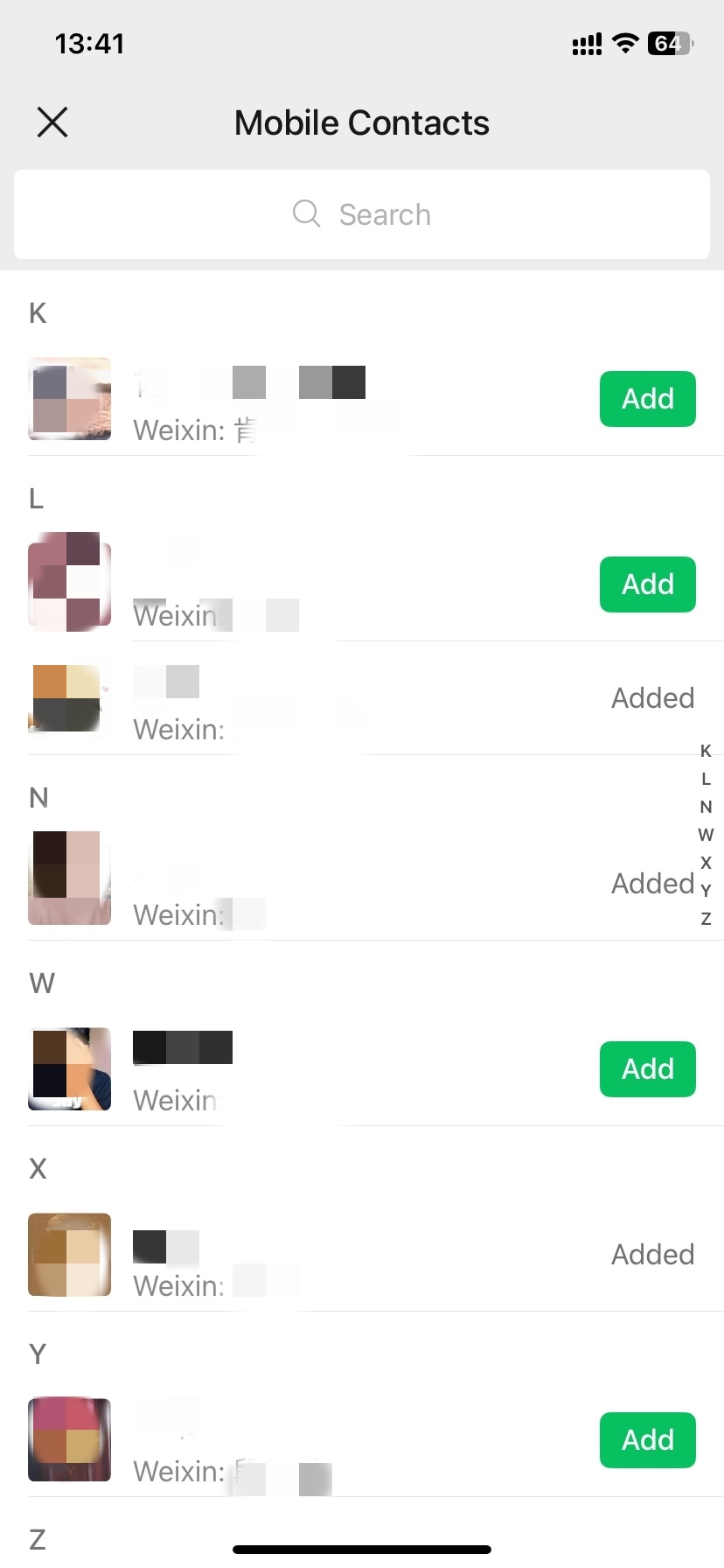
WeChat has six different ways to add a contact, depending on the situation. QR scanning of course dominates in China—it’s easier, faster than typing, and avoids awkwardly having to exchange phone numbers. But it’s good to know the others, especially if you’re dealing with someone remotely, or who is otherwise not in front of you.
Six Ways to Add a WeChat Contact — When to Use Each
| Method | How to Access | Best For |
|---|---|---|
| QR Code Scan | Tap + → Scan → Point at their QR code | In-person meetups, hostels, tours, business meetings in China — the default method |
| WeChat ID Search | Tap + → Add Contacts → Search by WeChat ID | Connecting remotely when someone shares their ID over email or message |
| Phone Number Search | Tap + → Add Contacts → Enter phone number with country code | When you already have someone's number but not their WeChat ID |
| Phone Contact Sync | Contacts tab → Add Contacts → Allow phone access | Quickly seeing which existing phone contacts already use WeChat |
| Group Chat Add | From any group chat → Tap a member profile → Add | Adding people encountered in a shared group (tour group, event) |
| People Nearby | Discover → People Nearby | Rarely used by foreigners; requires location sharing to be enabled |
👥 Our complete guide to adding WeChat contacts as a foreigner walks through all six methods with screenshots.
Personal QR Code Share
-
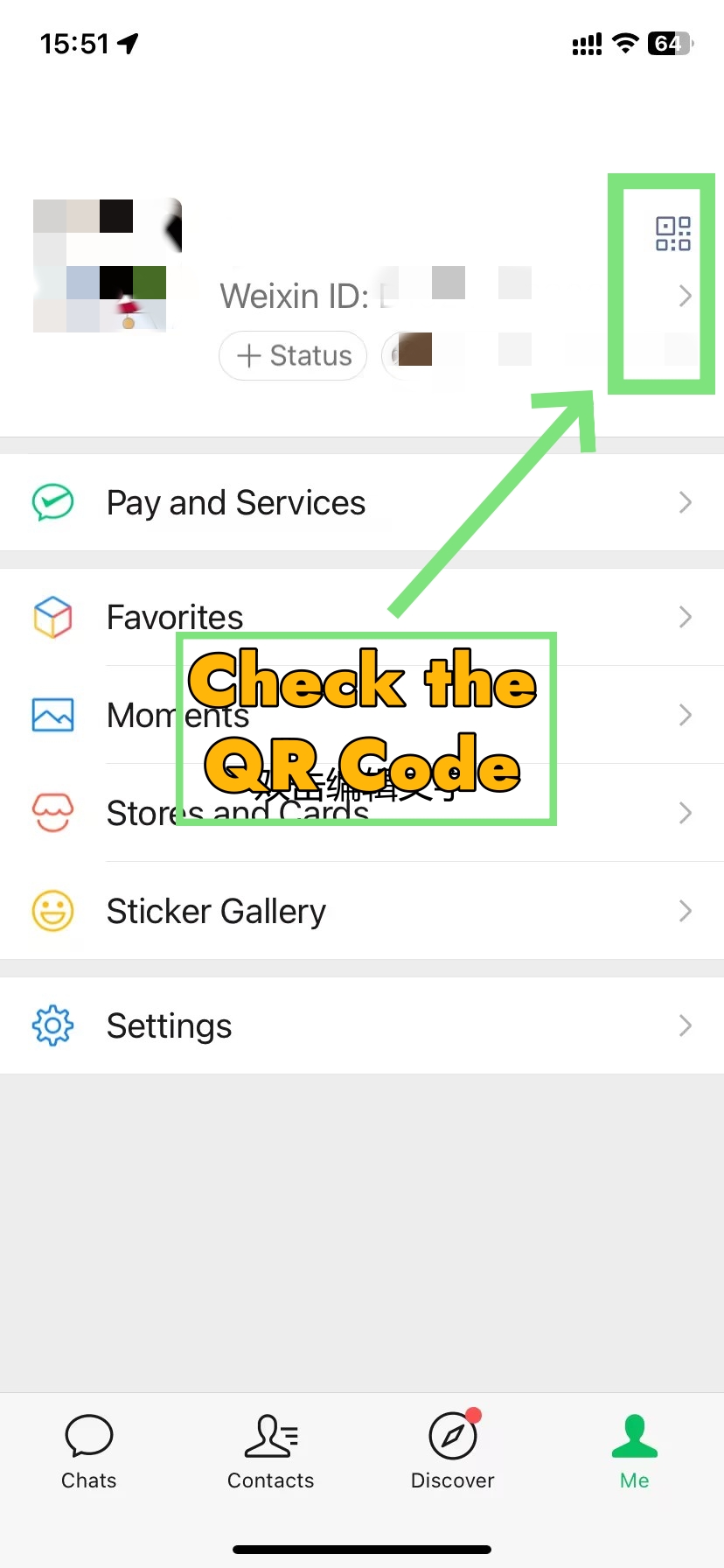
- Tap Me to Check QR Code
-
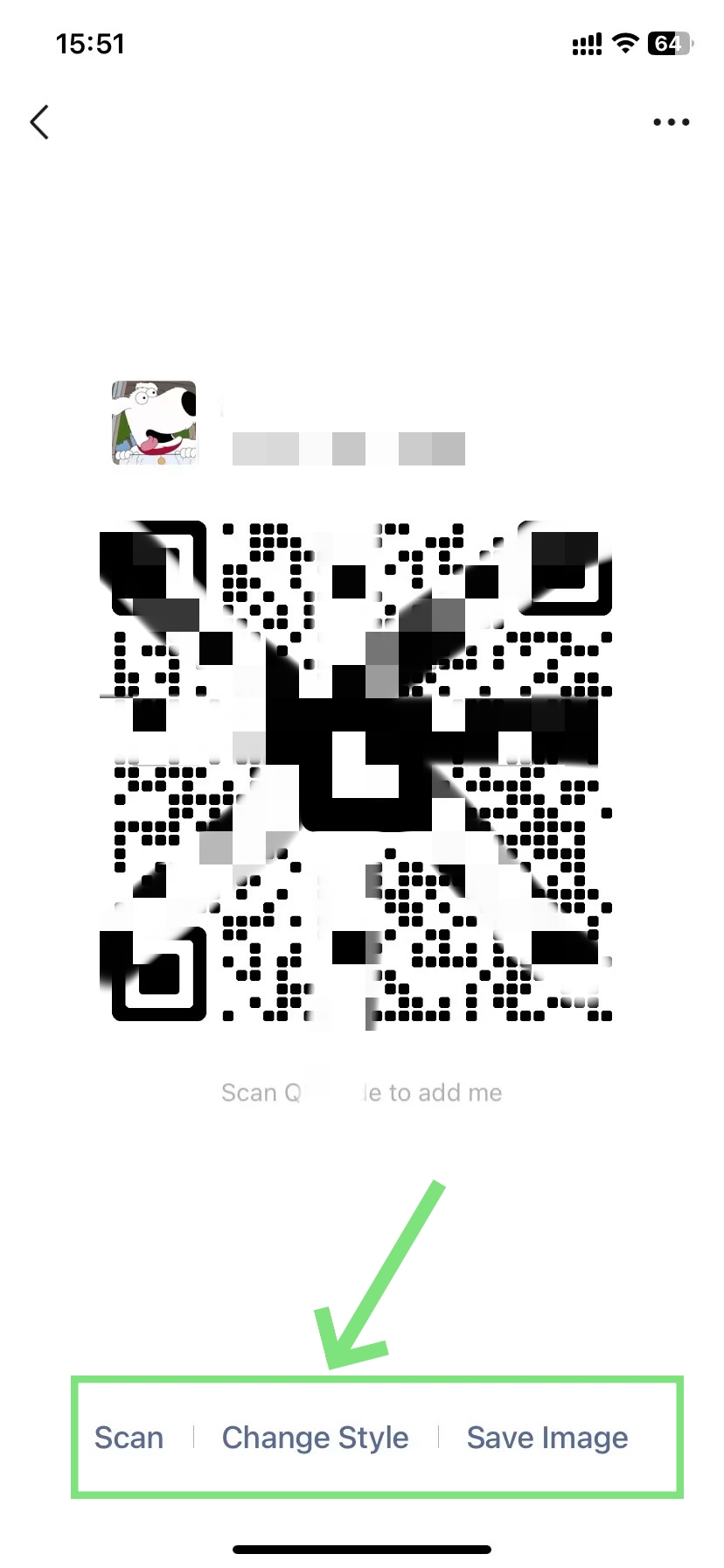
- WeChat QR Code
In China, presenting a WeChat QR code is the equivalent of offering someone a business card—except it takes two seconds and never runs out. The personal QR code isn’t the same as the payment QR code. One connects people to an identity, while the other processes money. Understanding this distinction is important before use.
- ●Step 1 - Access your QR code: Tap Me (bottom nav) → tap your name or profile photo at the top → My QR Code.
- ●Step 2 - Share it: Show the screen for someone nearby to scan. Alternatively, tap Save to Album to store the image.
- ○The saved image is useful for sharing in chats or printing for a physical card.
- ●Step 3 - Download a card version: On the QR code screen, tap the share icon.
- ○WeChat generates a card-style image combining the profile photo and QR code for easy sharing.
📲 Our complete WeChat QR code guide for travelers covers the full range of QR scenarios: adding contacts, venue check-ins, accessing services, and more.
Live Contact QR Scan
The same scanner used for payments also adds contacts. The only difference is what the camera points at. This is the fastest way to add someone when both parties are physically present.
- ●Step 1 - Open the scanner: Tap the + button (top right of Chats) → Scan.
- ●Step 2 - Scan their code: Point at the other person's WeChat QR code (from their Me → My QR Code screen).
- ●Step 3 - Send a friend request: Their profile appears. Tap Add to WeChat → optionally write a note → Send request.
- ●Step 4 - Await confirmation: They tap Accept on their end. The connection then activates.
- ○[TIP] In Chinese business culture, exchanging WeChat before a meeting ends is standard practice. Having the QR code ready — without fumbling through menus — makes a noticeably strong impression.
Group Chat Creation Steps
-
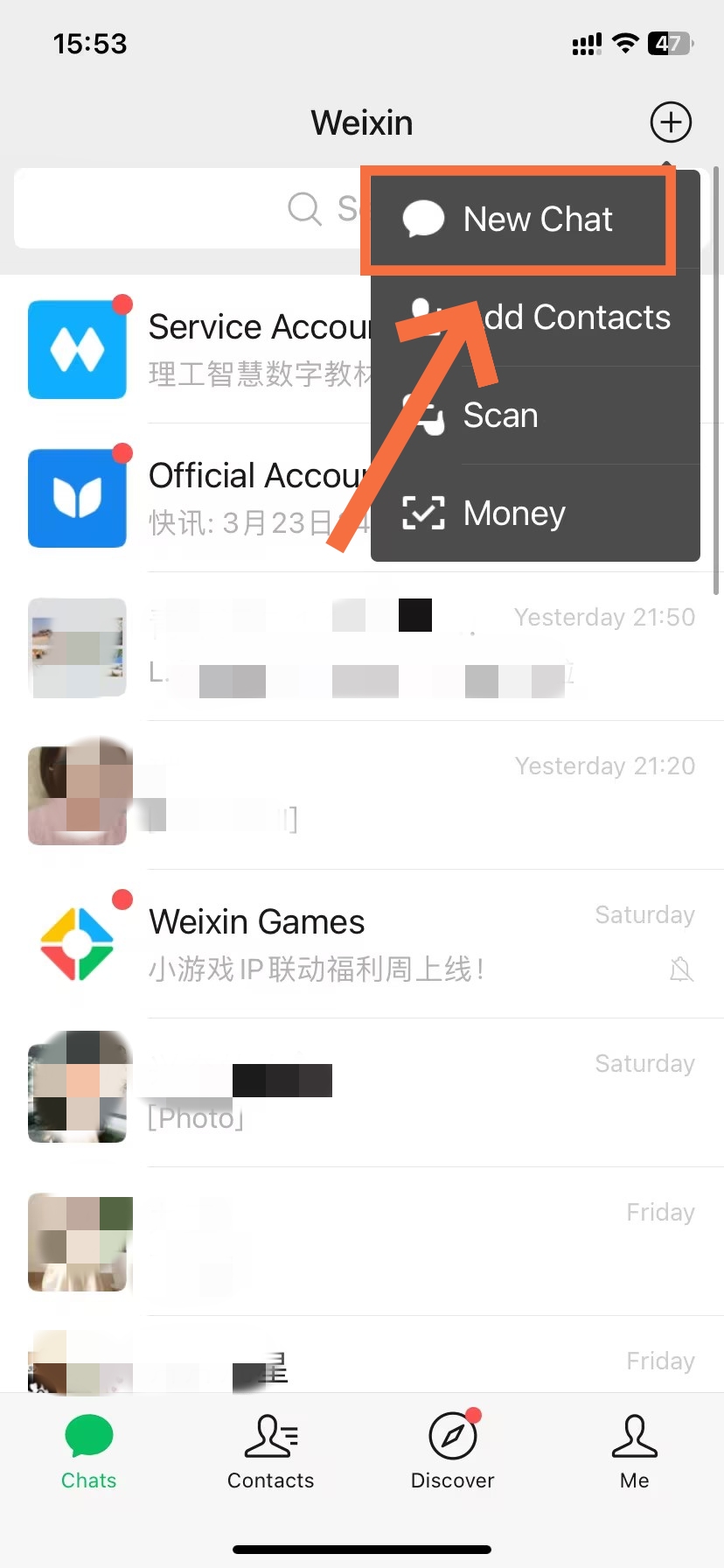
- Start Group Chat
-
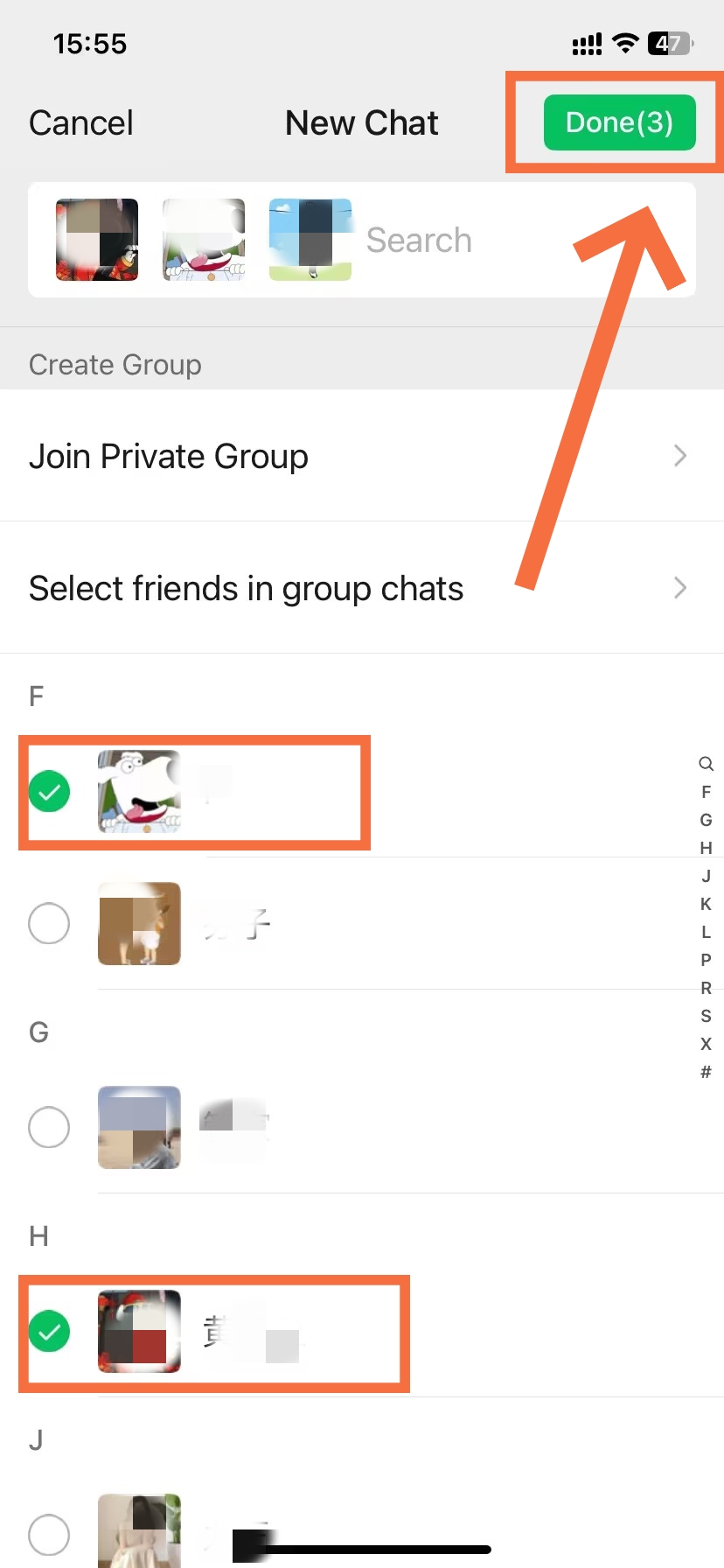
- Check at least 2 contacts
-
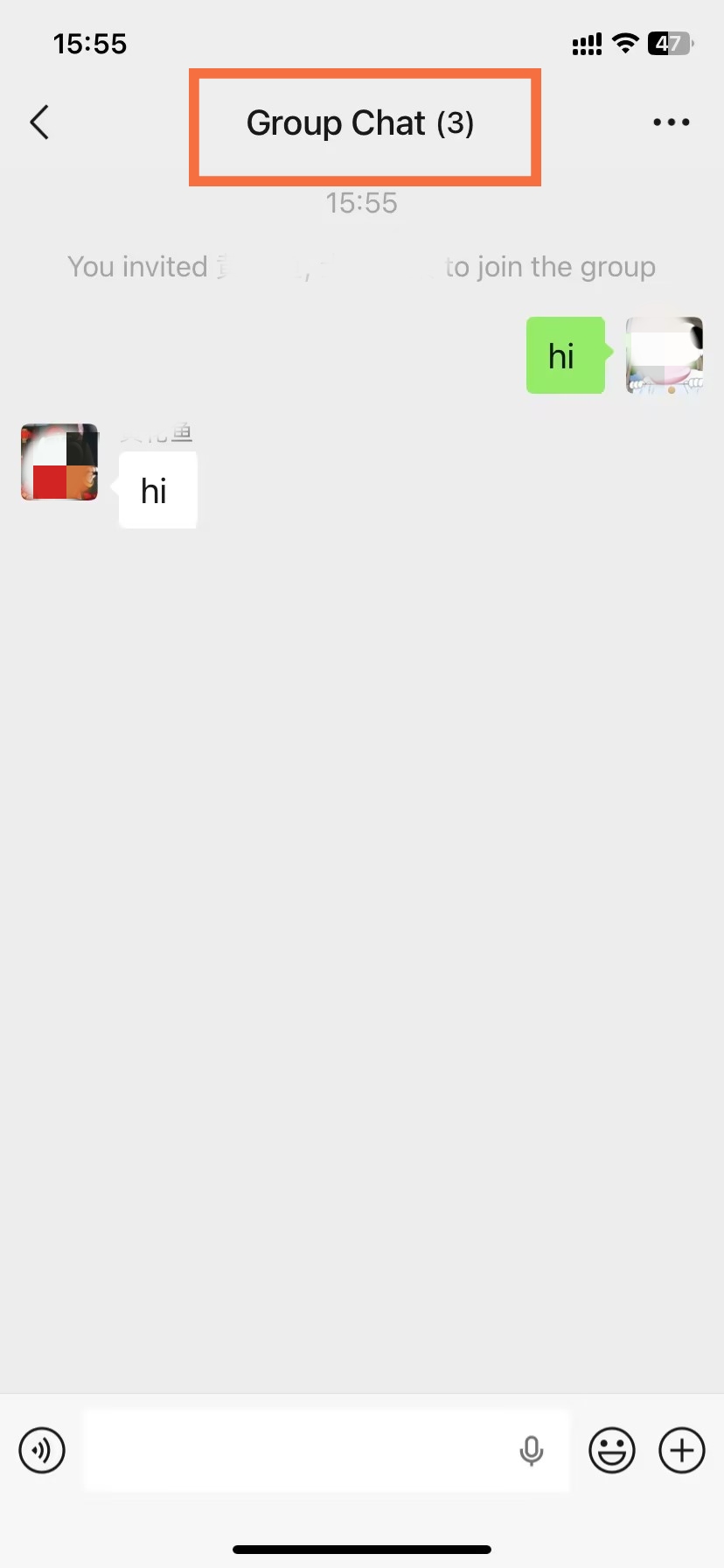
- WeChat Group is done
Group chats rank among WeChat's most practically useful features for travelers. They suit tour coordination, restaurant bill splitting, hotel check-in sharing, and road-trip communication. Creating one takes under 30 seconds.
- ●Step 1 - Start a group: Tap + (top right of Chats) → Group Chat.
- ●Step 2 - Select members: Choose at least two contacts from the list. Tap Done.
- ●Step 3 - Name the group: Enter a name at the prompt. The group chat creates immediately — everyone joins without a separate invitation.
- ●Step 4 - Invite non-contacts: Tap the group name at the top → Group Members → Add (+).
- ○Share the group QR code or invite link to include people outside the contacts list.
- ○[MAX] WeChat groups support up to 500 members. However, groups over 100 require real-name verification — this may affect some foreign users.
— Solo traveller, Lijiang, Yunnan (2024)
💬 Our WeChat group chat guide covers the quick version — or get the full walkthrough including desktop in the step-by-step guide for mobile and desktop.
How to Send Messages and Make Calls
Text Message Reply Thread
-
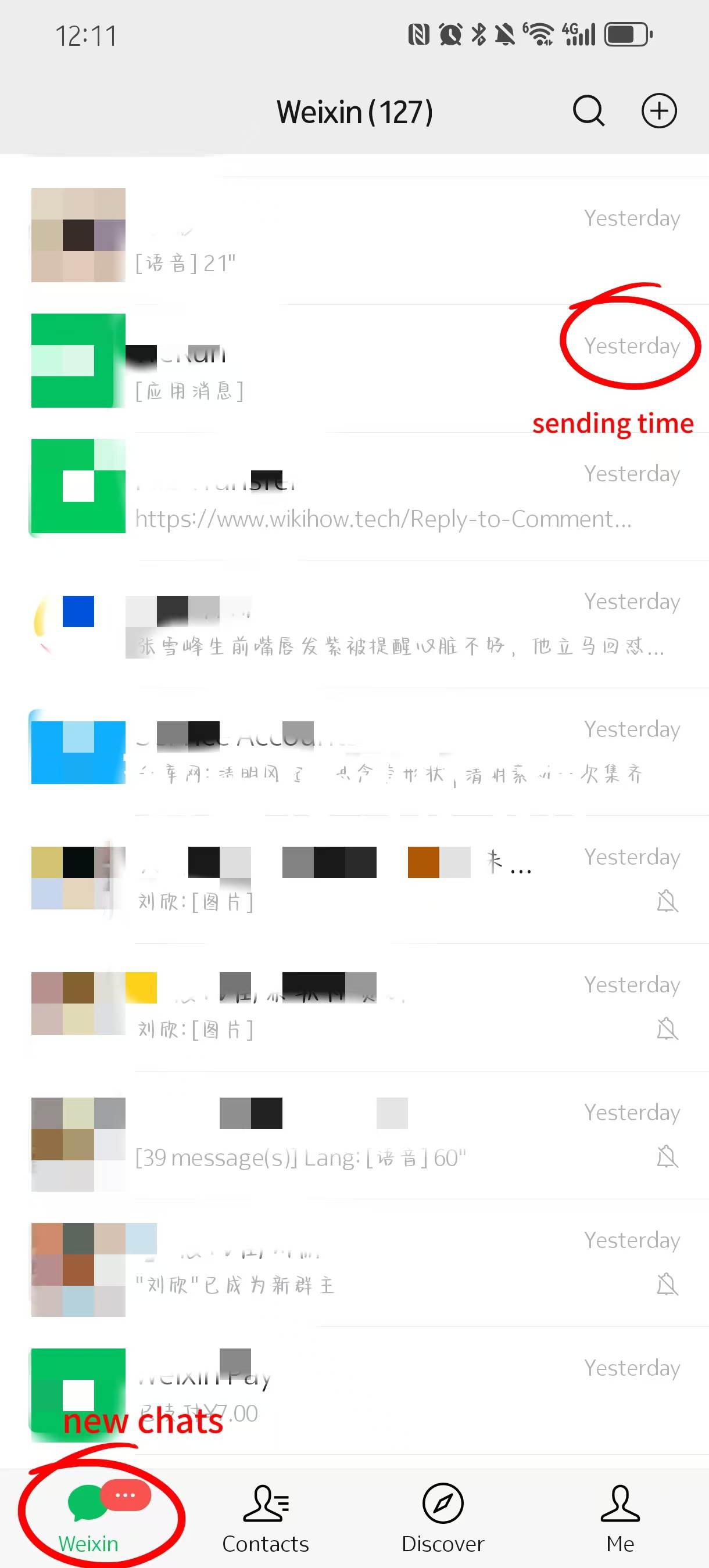

- Sending Time&New Chats
-
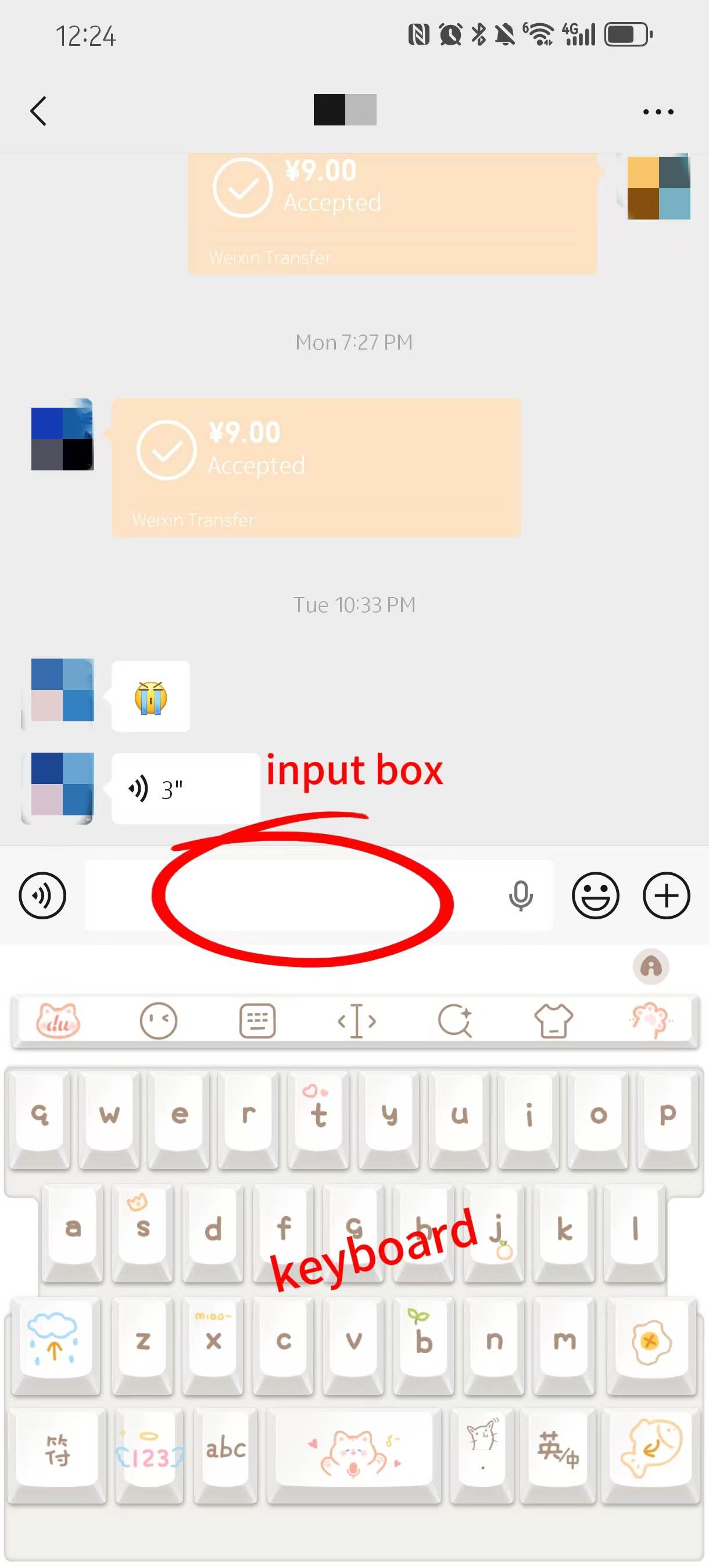
- Type Your Reply
-
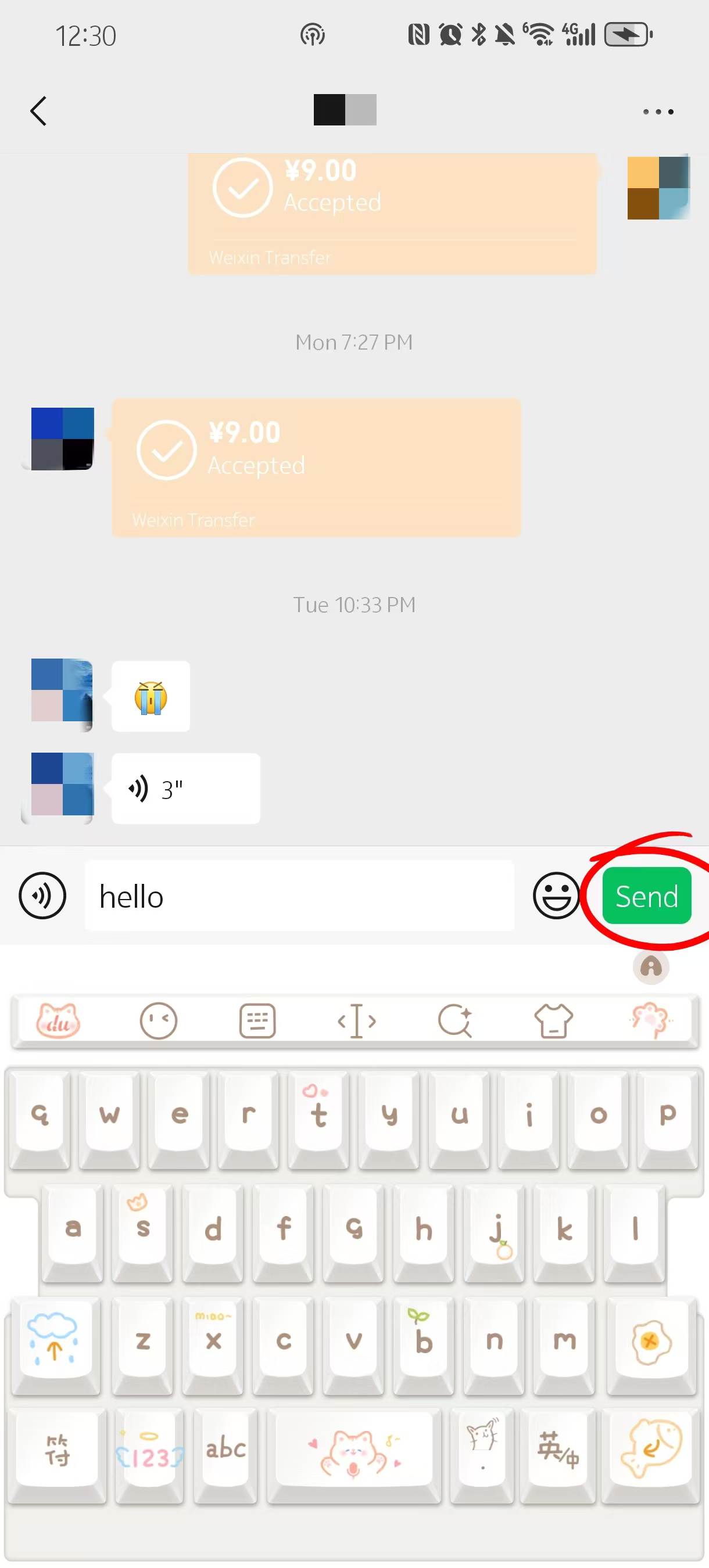
- Hit Send
-
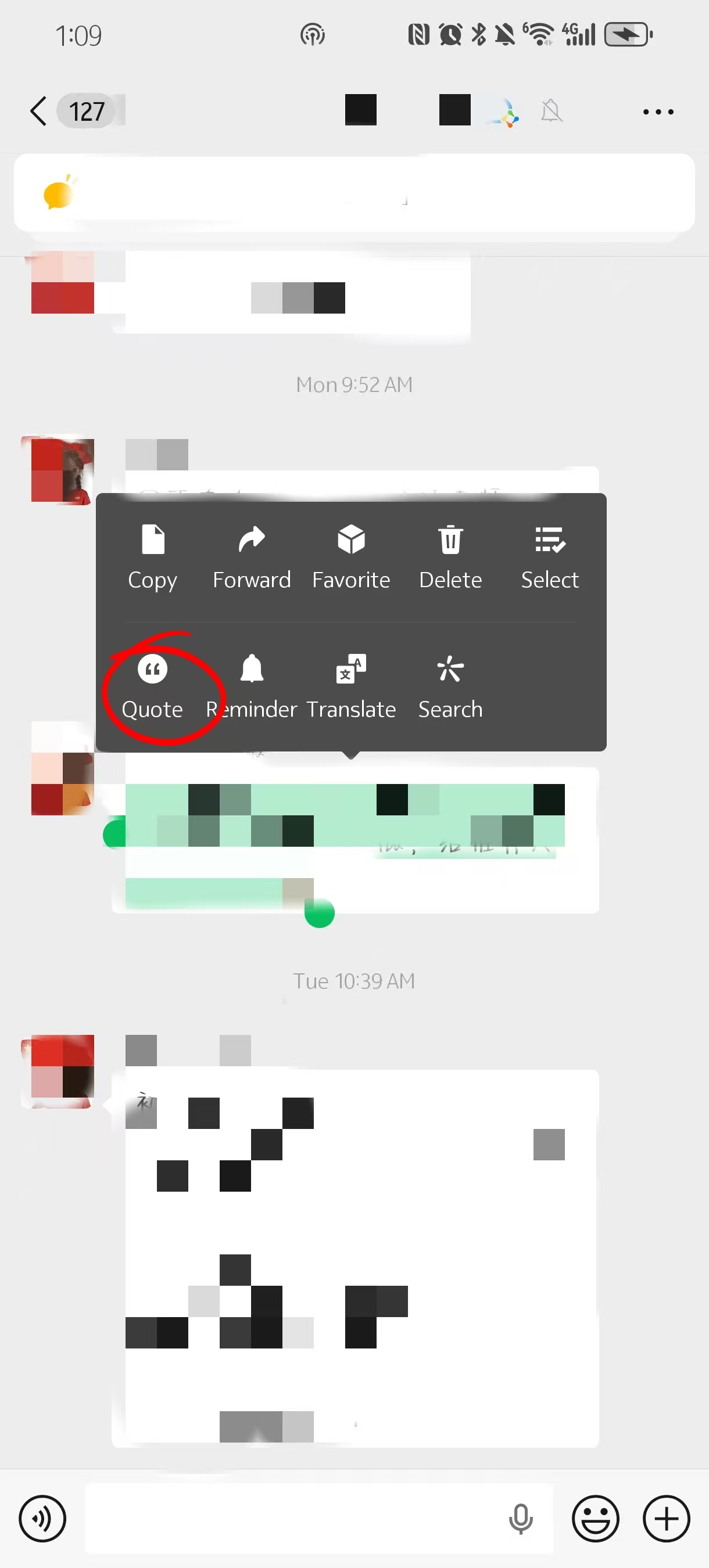
- Quote Reply
The core chat experience is similar to other messaging apps, but WeChat has some platform-specific features that are easy to overlook — for example, the reply-to-message function inside of a group chat, where threading is a basic necessity to keep things readable.
- ●Send a message: Tap any conversation in the Chats tab. Type in the text bar at the bottom, then tap Send.
- ●Send photos or files: Tap the + icon (left of text bar) → Photo Library or File → select → Send.
- ●Reply to a specific message: Long-press any message bubble → tap Reply.
- ○The reply threads beneath the original, keeping group chat conversations readable and organised.
- ●Recall a sent message: Long-press the message → Recall.
- ○A 2-minute window applies after sending. After that, the message cannot be retracted.
↩️ Replying in WeChat group chats works differently from most apps — our guide to replying to messages on WeChat shows every method with screenshots.
Voice and Video Calls
-
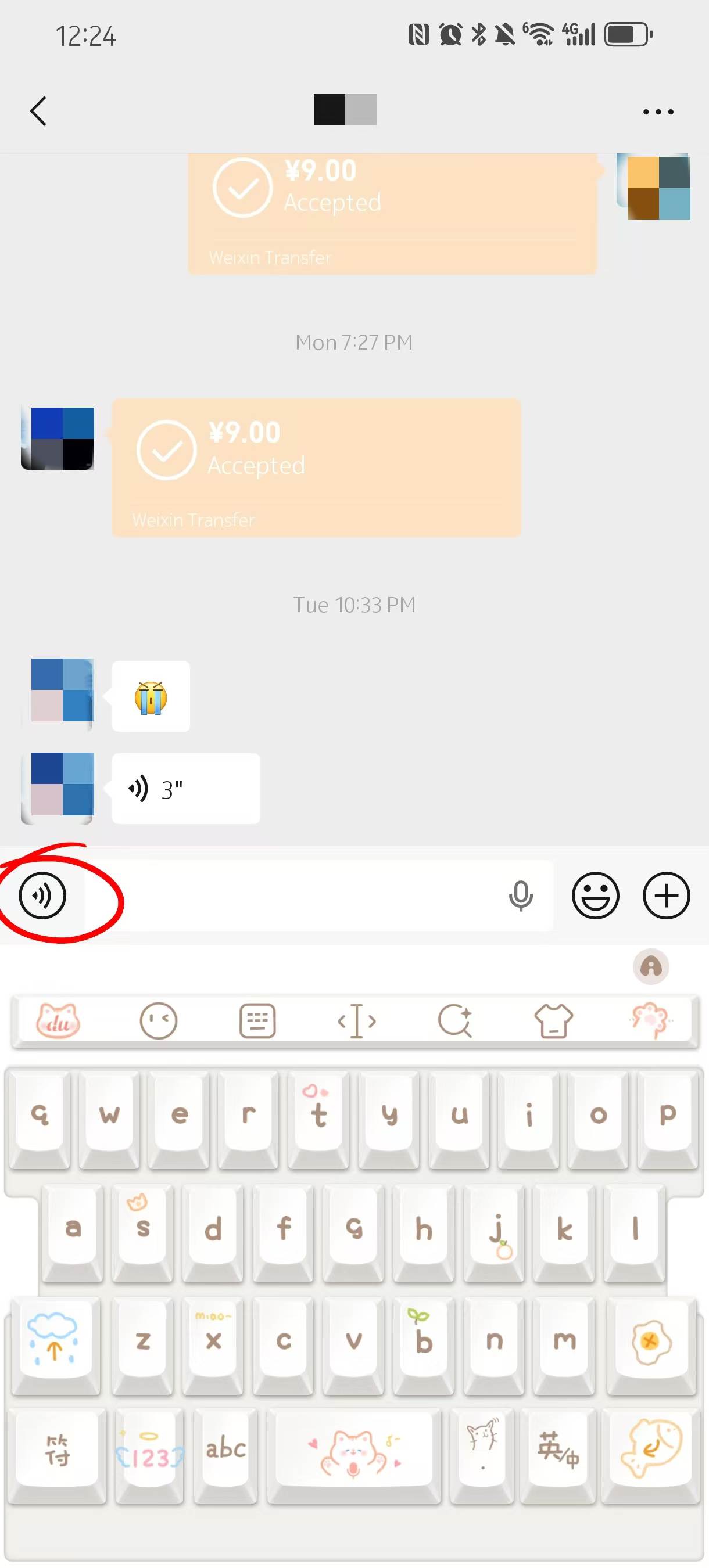
- Voice Button
-
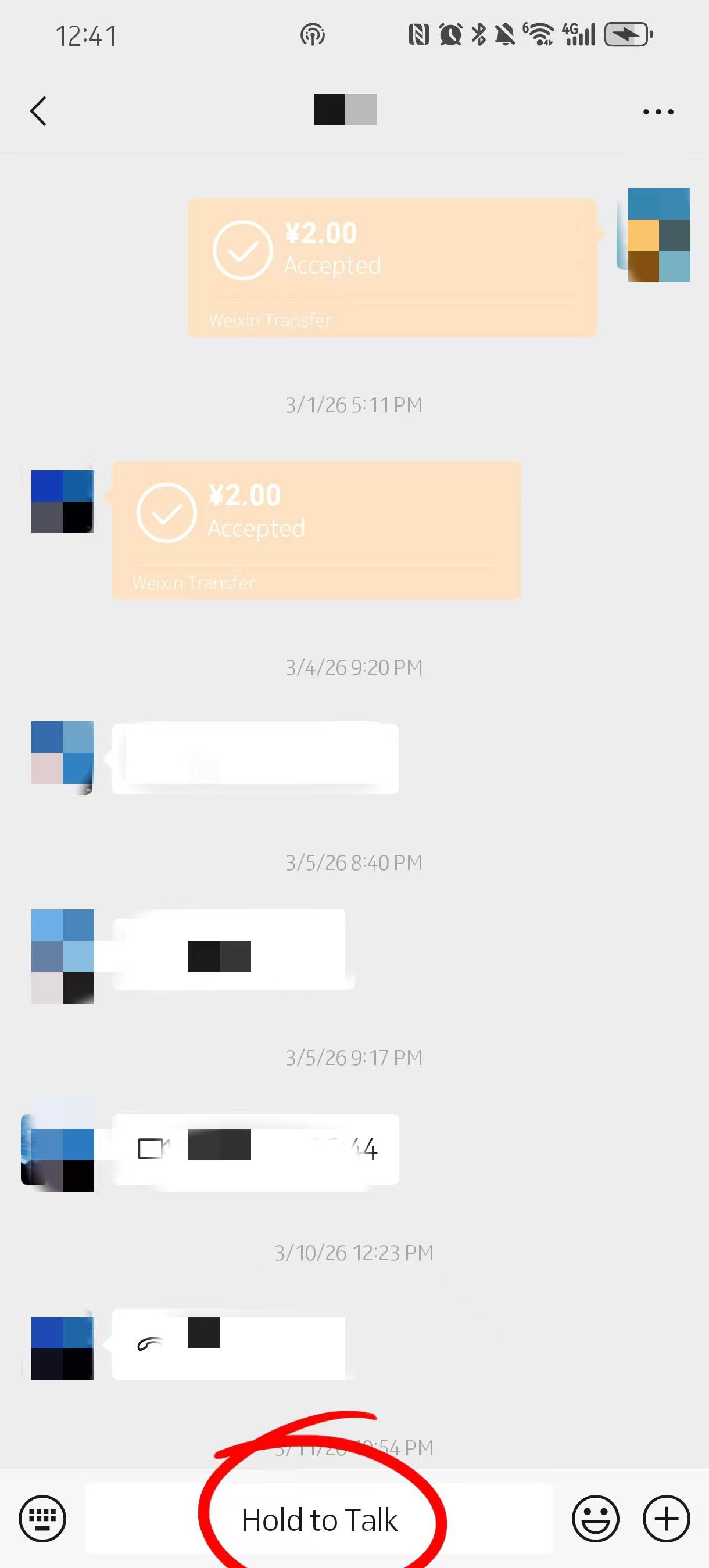
- Hold to Button
-
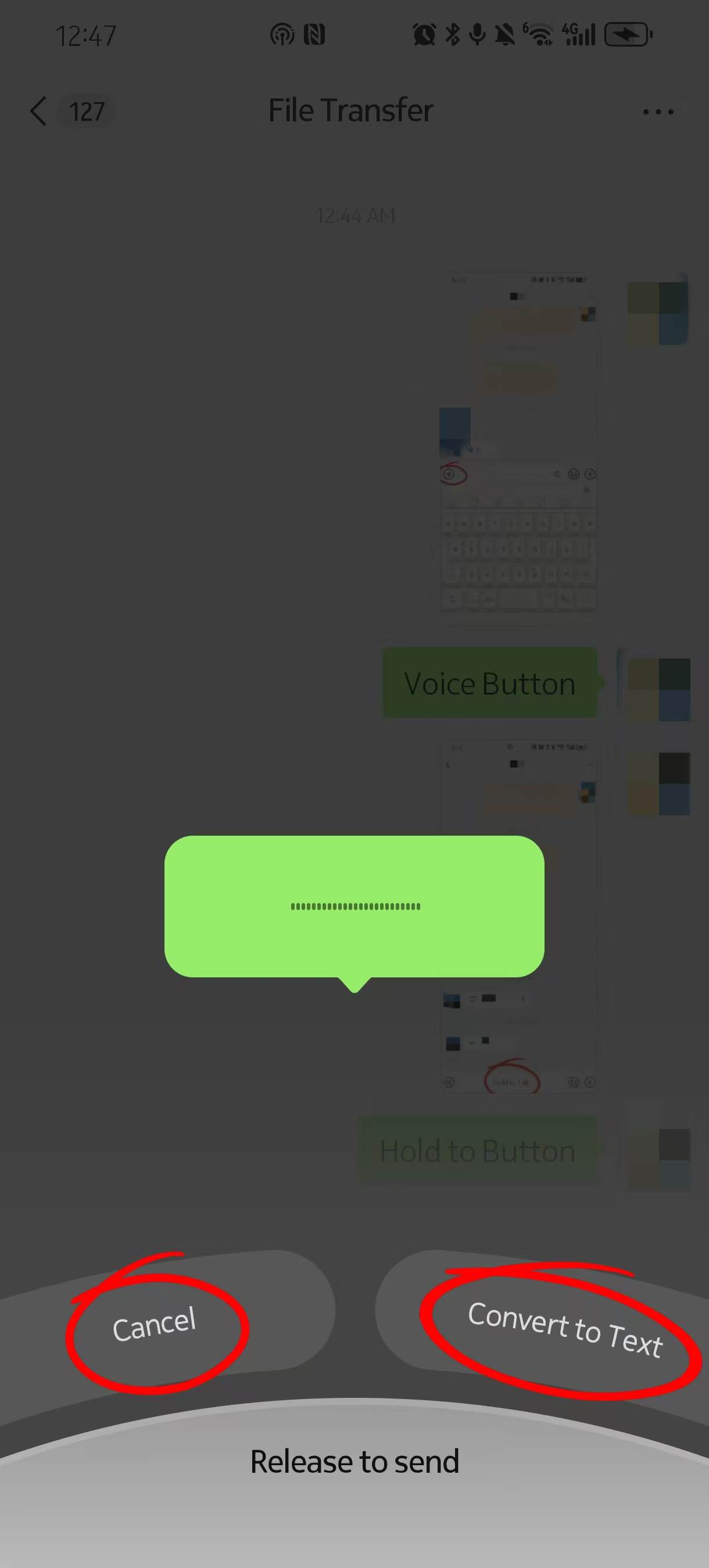
- Cancle&Convert to Text
Voice messages (the most widely used mode of communication among WeChat’s Chinese users, ahead of typed text), and video calls (which work like FaceTime, and don’t require both users to use the same network operator).
- ●Send a voice message: In any chat, tap the microphone icon (left of text bar). The text bar switches to recording mode.
- ○Hold the red button to record (up to 60 seconds). Release to send. Swipe up while holding to cancel.
- ●Listen to a voice message: Tap the incoming message bubble.
- ○Hold the phone to the ear — WeChat switches to earpiece mode automatically. Leave it flat to play through the speaker instead.
- ●Make a video call: Open a chat → tap the phone icon (top right) → Video Call.
- ○The other person receives a ringtone notification regardless of their current in-app activity.
- ●Start a group video call: From inside a group chat → tap the phone icon → Video Call → select who to include.
- ○Supports up to 9 participants on video simultaneously.
App Stickers and Emojis
-
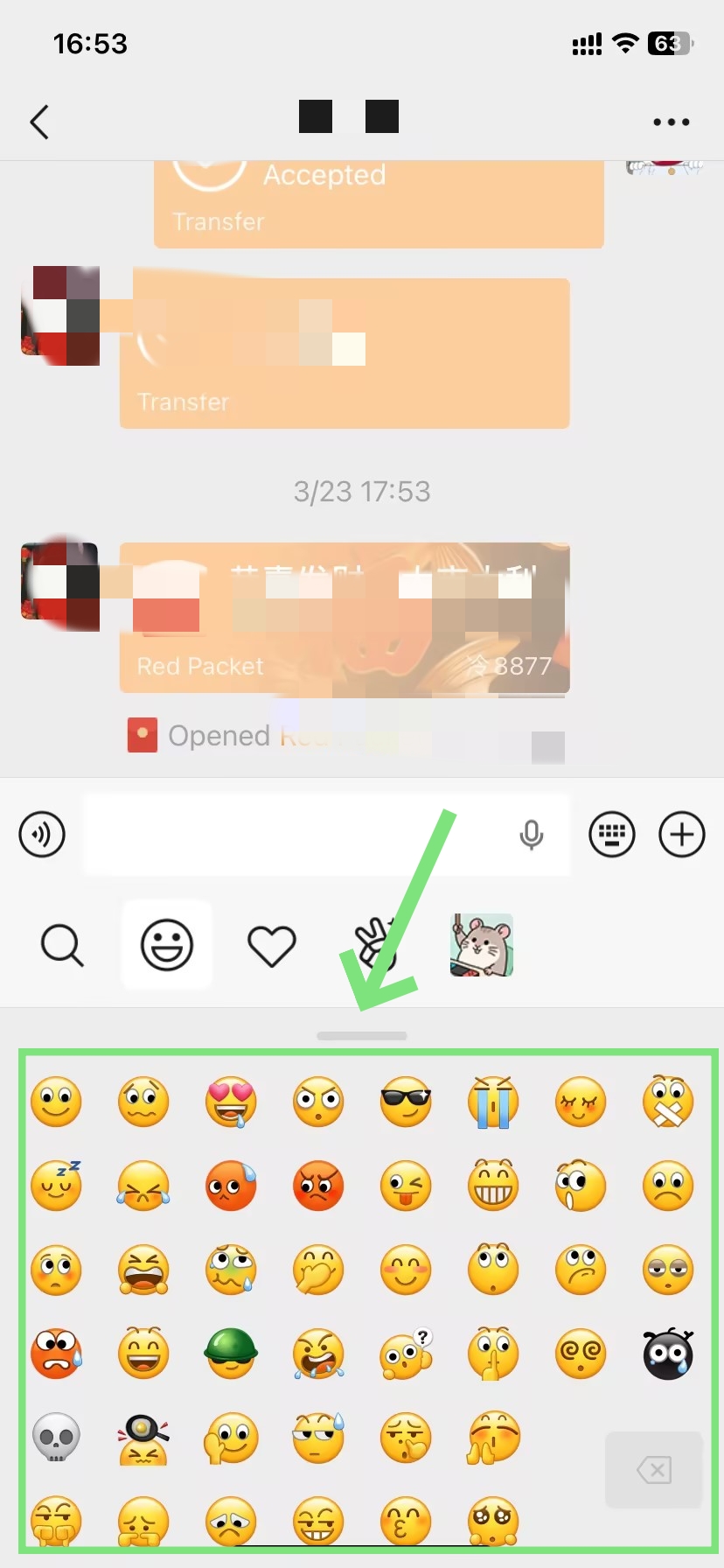
- WeChat Official Stickers and Emojis
-
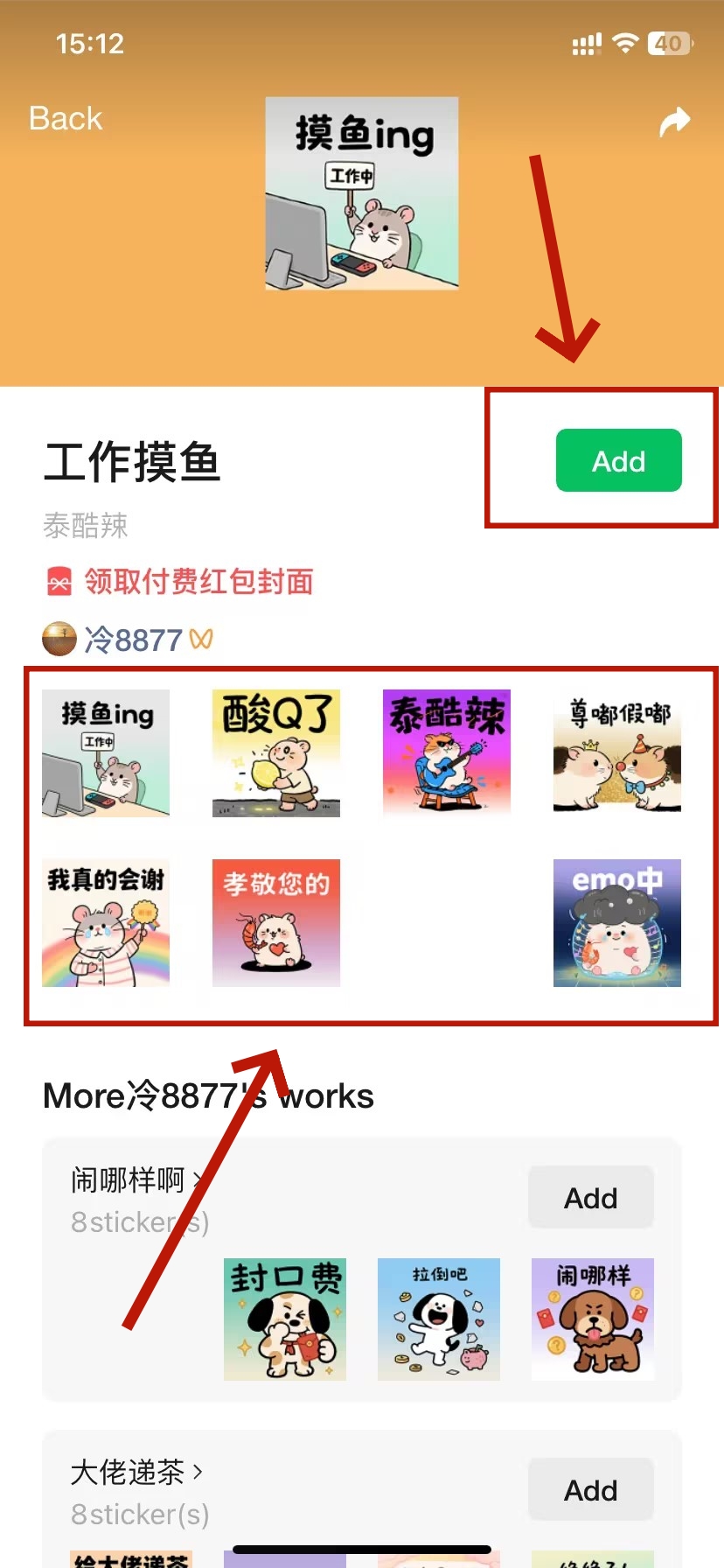
- Click to Add Emojis
-
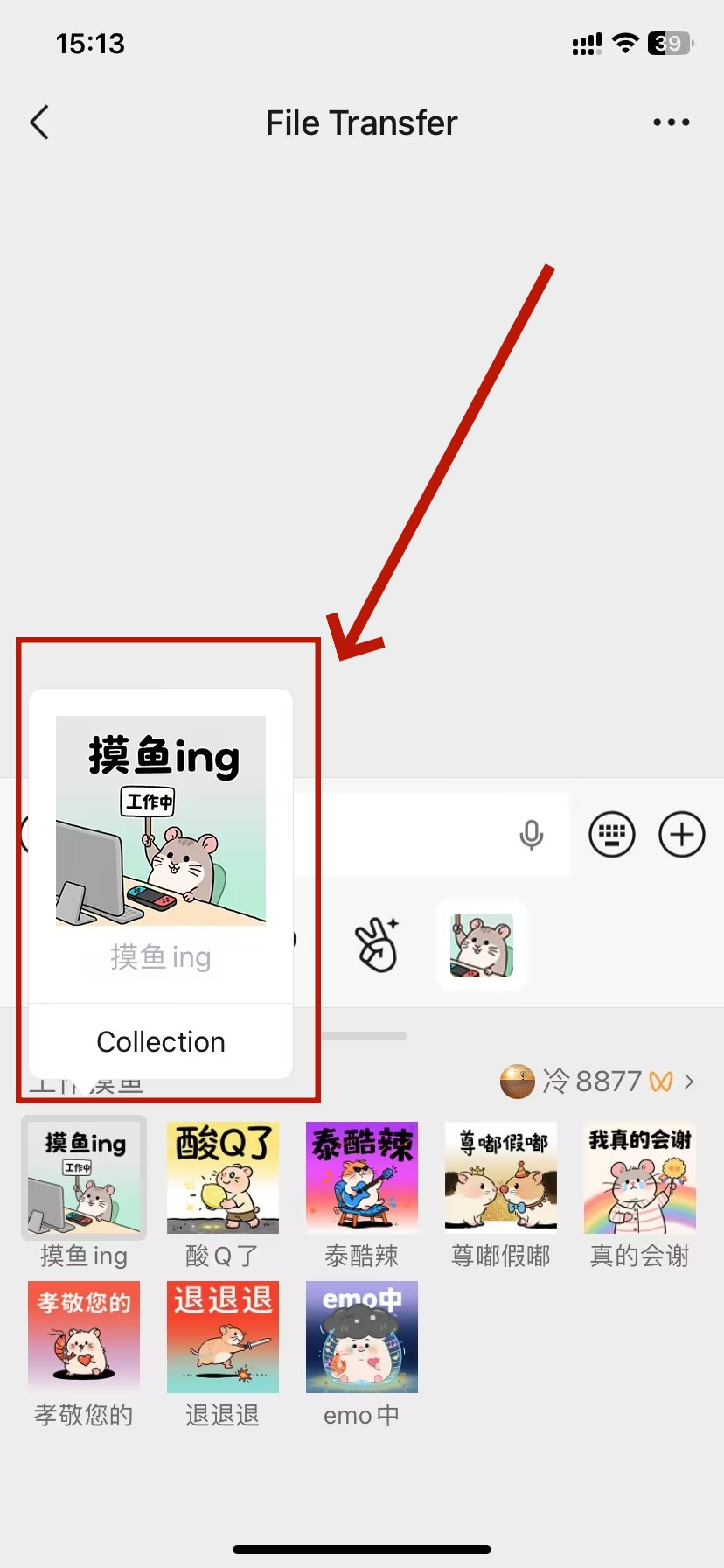
- Use Collection Sticker
WeChat sticker support is far more robust than that seen in most Western messaging applications. In addition to the standard emoji pack, there are literally thousands of downloadable sticker packs — animated stickers, illustrated stickers, even seasonal stickers. Ecologically, stickers are even of real social meaning in Chinese messaging culture.
- ●Open the sticker panel: In any chat, tap the smiley face icon (right of text bar) to open the emoji and sticker panel.
- ●Browse your collection: Swipe right on the bottom row to access saved stickers. Tap any sticker to send it instantly.
- ●Download more packs: Tap + Add Stickers at the end of the sticker row → browse the store → tap the download icon next to any pack.
- ●Save an incoming sticker: Long-press any received sticker → tap Add to Stickers. It joins the personal collection immediately.
🎭 The 2025 sticker library has expanded significantly — animated GIF sets, seasonal collections, and custom creator packs are all searchable. Our WeChat stickers and emojis guide covers the full library and how to navigate it.
Interface Language and Translation
-
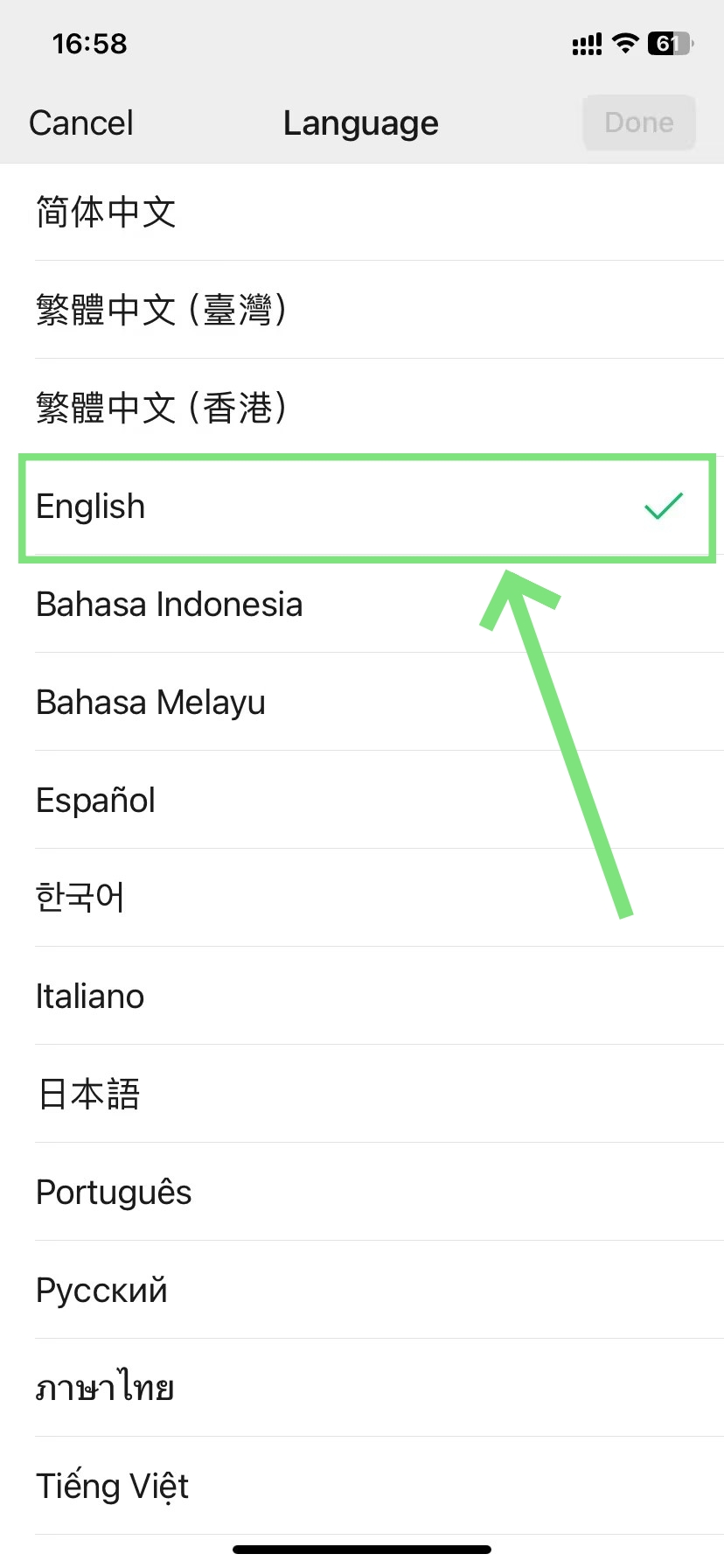
- Switch WeChat Language to English
-
- Translate WeChat Message
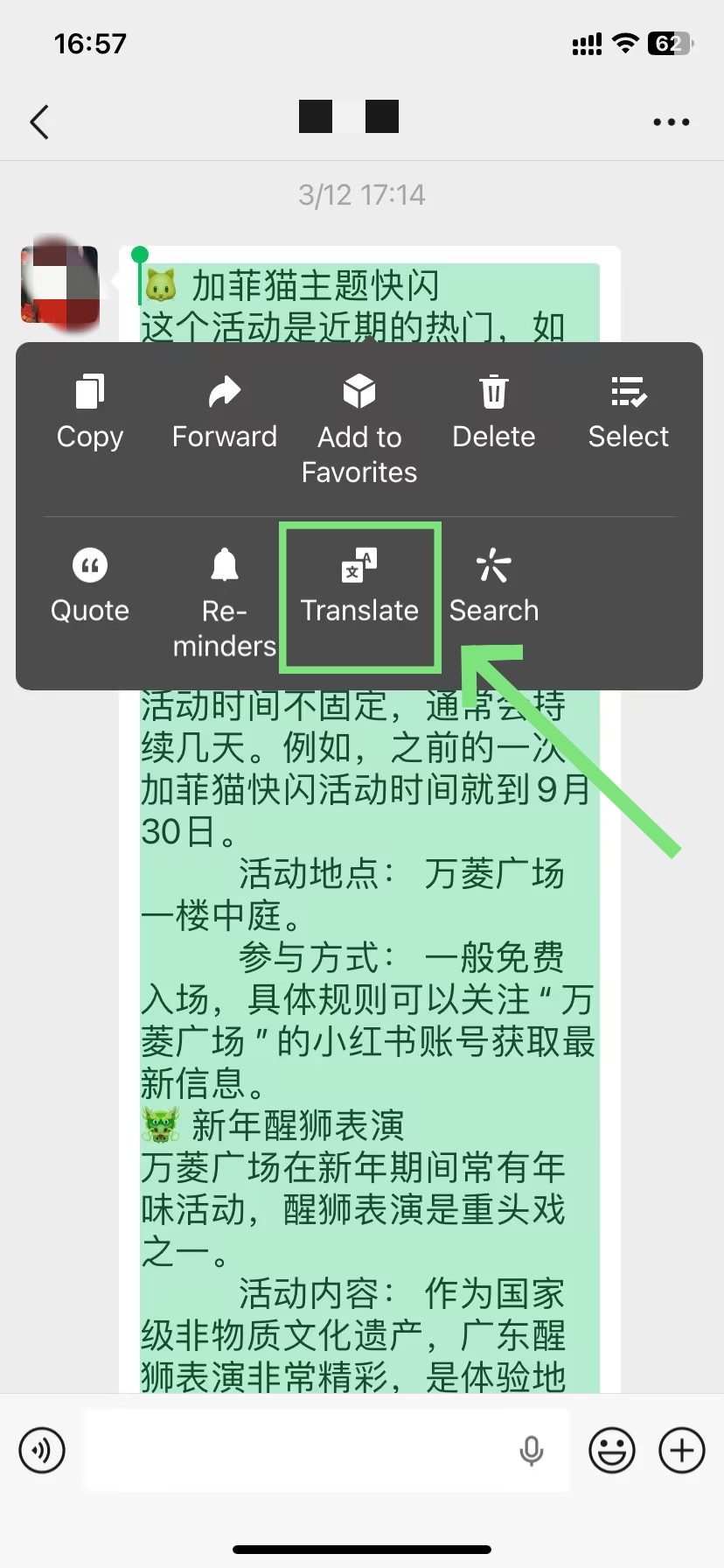
WeChat defaults to the language corresponding to the installed phone, but fortunately, you can override this in the app. More usefully, however, WeChat rolls in its own translation for any message you receive, including messages from Chinese contacts writing entirely in Chinese.
- ●Switch app language: Go to Me → Settings → General → Language → Select English → Restart the app.
- ○The entire interface relabels in English immediately after the restart.
- ●Translate a message: Long-press any message bubble → tap Translate.
- ○The translation appears inline, just below the original text — no copy-pasting is required.
- ○Translation supports text messages in most major languages. However, it does not apply to voice messages — tap a voice message first to check if WeChat has auto-transcribed it.
— Tencent AI Lab, 2024 benchmark report
How to Access Travel and Lifestyle Features
Transit and Service Access
-
- Shared Bikes
-
- Restaurant table ordering
-
- Metro access
By now you’re accustomed to the QR scanning gesture from the payments section, but that same gesture leads into a whole other layer of the Chinese metropolis, this one dealing with transport, food ordering, and service access. The scanner stays the same — only that it is pointing at changes.
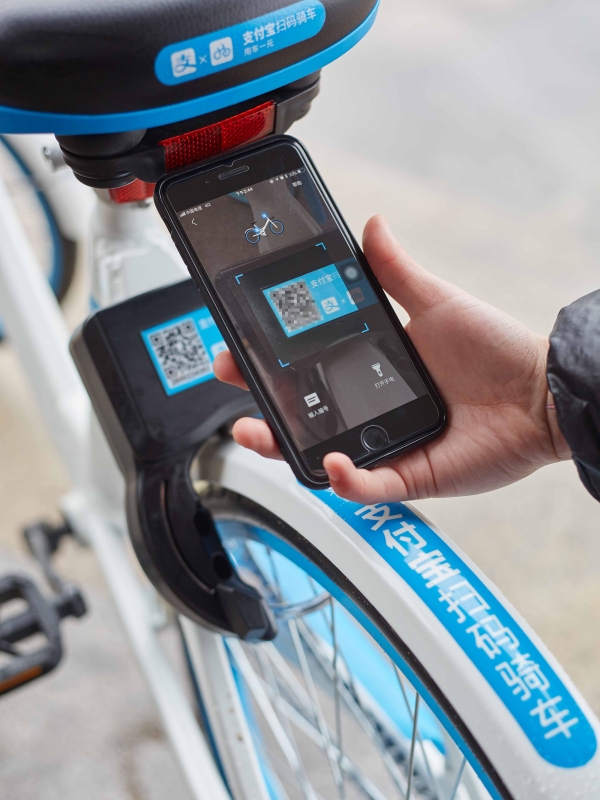
- ●Shared bikes (Meituan / HelloBike / Qingju): Find a bike → Scan the QR code on the frame → the bike's Mini Program opens and unlocks automatically.
- ○Payment deducts from the WeChat Pay balance at the end of the ride.
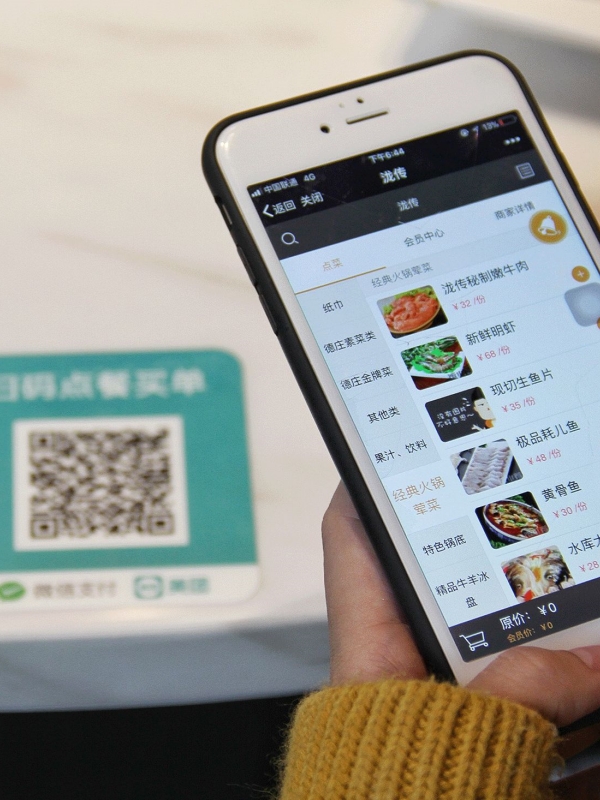
- ●Restaurant table ordering (点餐 / diǎncān): Scan the QR code on the table → the restaurant's ordering Mini Program opens → browse the menu, select items, and pay.
- ○No server interaction is required. Common in chain restaurants, hot pot places, and fast-casual spots across China.
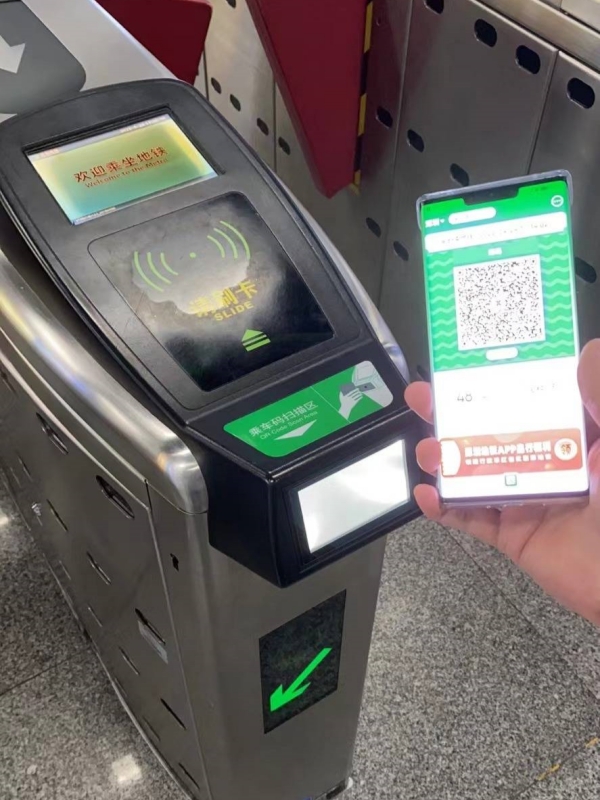
- ●Metro access (select cities): Go to Me → Pay → Metro / Transit Code → show the screen or scan the gate.
- ○Available in Shenzhen, Guangzhou, Chengdu, and an expanding list of cities. Not yet universal in Beijing and Shanghai, where separate transit apps remain more common.
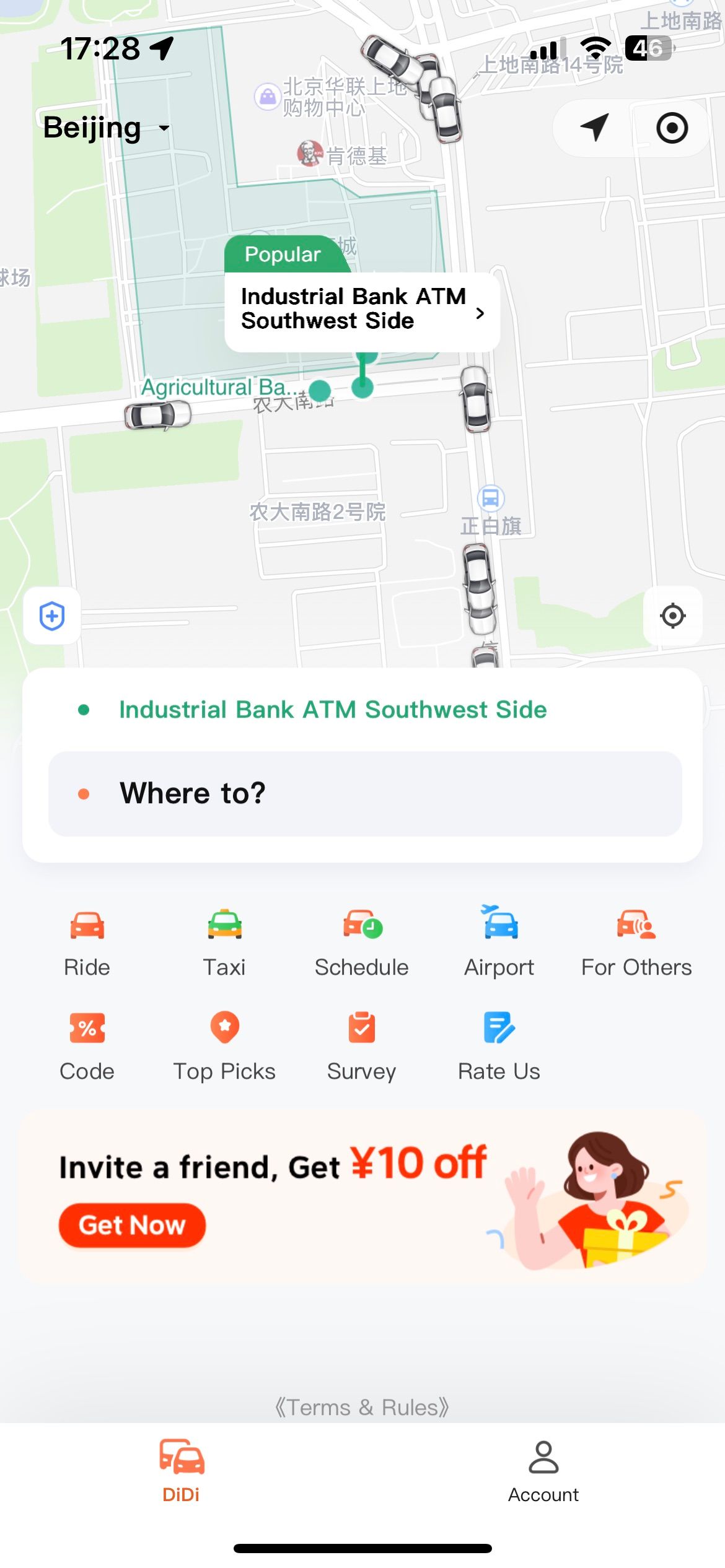
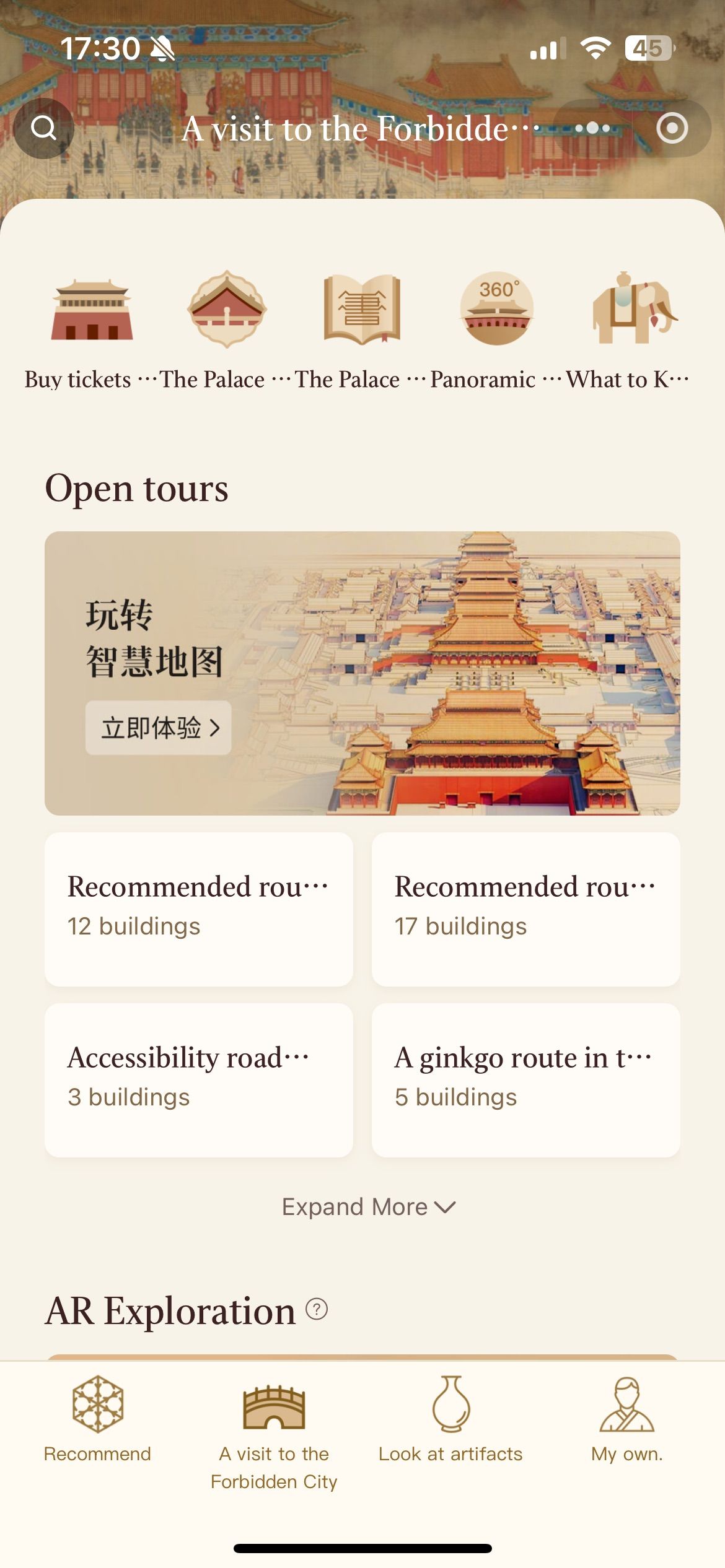
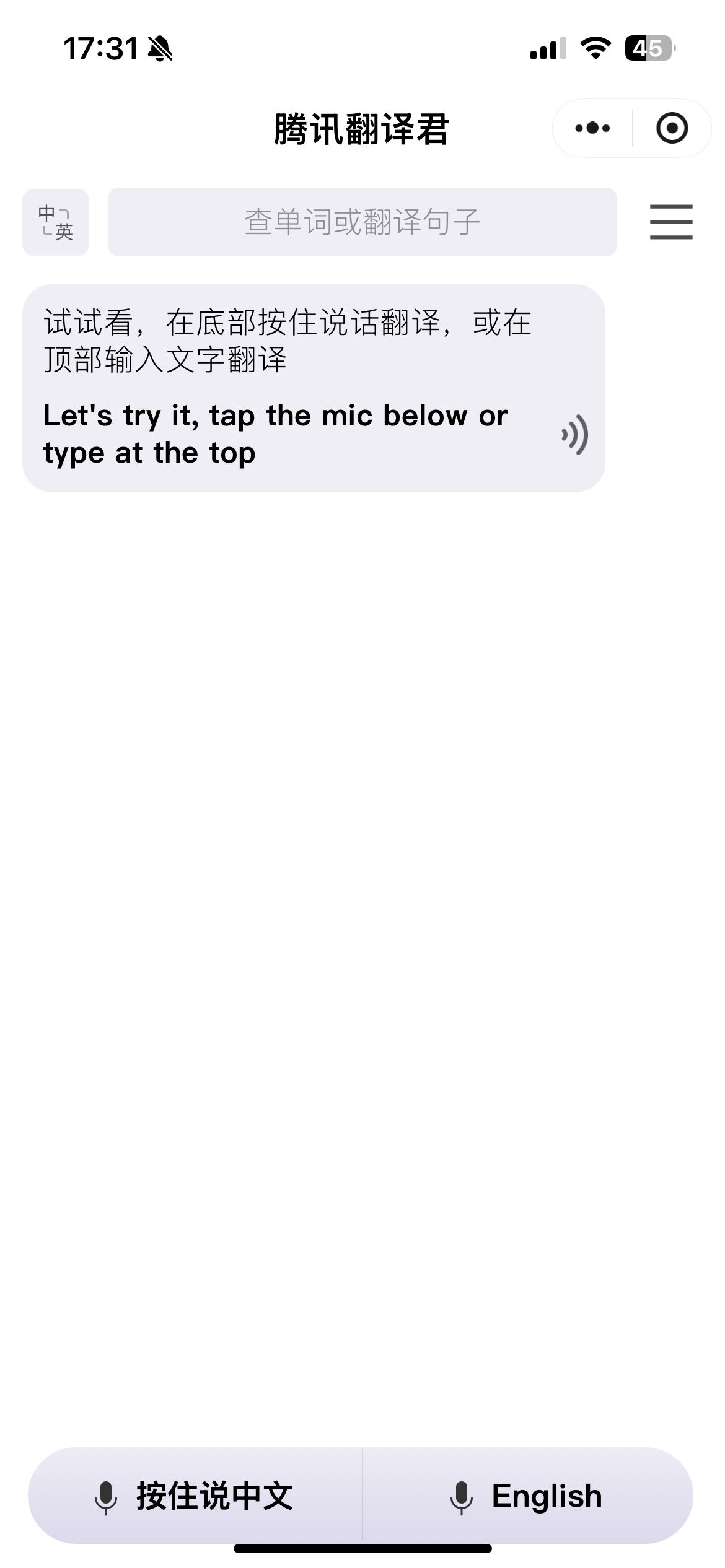
Mini Program Search Directory
-

- Didi Mini Program
-
- Forbidden City Mini Program
-
- Tencent TranSmart Mini Program
Mini Programs are lightweight apps running entirely inside WeChat — no separate download, no separate account. Over four million exist. For travellers, they serve as the access point for bike-sharing, food delivery, museum ticket booking, metro planning, and hotel check-in. Scanning a merchant's QR code often opens one automatically. However, two additional access methods exist when no QR code is available.
- ●Via QR scan: Scan any service QR code (bike, restaurant, venue). If a service opens rather than a payment prompt, the user is inside a Mini Program.
- ●Via search: Tap Discover → Mini Programs → use the search bar.
- ○Search by service name in English or Chinese (e.g. "DiDi", "Meituan", "Ctrip", "故宫" for the Palace Museum).
- ●Via history: Recently used Mini Programs appear automatically at the top of the Mini Programs screen.
- ○Once a service is visited once, no further search is needed to return to it.
Top WeChat Mini Programs for Foreign Travellers in China
| Mini Program | Category | What It Does |
|---|---|---|
| DiDi (滴滴) | Transport | Book taxis and rideshares — the Chinese equivalent of Uber. Available in English within the Mini Program. |
| Meituan (美团) | Food delivery & bikes | Order food delivery to accommodation, or unlock shared bikes. One of the most widely used apps in China. |
| Ctrip / Trip.com (携程) | Travel booking | Book train tickets, hotels, and domestic flights directly inside WeChat. |
| Palace Museum (故宫博物院) | Attractions | Timed-entry ticket booking for the Forbidden City. Advance booking is required — this is the official channel. |
| Shenzhen / Guangzhou Metro | Public transit | Top up transit cards and plan routes for the city's subway system, all within WeChat. |
🧩 Our WeChat Mini Programs travel guide covers the most essential programs by city and category, with setup notes for foreign users.
Moments Social Feed Access
-
- Post to Moments on WeChat
-
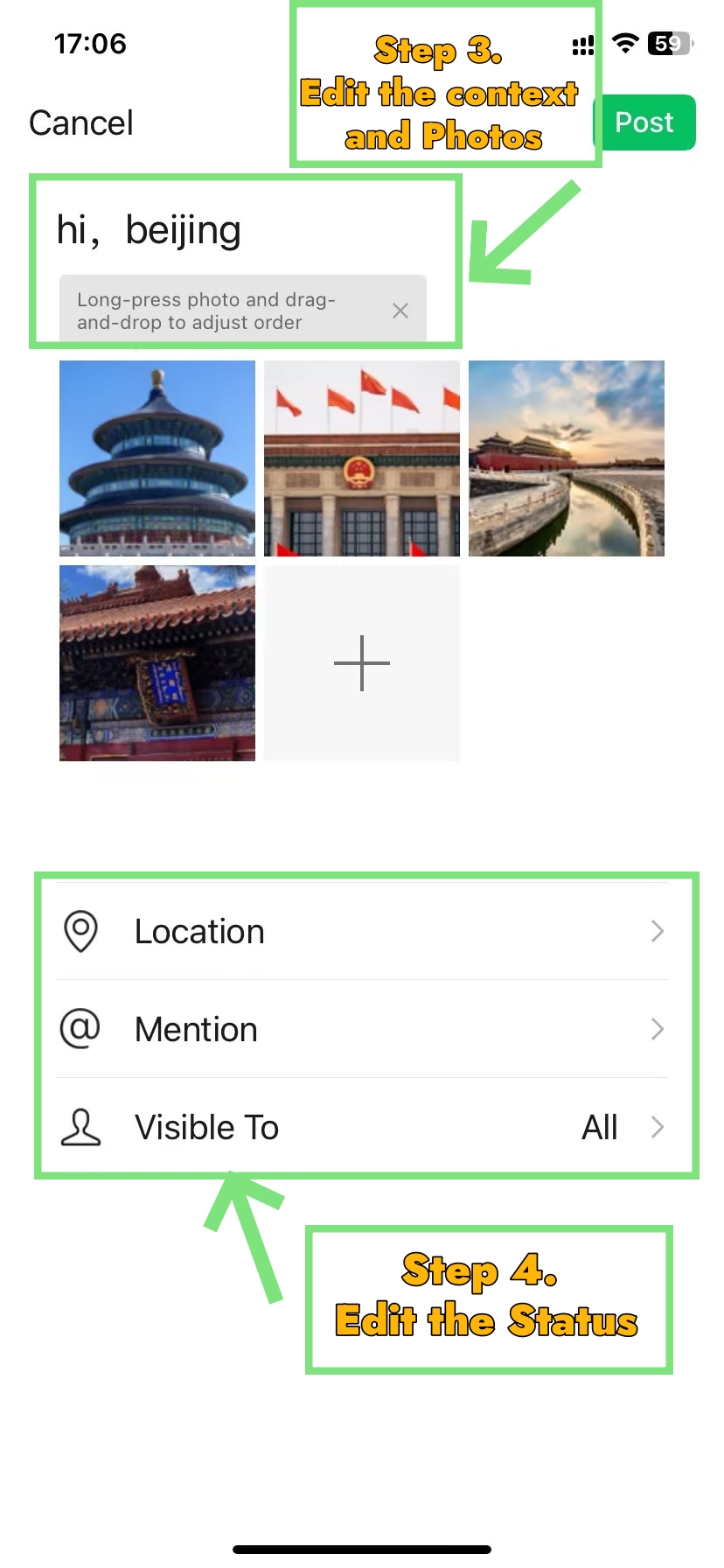
- Edit the Moment anf Control Privacy
-
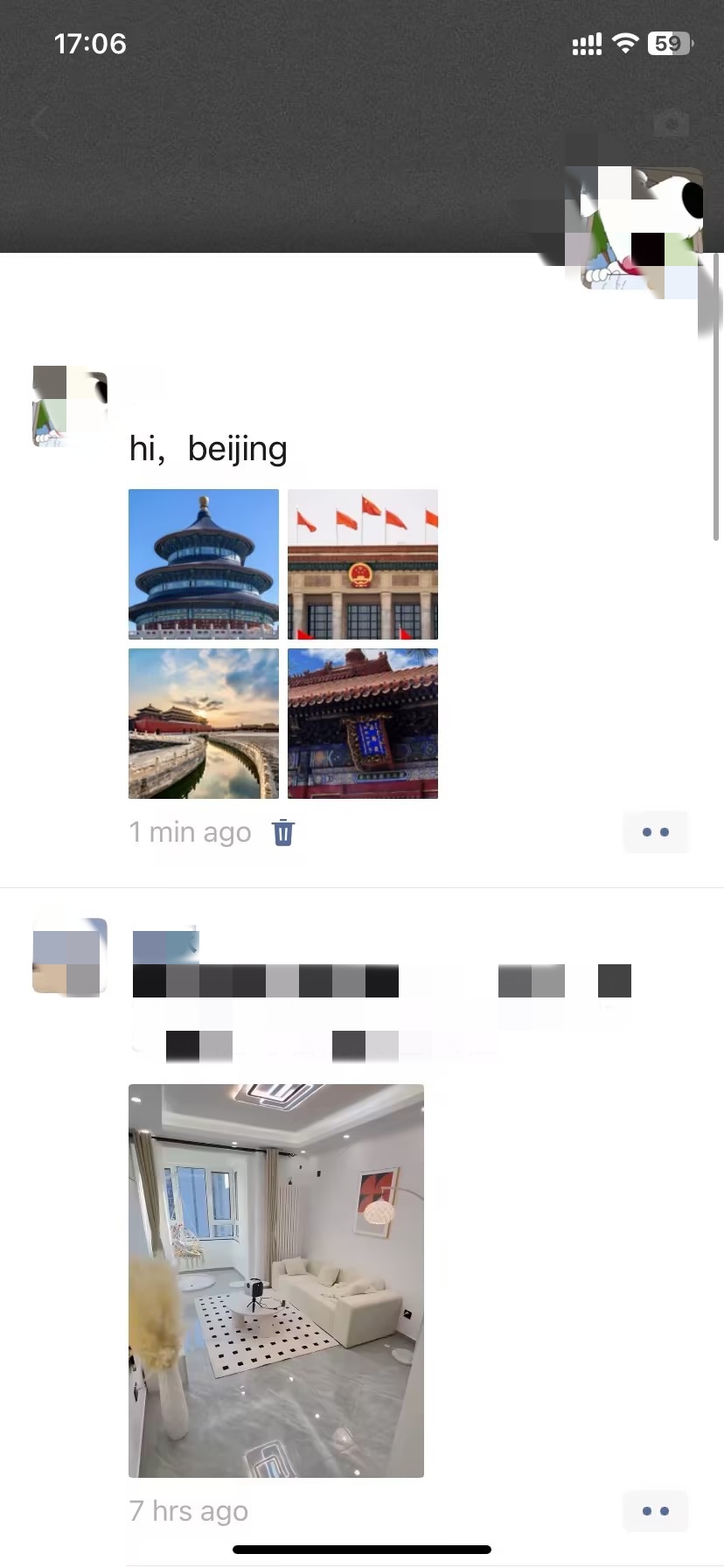
- Engage with a Post
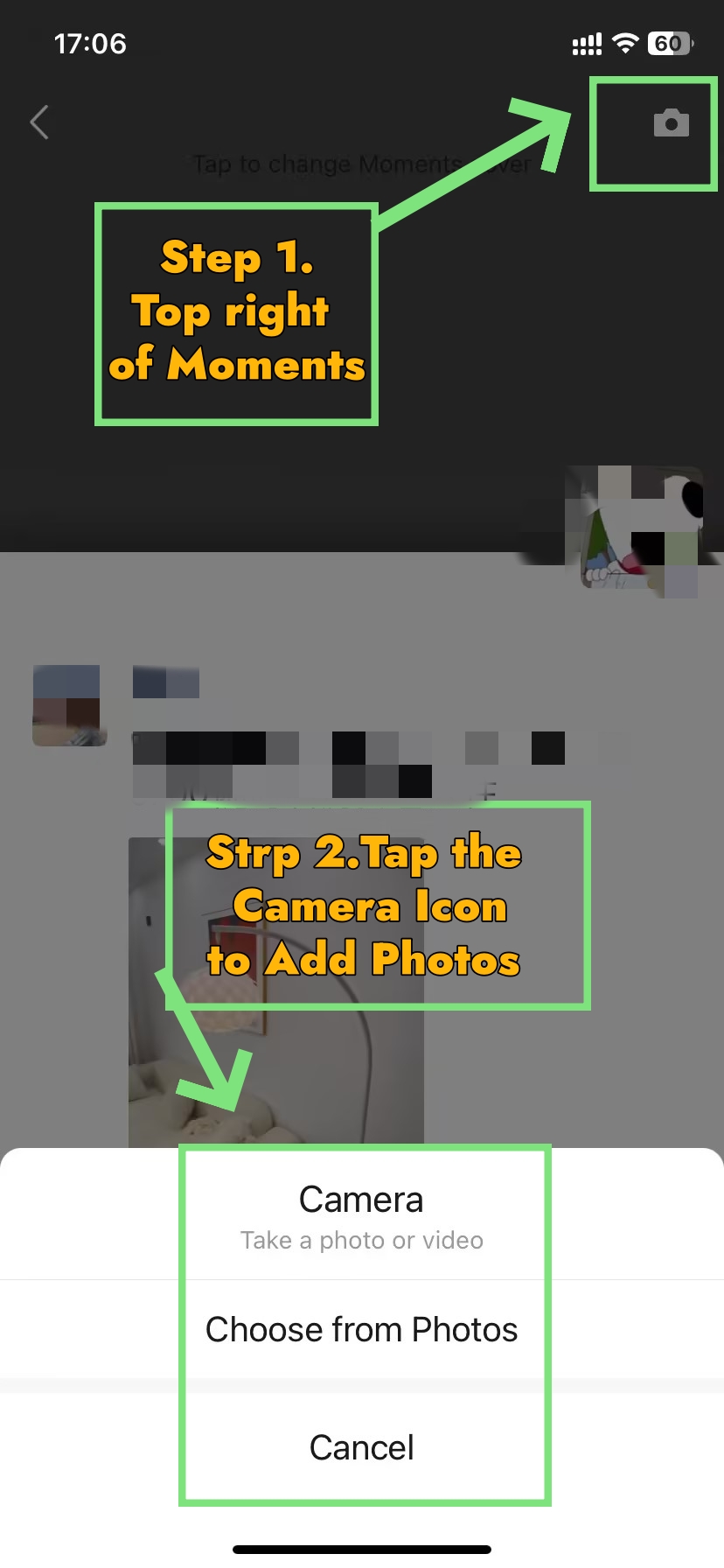
Moments is WeChat's private social feed — equivalent to an Instagram feed, except it remains visible only to confirmed contacts, not the public. Chinese contacts who appear active socially on WeChat are typically posting here. For travelers, it is also the most natural format for sharing China trip photos in a way local contacts will actually see.
- ●View the feed: Tap Discover → Moments. Only posts from confirmed contacts appear here.
- ○Complete strangers cannot see Moments or appear in the feed.
- ●Post to Moments: Tap the camera icon (top right of Moments) → add up to 9 photos or a short video → write a caption → tap Post.
- ●Control privacy: Before posting, tap Visible to → choose All Contacts, Selected Contacts, or a custom list.
- ○Unlike Instagram, there is no "public" setting — Moments is inherently private by design.
- ●Engage with a post: Tap the white space to the right of a post → Like or Comment.
- ○Comments are visible to mutual friends, but not to contacts of the poster who are not also the commenter's contacts.
App Privacy and Security
This is a question every Western traveller raises, and it deserves a direct answer. Here is an honest, factual breakdown of the key considerations.
- ●Phone number privacy: The phone number is hidden from other users by default.
- ○Other users see only the display name and WeChat ID. Verify this at Me → Settings → Privacy → Phone Number.
- ●Payment security: WeChat Pay transactions are encrypted and PIN-protected.
- ○Enable biometric authentication at Me → Pay → Security → Biometric Payment for an additional layer.
- ●Message privacy: Messages are not end-to-end encrypted.
- ○Tencent is subject to Chinese law and can be compelled to provide message data to authorities.
- ○For practical travel logistics — booking restaurants, coordinating with guides, making payments — this presents no meaningful risk.
- ○However, for sensitive professional communications, a different platform is advisable.
- ●Legal status for US users: As of April 2026, WeChat is legal and unrestricted for US citizens.
- ○The 2020 executive order was blocked by courts and never took effect. There is no legal barrier to using WeChat as an American traveller.
— Traveller account from a French architect, 3 trips to China (2023–2025)
🔒 For a thorough look at US policy risks and WeChat Pay transaction safety, read the full article: Is WeChat Safe? Security Concerns, US Risks, and WeChat Pay Safety Explained.
Faqs: Common WeChat App Issues
Q: How do I use WeChat for the very first time?
Download WeChat from the App Store or Google Play. Confirm the developer is Tencent before installing. Tap Sign Up, enter your phone number with the country code, and complete SMS verification. If a security screen appears, ask any nearby WeChat user to scan your QR code. Learning how to use WeChat from scratch takes under ten minutes.
Q: Can I use WeChat without a Chinese phone number?
Yes — any international mobile number works for registration. Enter the number with the country code during sign-up, and WeChat delivers an SMS verification code to confirm. There is no requirement to use a Chinese SIM at any point. Knowing how to use WeChat with a foreign number is standard practice for millions of international travelers worldwide.
Q: Can US citizens use WeChat?
Yes. US citizens face no legal barriers to using WeChat. The 2020 executive order that attempted to restrict access was blocked by federal courts and never took effect. As of April 2026, WeChat remains fully legal for Americans. Many US travelers actively learn how to use WeChat before visiting China, and it functions reliably on all US-registered devices.
Q: Should Americans use WeChat?
For Americans traveling to China, WeChat is practically indispensable. Most Western platforms — including Facebook, Instagram, and WhatsApp — remain blocked within the country. WeChat, however, operates without restriction. Therefore, travelers who understand how to use WeChat before arrival avoid major friction with payments, transport, and communication. The app handles nearly every daily need a foreign visitor encounters in China.
Q: Can people on WeChat see your phone number?
No. The phone number stays hidden from other users by default. They see only the display name and WeChat ID. Therefore, personal contact details remain private unless explicitly shared. To verify current settings, go to Me → Settings → Privacy → Phone Number. Knowing how to use WeChat's privacy controls takes just a few minutes to configure.
Q: How do I use WeChat Pay without a Chinese bank account?
Since 2023, WeChat officially supports international Visa and Mastercard for direct binding. Navigate to Me → Pay → Wallet → Cards → Add a Card. Enter card details and verify via SMS. Therefore, no Chinese bank account is required. Anyone learning how to use WeChat Pay can now complete the full setup independently, even before departing for China.
Q: Is WeChat available in English?
Yes. Go to Me → Settings → General → Language → select English → restart the app. The full interface relabels in English. Additionally, WeChat includes a built-in translator — long-press any message to translate it inline. For travelers learning how to use WeChat in a non-Chinese context, switching to English significantly reduces the initial setup complexity.
Q: How do I use WeChat on a computer or PC?
The desktop app requires an active mobile account first. Download it from weixin.qq.com for Windows or Mac. On opening, a QR code appears on screen — scan it with the phone's WeChat scanner to authenticate. This mirrors how to use WeChat across devices seamlessly. The desktop app then syncs all existing conversations and contacts in real time.
Q: What are WeChat Mini Programs and how do I use them?
Mini Programs are lightweight apps running inside WeChat — no separate download is needed. To find them, go to Discover → Mini Programs and search by service name. Alternatively, scanning a merchant's QR code opens the relevant Mini Program automatically. For travelers, this is central to how to use WeChat effectively — covering transport, food delivery, ticketing, and city-specific services.
Q: How do I add someone on WeChat without scanning a QR code?
Several alternatives exist. Tap + → Add Contacts → search by WeChat ID or phone number. If a group chat is shared, tap their profile and select Add. Additionally, phone contact sync reveals which existing contacts already use WeChat. Therefore, learning how to use WeChat's search and sync features ensures connection with anyone, regardless of physical proximity.