WeChat Group
WeChat groups underpin how 1.3 billion people communicate, coordinate and do business on a daily basis — from family circles to enterprise teams, and everything in between. Few digital tools are as instantly useful or so perfectly incorporated into daily life across China and beyond. Discovering how to create a WeChat group is your first step into this infrastructure: equally effective for a weekend trip with friends, a customer community for your brand or a cross-city project team. We’ll cover every creation method, all 3 member add techniques, the complete set of admin controls, and all of the latest 2026 features, plus answer the questions that actually crop up after your group goes live!
What to Prepare Before You Start
Before using this section, go check your account status to understand the hard limits on group creation on the platform. Do you have enough bots in your wallet? Is your account verified? Many users lose time trying to create a group before running out of requirements, this section seeks to remove that friction.
Account Requirements at a Glance
✅ WHAT YOU ACTUALLY NEED
Any personal WeChat account with a verified phone number can create a group. A Chinese number is not required — WeChat supports international numbers from most countries. Corporate official accounts (服务号 / 订阅号) cannot create standard group chats; that is a personal account feature only.
The account setup breaks down into three states:
- Registered + phone verified → Full group creation rights. You are ready to go.
- Registered, no phone bound → Group creation is blocked. Bind a phone number first.
- Corporate official account → Standard group chats are not available. Use WeCom (企业微信) instead.
Group Size Limits and Rules
👥 THE THREE-PERSON MINIMUM
A WeChat group requires at least 3 people — you (the owner) plus 2 contacts. If your address book has fewer than 2 WeChat friends saved, the group creation option will be unavailable. Add contacts first, then return to create the group.
📊 PLATFORM LIMITS
These rules change significantly once you pass the 100-member threshold. Understanding them before you build prevents surprises when your group grows.
| Rule | Limit / Detail | What It Means for You |
|---|---|---|
| Minimum members | 3 people (owner + 2) | Must invite at least 2 contacts to start |
| Maximum members | 500 people | Plan a second group or switch to WeCom beyond this |
| Direct invite cap | Up to 100 members | Owner or admin can pull contacts in directly |
| Over 100 members | QR code or group link only | Members must self-join; direct adding is disabled |
| Group link / QR expiry | 7 days (renewable) | Regenerate weekly for ongoing campaigns |
| Group name length | Max 30 characters | Keep it short, descriptive, and searchable |
Three Ways to Create a WeChat Group
There are three ways to create a WeChat group in 2026. The traditional mobile and desktop path works for nearly everything. The Face-to-Face Group is made for real-life, in-person scenarios where speed is of the essence. Each method is between one and two minutes from A-Z.
On iPhone or Android
-

- Start Group Chat
-
- Check at least 2 contacts
-
- WeChat Group is done
📱 FOUR TAPS AND YOU'RE LIVE
The standard mobile path takes under 60 seconds. It works identically on iOS and Android, and it is the most common way to create a WeChat group for any purpose.
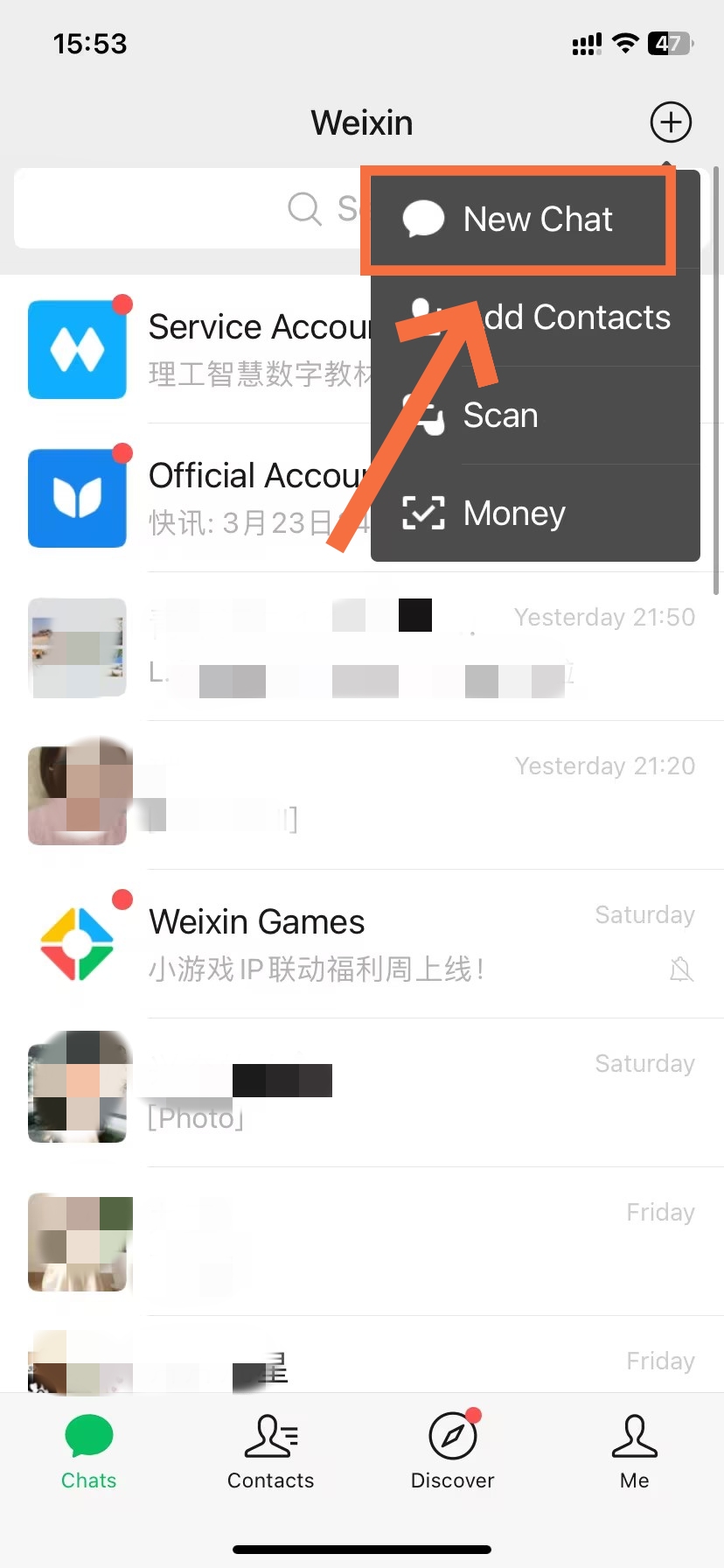
- Open WeChat and tap the
+icon in the top-right corner of the Chats screen. - Select New Chat from the dropdown, then tap Start Group Chat.
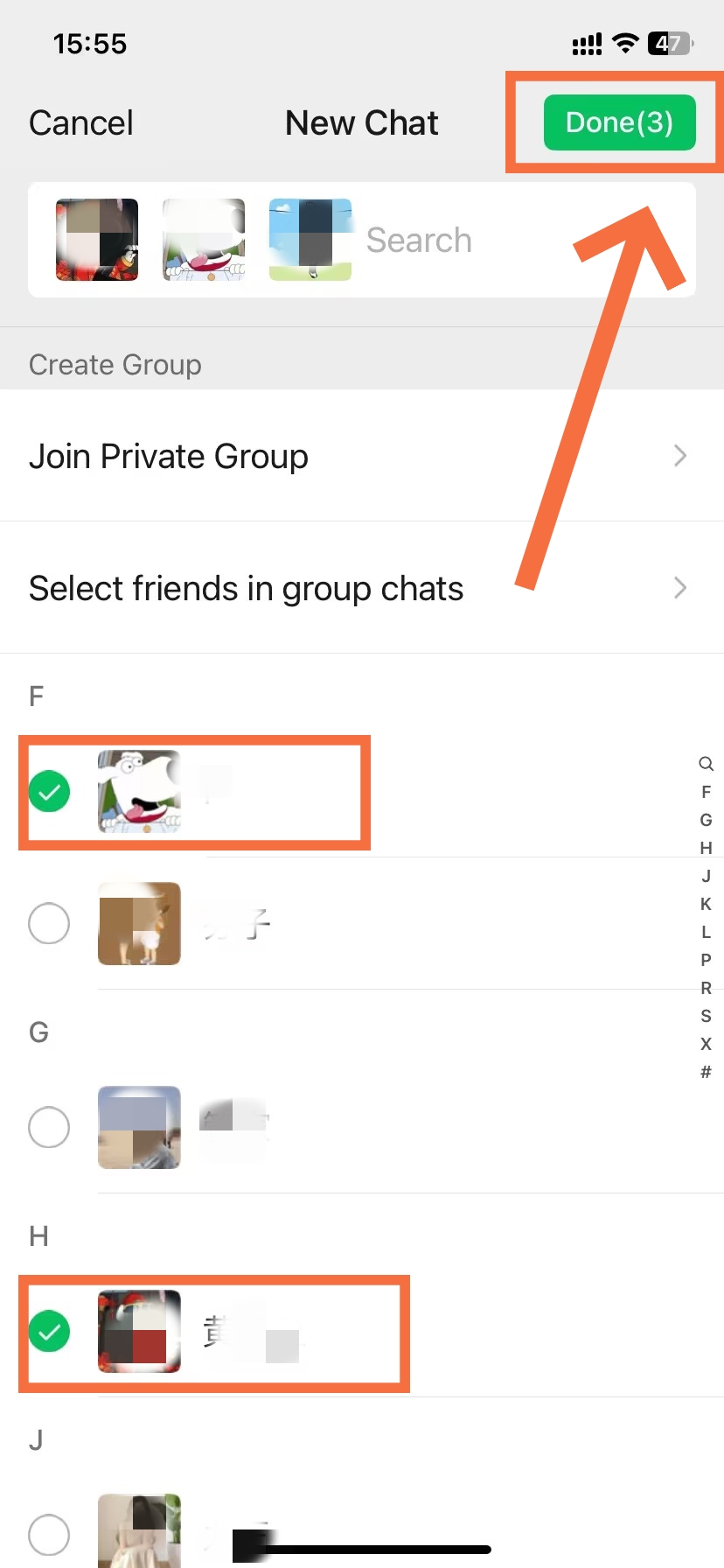
- Check at least 2 contacts from the list and tap OK to confirm.
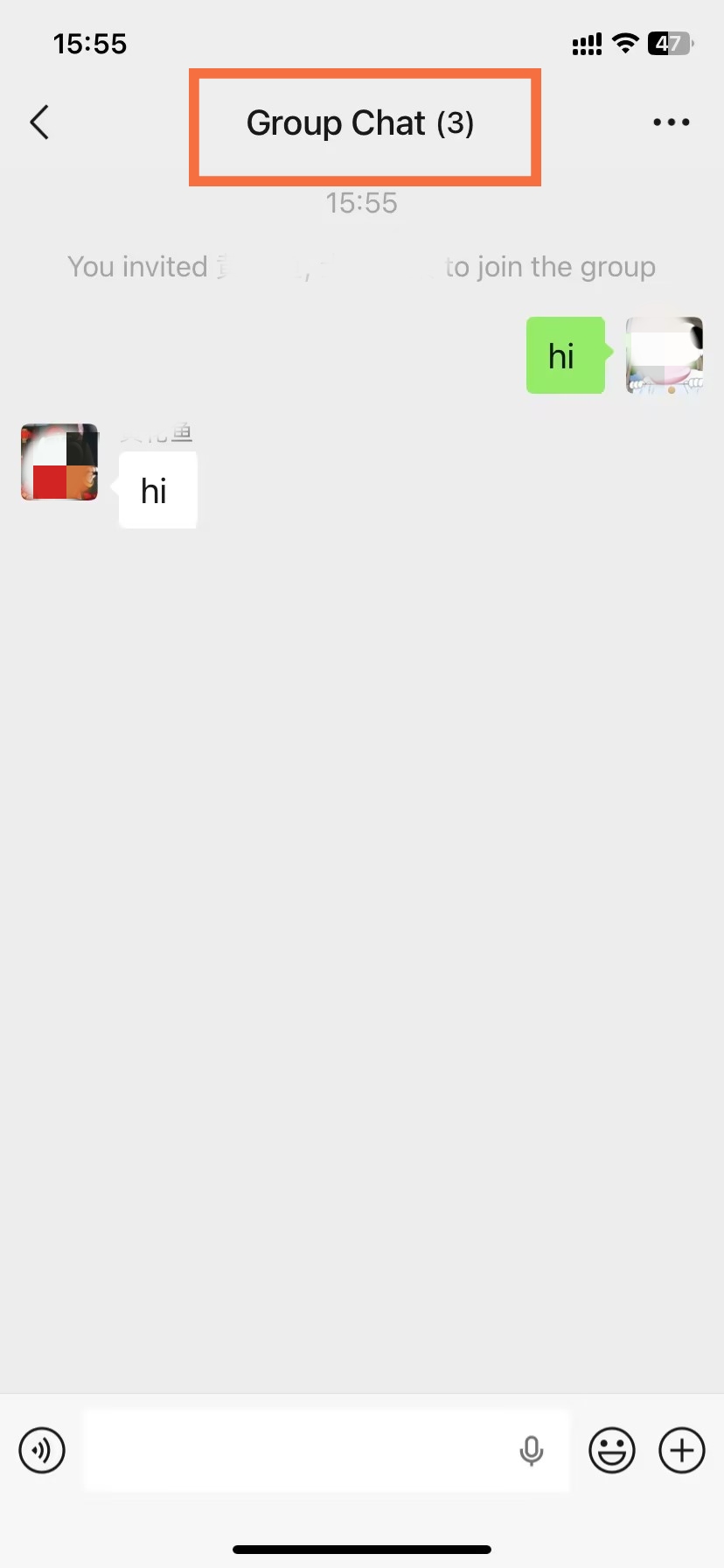
- The group opens immediately. You are now the group owner. The chat is live.
WeChat auto-names the group using a mashup of member names — it looks messy immediately. Rename it within 30 seconds before anyone else sees the default. That one act signals you are running an intentional, well-organised group.
📝 Practical note · Expat professional, Shanghai
On Desktop PC or Mac
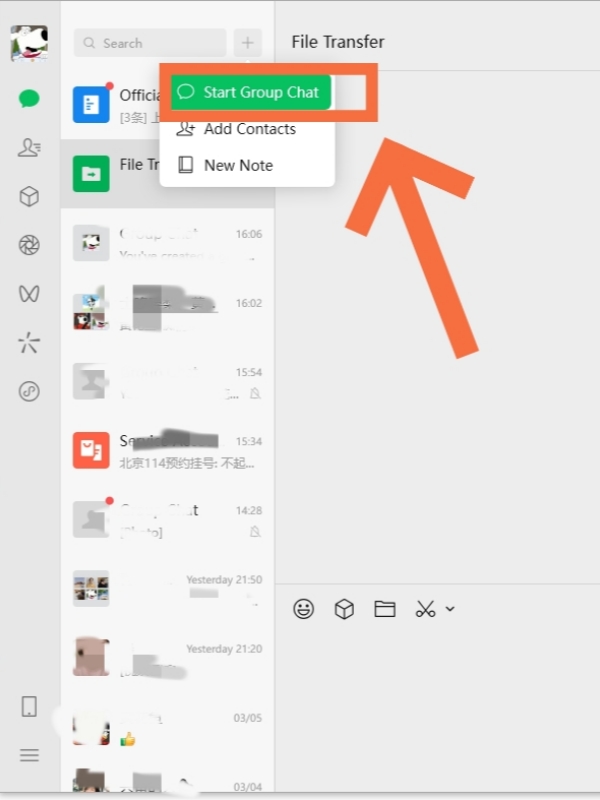
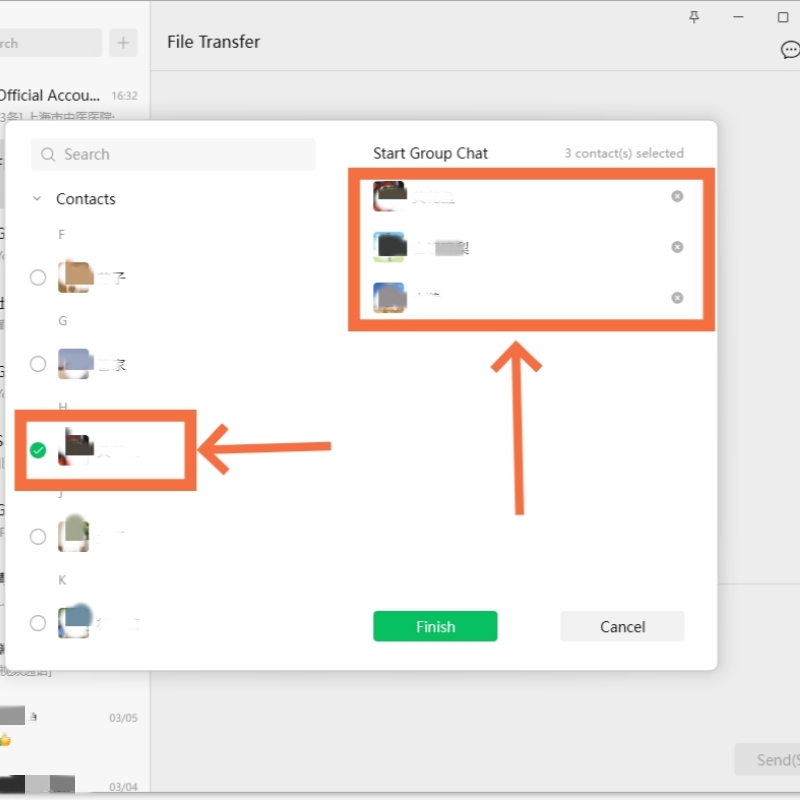
🖥️ THE DESKTOP ENTRY POINT
On the WeChat desktop app for Windows or Mac, group creation uses a different entry point than mobile — the + button to the right of the search bar, not inside any existing chat. All group features sync between desktop and mobile in real time.
- Open the WeChat desktop client. Locate the
+button to the right of the top search bar. - A contact selection panel opens. Check at least 2 contacts from the list.
- Click OK. The group appears immediately in your conversation list on the left panel.
💡
TIP
Desktop and mobile are fully synced. Any message sent from your computer appears instantly on your phone. Use whichever device is most convenient — there is no functional difference between platforms.
The Face-to-Face Group Method
-
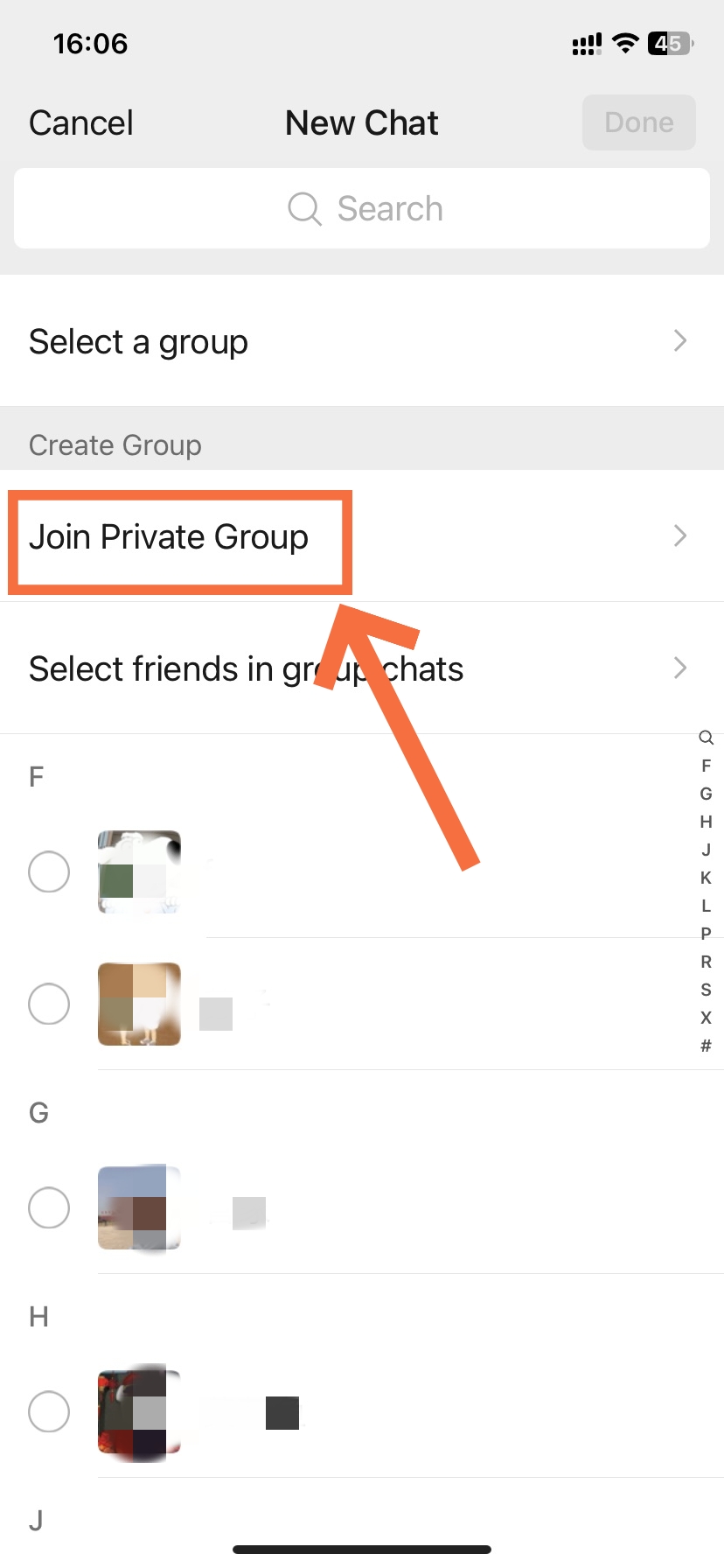
- Join Private Group
-
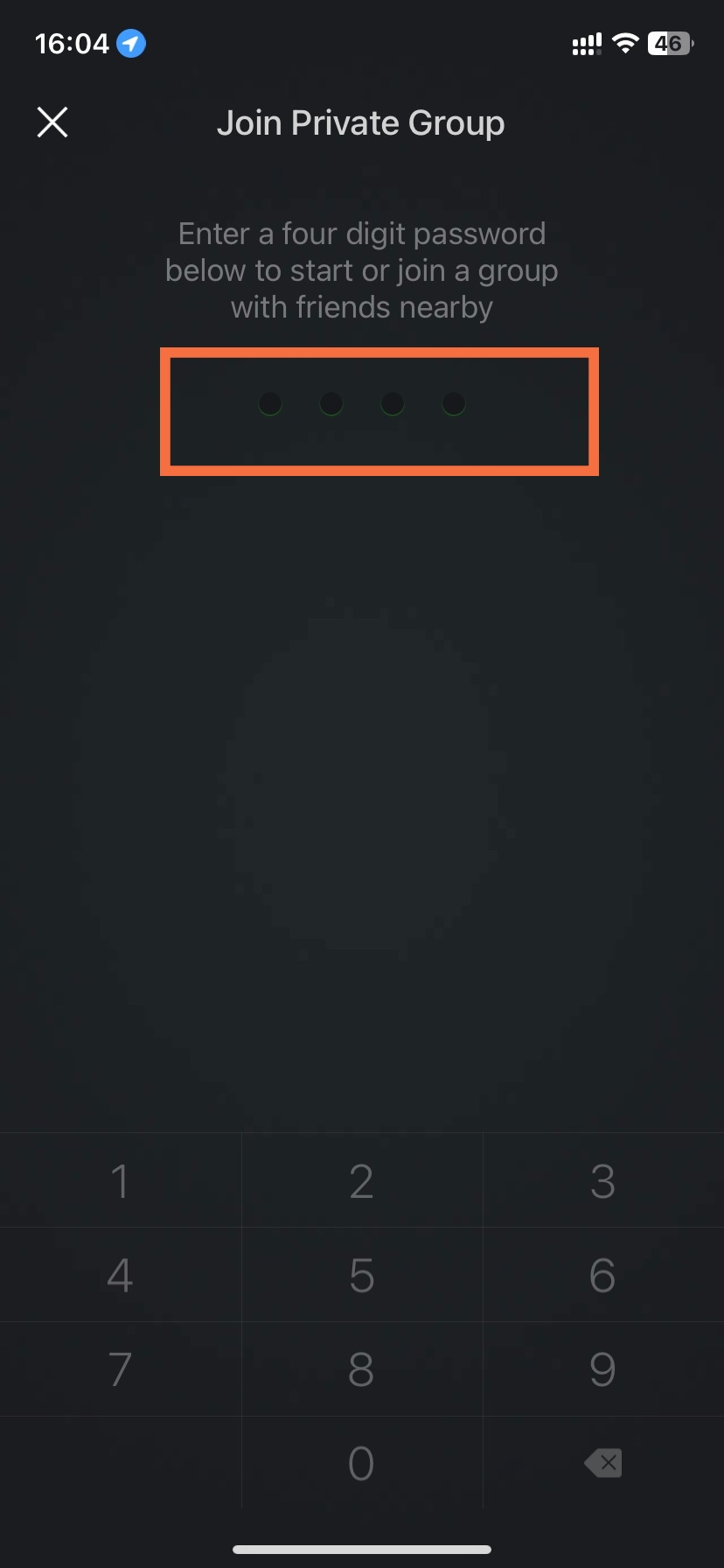
- Enter any 4-digit Code
-
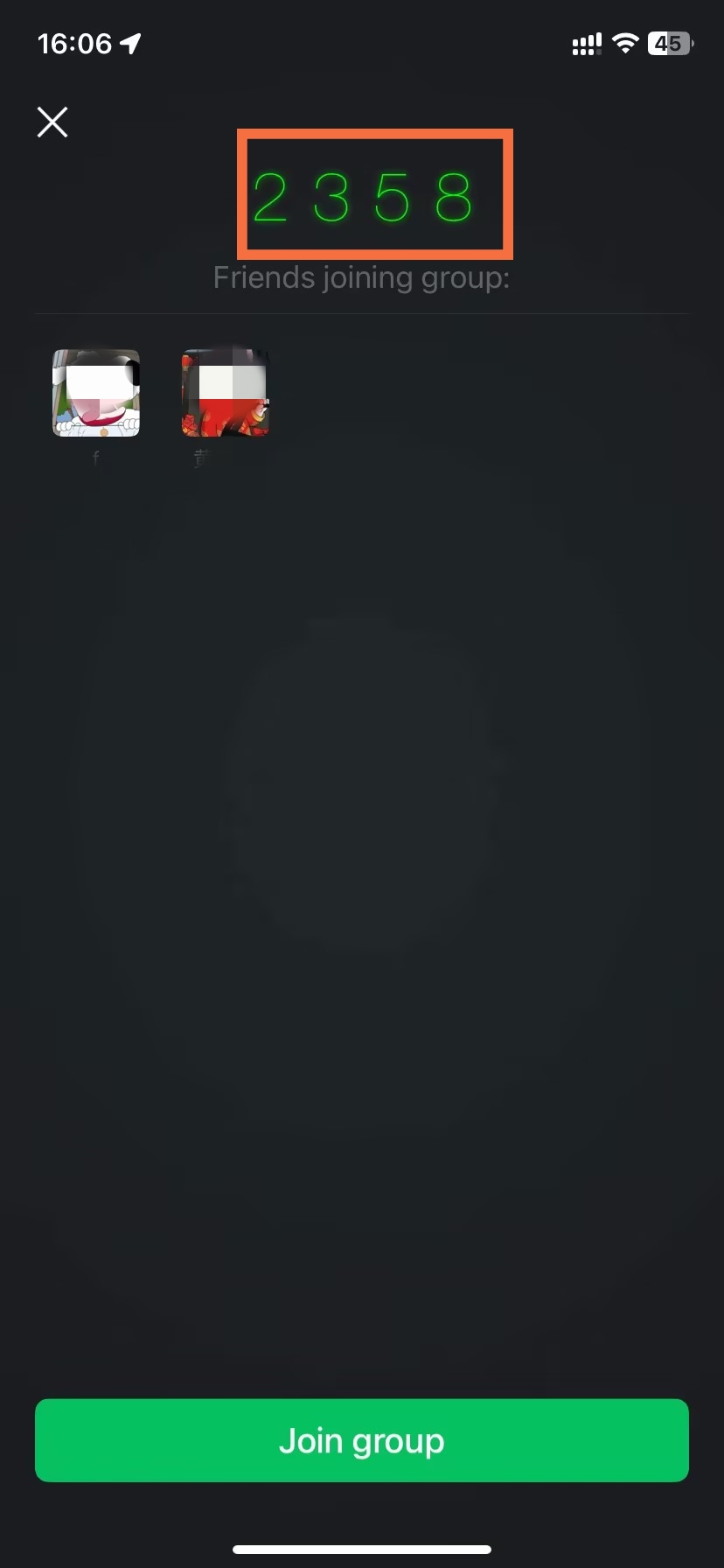
- Create the Private Group
🎪 WECHAT'S BUILT-IN LIVE-EVENT TOOL
Face-to-Face Group(Join Private Group) is an official WeChat feature for in-person settings. It uses a shared 4-digit numeric code to let multiple nearby people join the same group simultaneously — no QR scanning, no contact sharing required. The code is valid for approximately 3 minutes and has two distinct use cases.
Use Case A — Mass join at a live event (most common):
- On the mobile app, tap the
+icon → select Face-to-Face Group(Join Private Group). - A 4-digit numeric code is generated on screen. Read it aloud to the room — or display it on a projector.
- Everyone nearby opens WeChat → taps
+→ Face-to-Face Group(Join Private Group) → enters the same 4-digit code. - All participants who enter the code within ~3 minutes join the same group instantly. No prior contact relationship is required.
Use Case B — Create a solo personal notes group:
- Tap
+→ Face-to-Face Group(Join Private Group) and enter any 4-digit code yourself. - If no one else joins within the validity window, a single-person group is created with only you inside.
- This personal group acts as a private clipboard — useful for storing files, links, voice memos, or notes you want to access across devices.
💡
FIELD NOTE
At a product launch in Chengdu, a moderator announced a 4-digit code during the opening remarks. Over 100 attendees joined the session group before the first speaker finished their introduction. No scanning, no link forwarding — just four spoken digits.
💬 Group chats are powerful for coordination, and to learn about WeChat's other communication and travel features, check out our complete How to Use WeChat in China guide.
Adding Members and Managing Daily Chats
After a group has been established, another difficult task becomes growing the group (adding people) as well as developing and maintaining good communication. There are three distinct methods that can be used to grow a group of existing members. Each of these methods may be more appropriate for a different kind of group.
Direct Pull for Under 100 Members
-
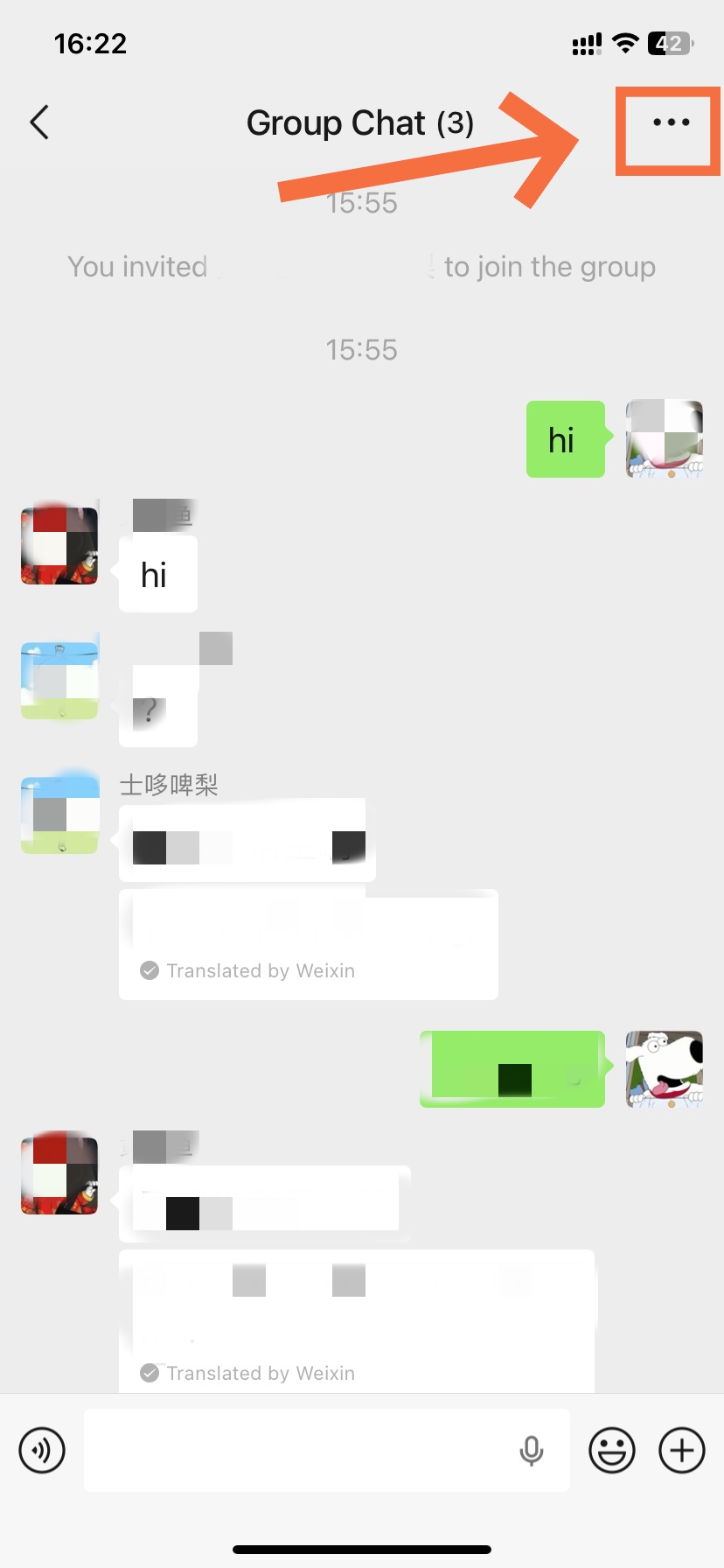
- Tap the Three Dots
-
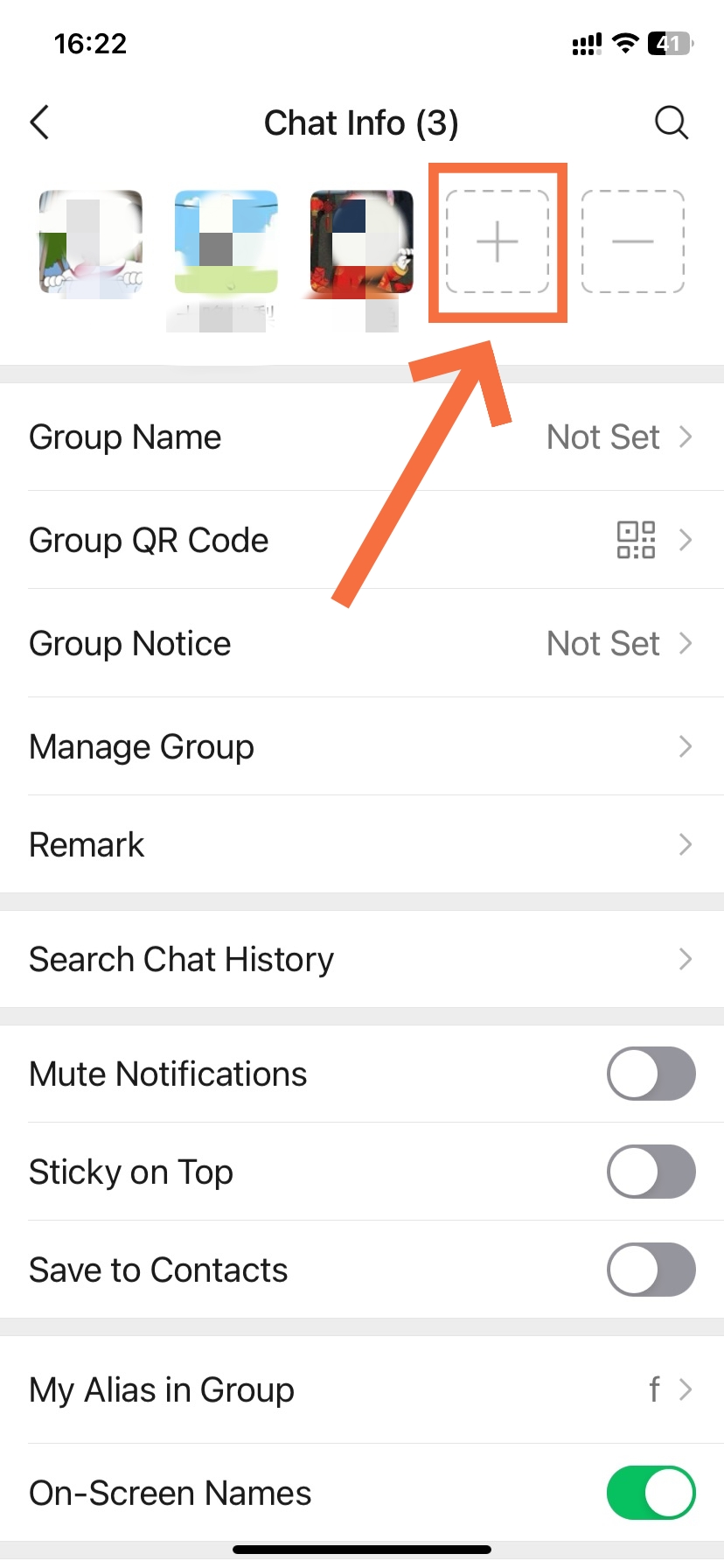
- Tap the + button
-
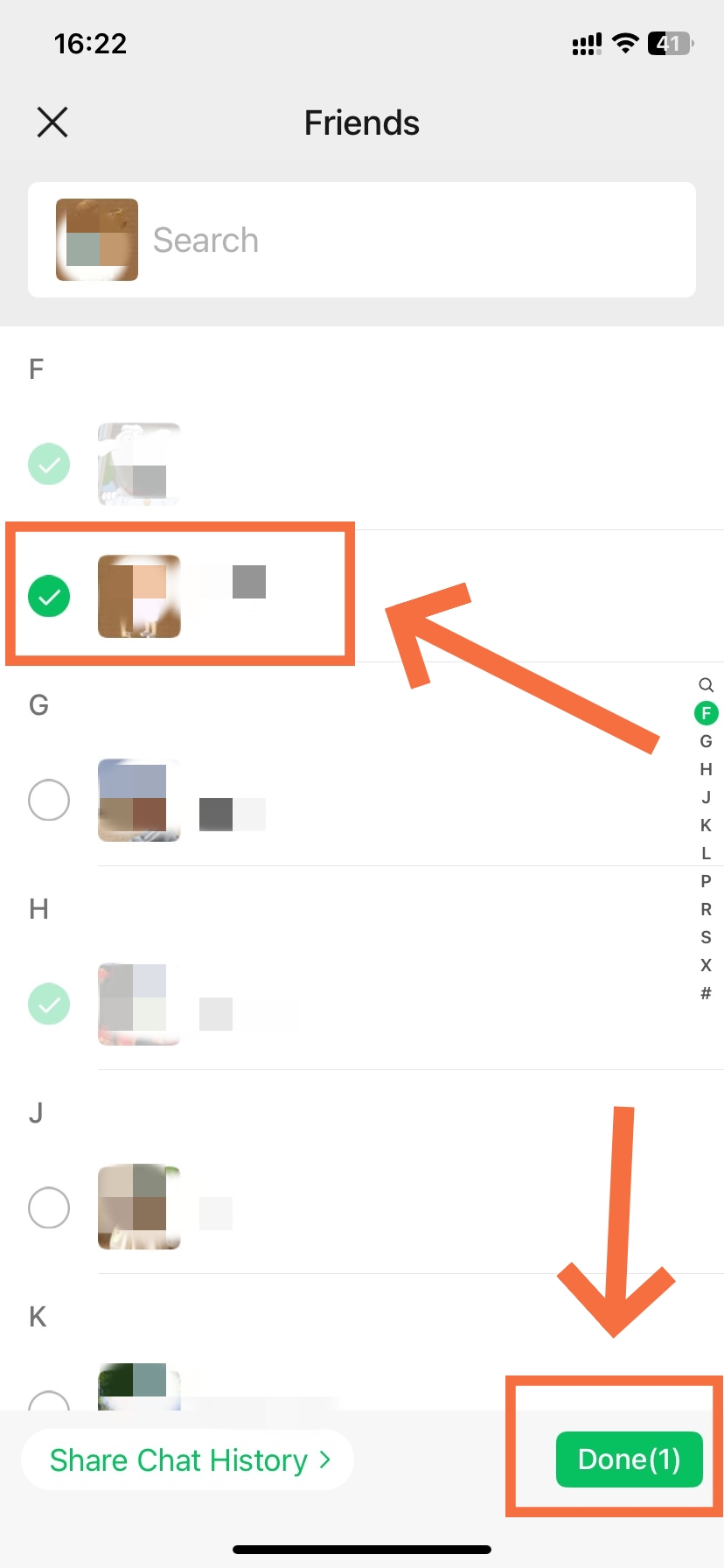
- Select contacts to join the group
👥 INSTANT INVITE FROM YOUR CONTACTS
While the group is under 100 members, any group member (not just the owner) can pull new contacts in directly from their address book. The new member joins instantly with no acceptance step. Once the group exceeds 100 people, this button disappears entirely — switch to QR code or link before that threshold.
- Open the group chat and tap ··· in the top-right corner.
- In the member grid at the top of the settings panel, tap the + button.
- Select one or more contacts from your address book and tap OK.
- Selected contacts join the group immediately without needing to confirm.
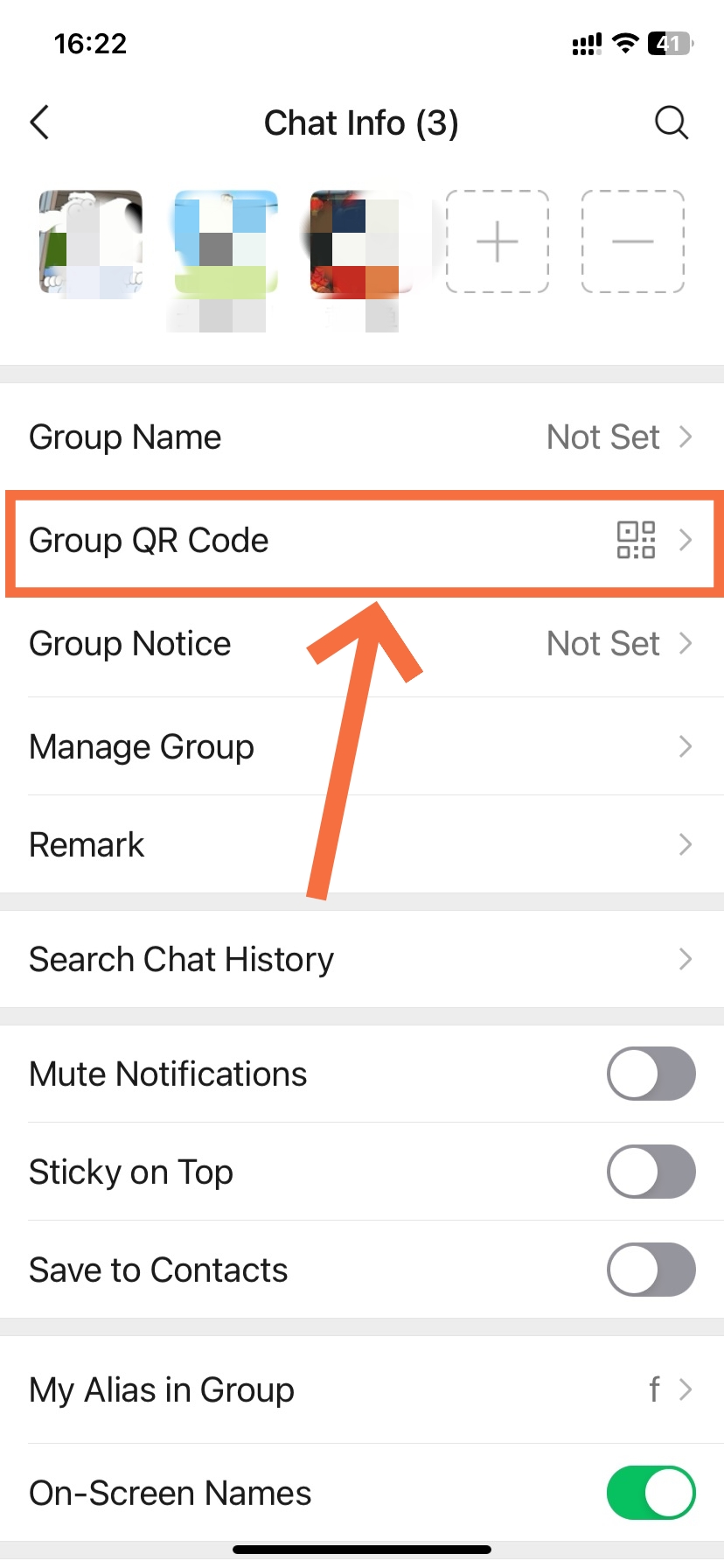
Sharing via Group QR Code
-
- Tap the Three Dots
-
- Tap QR Code
-
- WeChat Group QR Code
📲 THE ONLY JOIN METHOD OVER 100 MEMBERS
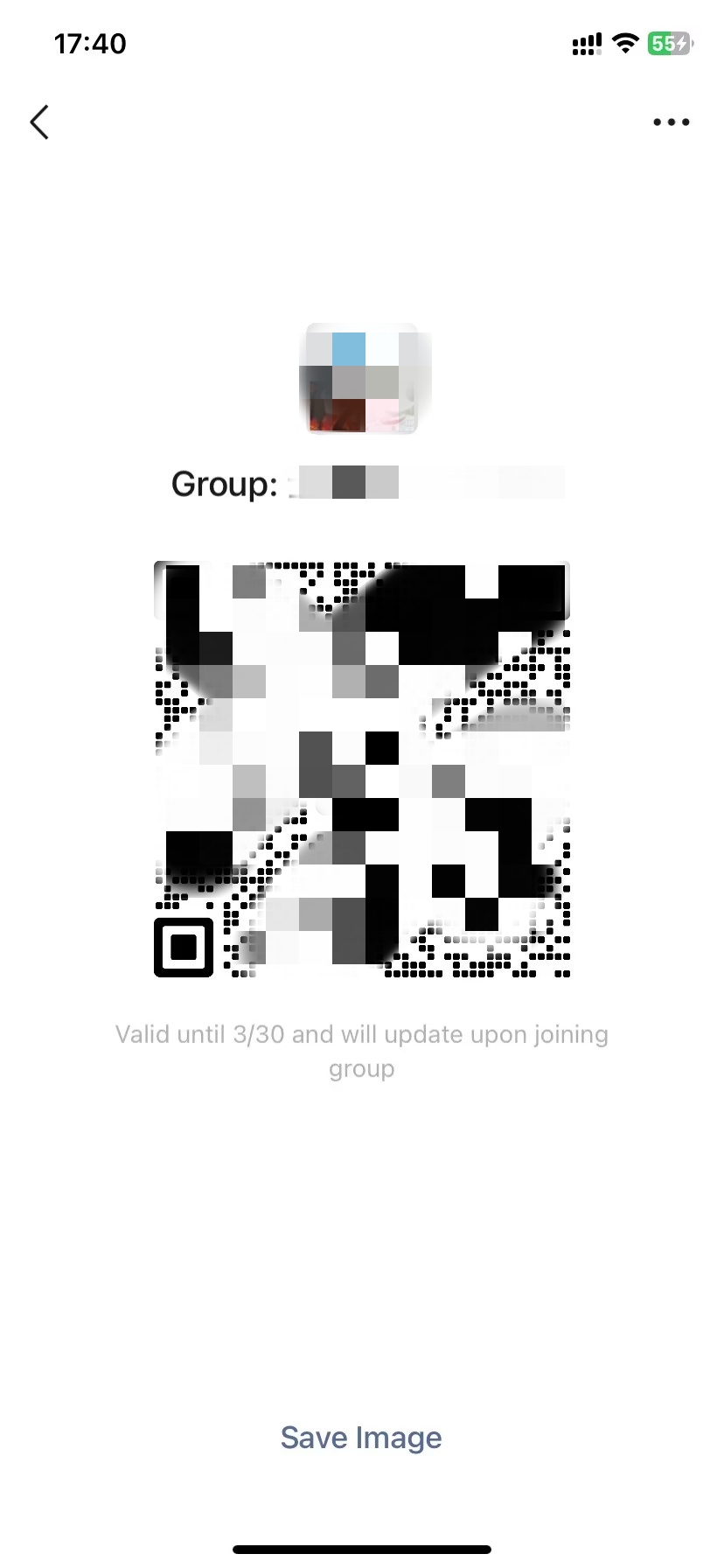
Once a group exceeds 100 members, the QR code becomes the only self-service join path. It shares the same 7-day expiry as the group link and can be saved as an image for both digital and physical distribution. For events, printing it on signage or table cards is the most efficient mass-invite method available.
- Open the group chat, tap ···, and select Group QR Code.
- Tap the Save icon to download the code as an image to your gallery.
- Share it digitally via any platform, or print it for offline use.
- A4-size prints are readable from up to 40 cm away from a phone camera.
- Use a high-contrast background — avoid placing the code over a busy pattern.
- To scan someone else's saved group QR image: open WeChat → Scan → tap the album icon → select the saved image.
Sending a Group Invitation Card
✉️ PERSONAL INVITES THAT CONVERT
This method sends a visual WeChat group card directly into a private conversation. The recipient taps it once to join. Pair it with a short personal note in the same chat — this small addition dramatically increases the acceptance rate compared to a silent card drop.
- Open the group chat and tap ···.
- Select Group Chat Invitation.
- Choose one or more contacts from the picker and confirm.
- Each selected contact receives a tappable group card in your shared private chat. One tap joins the group.
Group Owner and Admin Exclusive Controls
-
- Owner and Admin Exclusive Controls of WeChat Group
-
- Manage WeChat Group
-
- Post an Announcement
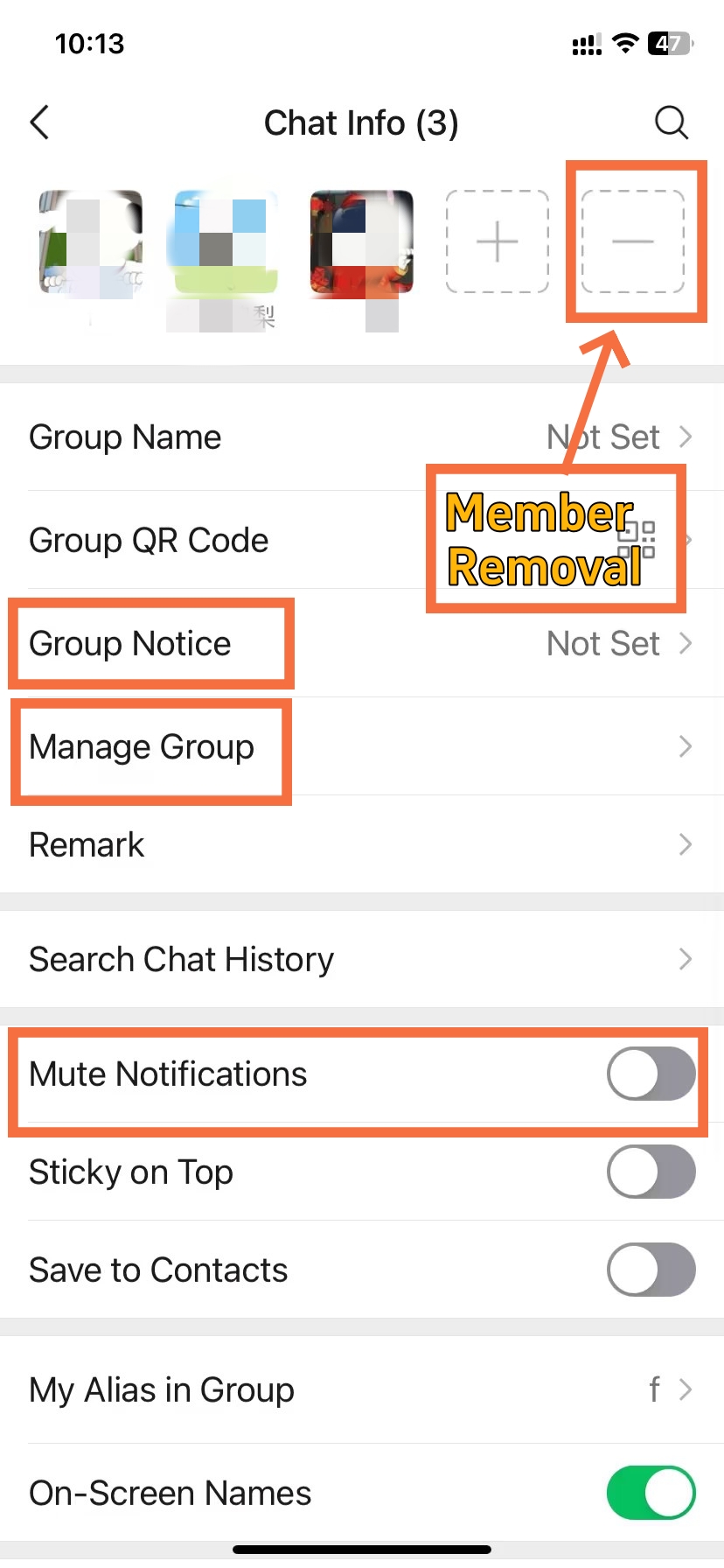
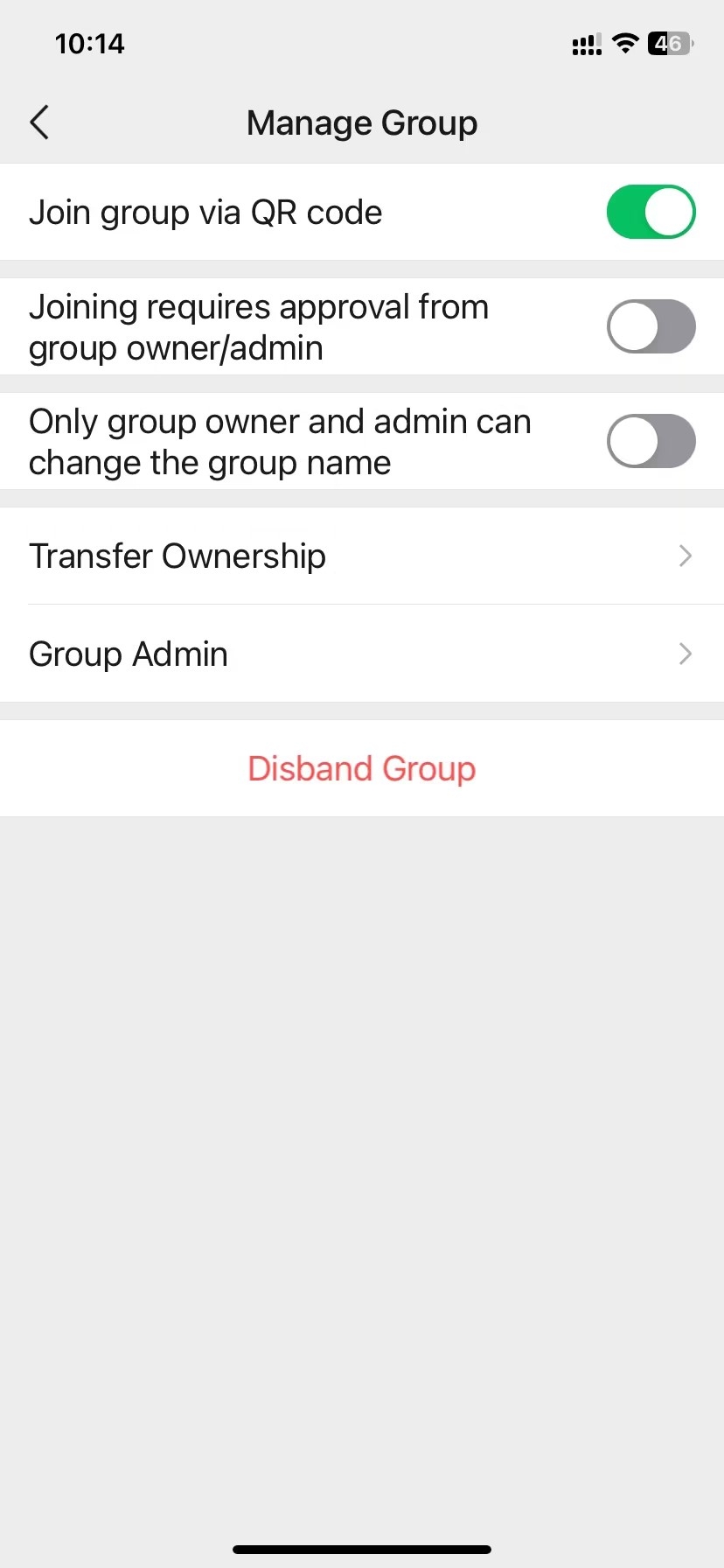
The controls in this section are reserved for the group owner and appointed admins. They exist to maintain order, delegate responsibility, and manage the group's structure over time.
Admin Setup and Permission Boundaries
🛡️ DELEGATE BEFORE YOU HIT 100 MEMBERS
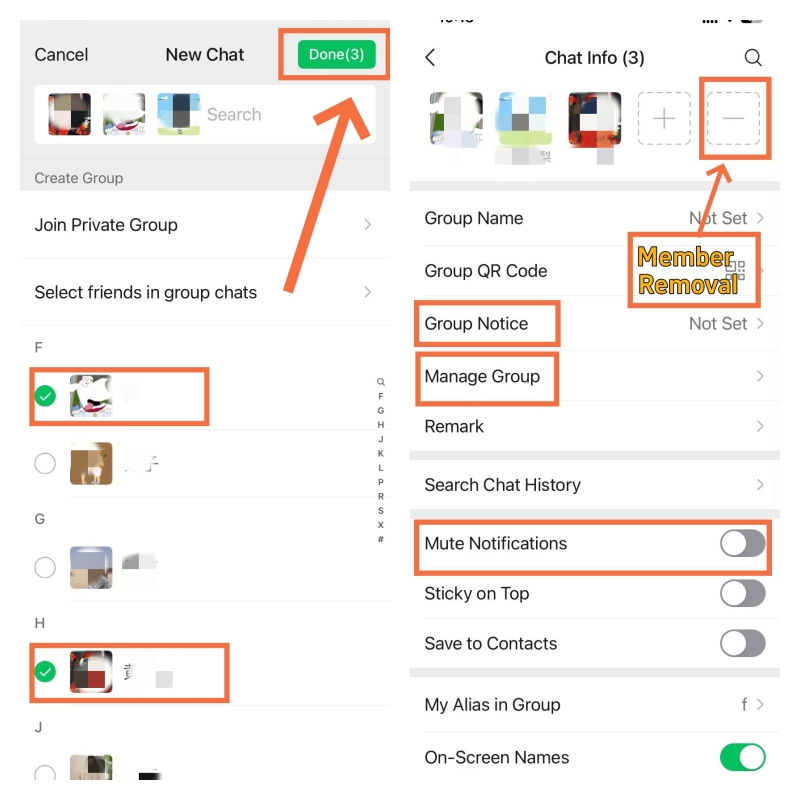
Admins share most owner-level moderation controls but cannot disband the group, transfer ownership, or remove the owner. Assign at least one admin before your group approaches 100 members to avoid a single point of failure.
- Tap ··· → Group Management → Add Admin.
- Select the member to promote and confirm. Status takes effect immediately.
- To remove an admin, return to the same path and tap Remove Admin.
Admins can approve joins, mute members, delete messages, post announcements, and remove members. They cannot disband the group, transfer ownership, or act against the owner.
Member Removal and Group-Wide Mute
🚫 REMOVAL ENDS ACCESS — MUTE PAUSES IT
Removing a member is permanent and visible — a system message notifies the group, and the person cannot rejoin without a new invite. Muting all members is temporary and reversible — use it to keep the chat clear when posting critical updates.
- Remove a member: Tap ··· → Group Management → Remove Member → select → confirm.
- Mute all members: Tap ··· → toggle Mute All Members on. Only the owner and admins can send messages during the mute period. Toggle off to restore normal messaging.
Announcements and Disbanding the Group
📢 BROADCAST TO ALL — OR END IT ENTIRELY
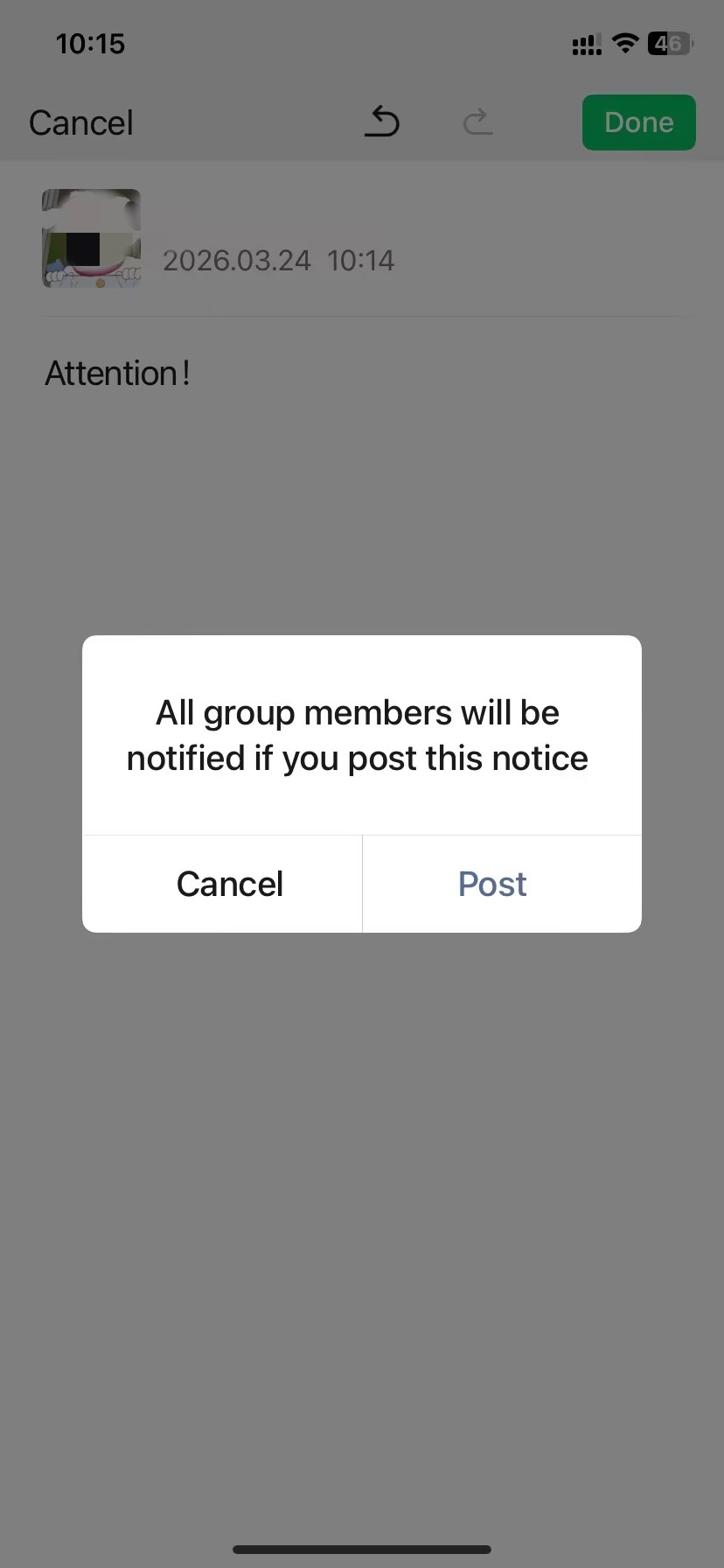
Announcements are pinned at the top of the chat and visible to every member including new joiners. Disbanding is irreversible — once confirmed, the group disappears permanently from every member's chat list with no recovery option.
- Post an announcement: Tap ··· → Group Announcement → type and publish. Edit and republish from the same path to update it.
- Disband the group (owner only): Tap ··· → scroll to bottom → Delete and Exit → confirm. Export any files or records members may need before proceeding — there is no undo.
Group Member Features and Settings
These features are available to every member — not just owners or admins. They cover how to communicate inside the group, personalise your experience, and handle in-group payments.
Core Chat Features
-
- WeChat Message Types
-
- Post WeChat Voice
-
- Quote Reply in WeChat Group
💬 EVERYTHING THE INPUT BAR GIVES YOU
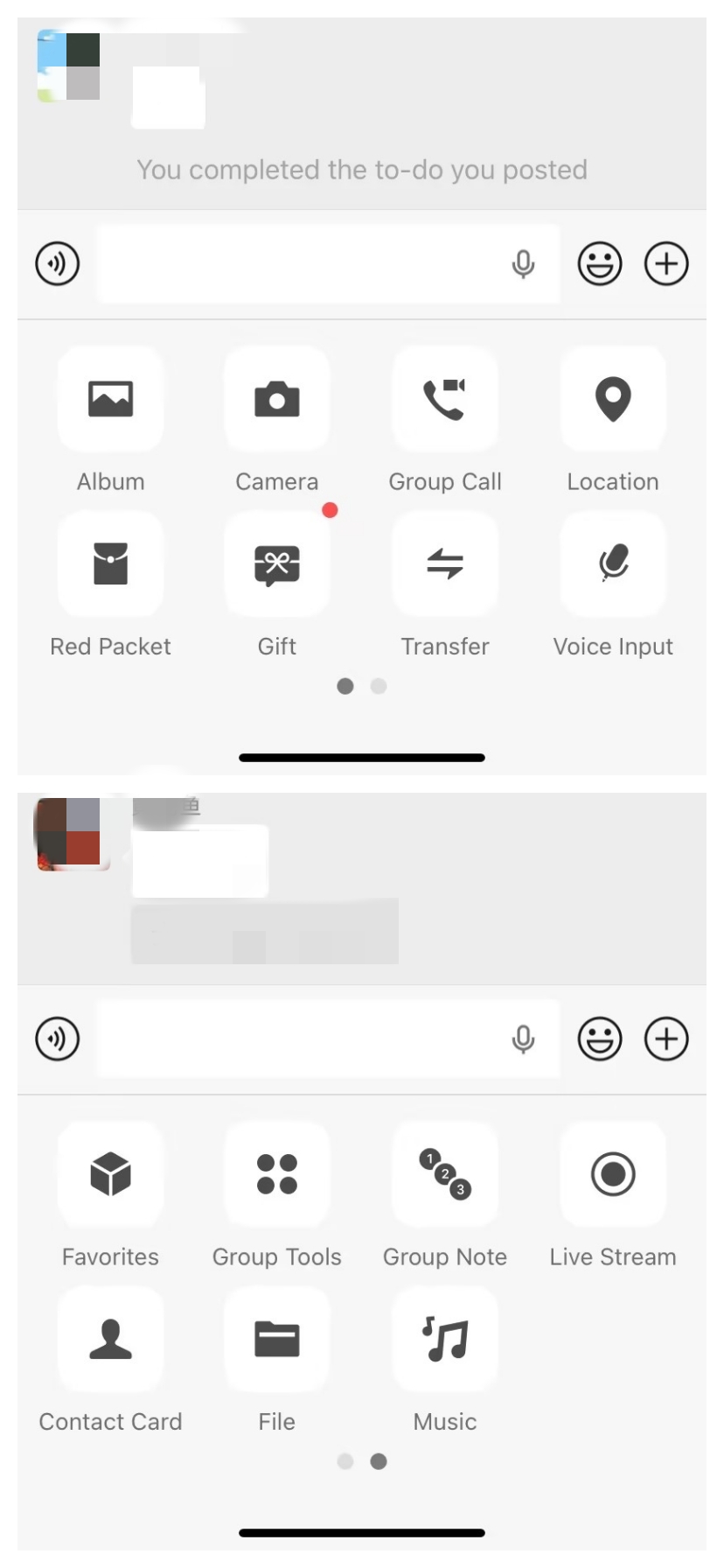
The input bar at the bottom of every group chat is the entry point for all communication. Beyond standard text, WeChat groups support a wide range of message types and structured collaboration tools — most of them one tap away via the + icon.
Message types (tap + to access):
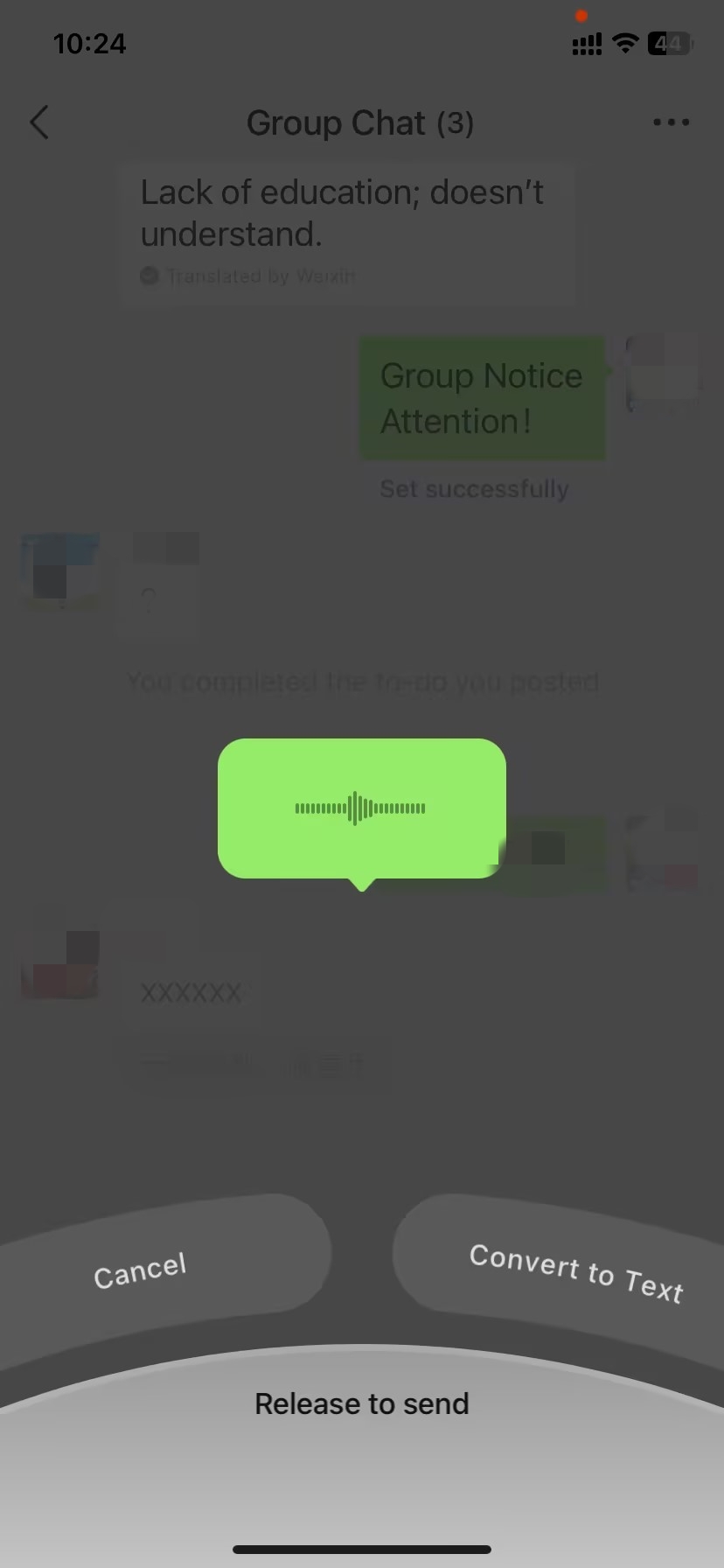
- Voice: Long-press the microphone icon to record; release to send. Tap the speed icon during playback to switch between 1x and 1.5x.
- Images / video: Select multiple files — WeChat collapses them into a single grouped message automatically.
- File, Location, Contact card: Available via + for sharing documents, map positions, and WeChat profiles.
Special formats:
- @Mention: Type
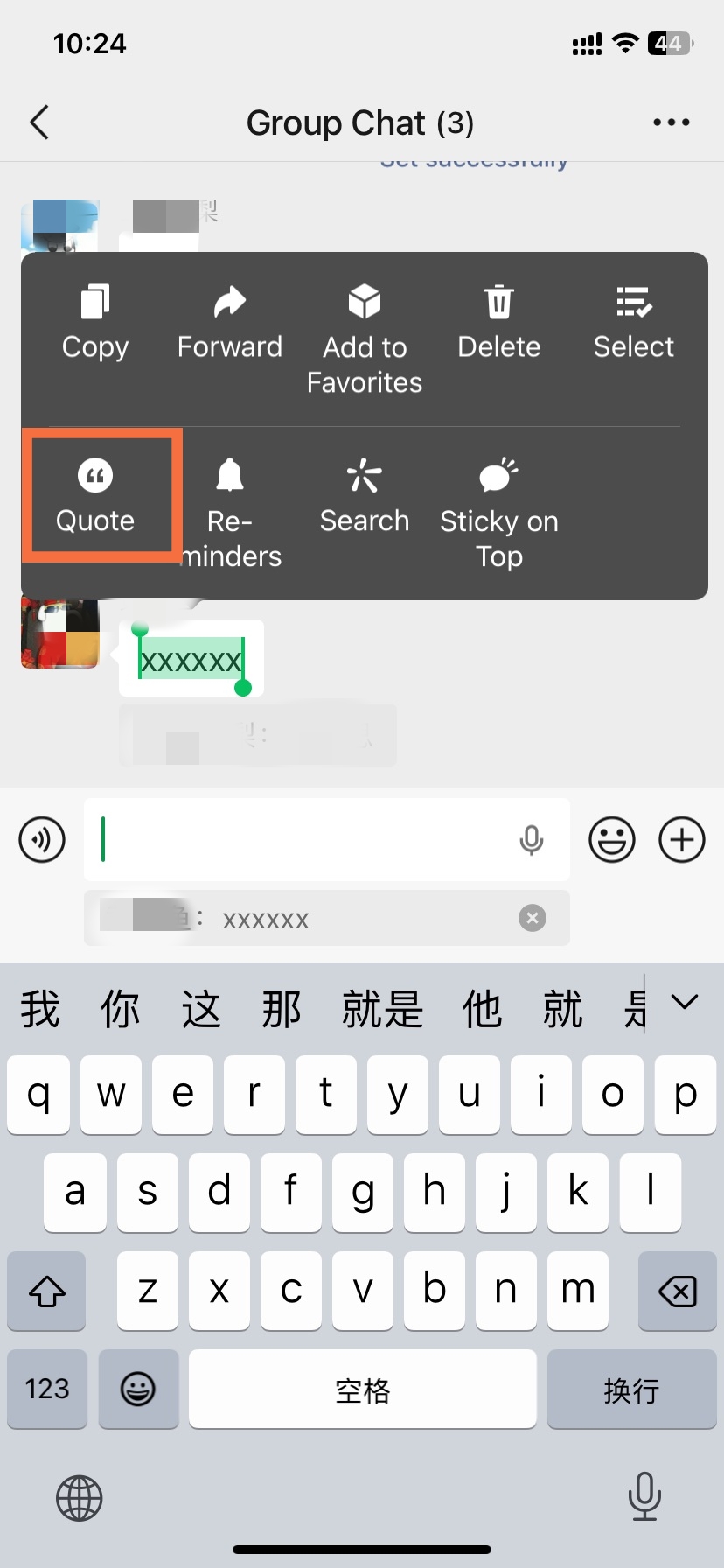
@and select a member. They receive a notification even if they have muted the group. Use@Allto notify everyone at once. - Quote Reply: Long-press any message → Quote. Your reply anchors to the original, keeping threads readable.
- #Topic: Tag messages by keyword. Tapping the tag later filters the conversation to show only related messages.
Group Tools (tap + → Group Tools): Access voting, group relay lists (接龙), shared Tencent Docs, and calendar — all without leaving the chat.
😄
TIP
Beyond text and voice, stickers and emojis are how WeChat group conversations come alive — for the full picture, check out this complete guide to WeChat stickers and emojis.
Knowing which buttons to press is just the beginning. Our comprehensive WeChat Reply Guide: How to Message Like a Local covers the systemic side of chatting—from handling voice notes to the etiquette of @mentions in a 2026 business context..
Personalising Your Group Experience
-
- Tap the Three Dots
-
- Personalising WeChat Group
-
- Edit Alias in WeChat Group
🪪 SETTINGS ONLY YOU CAN SEE
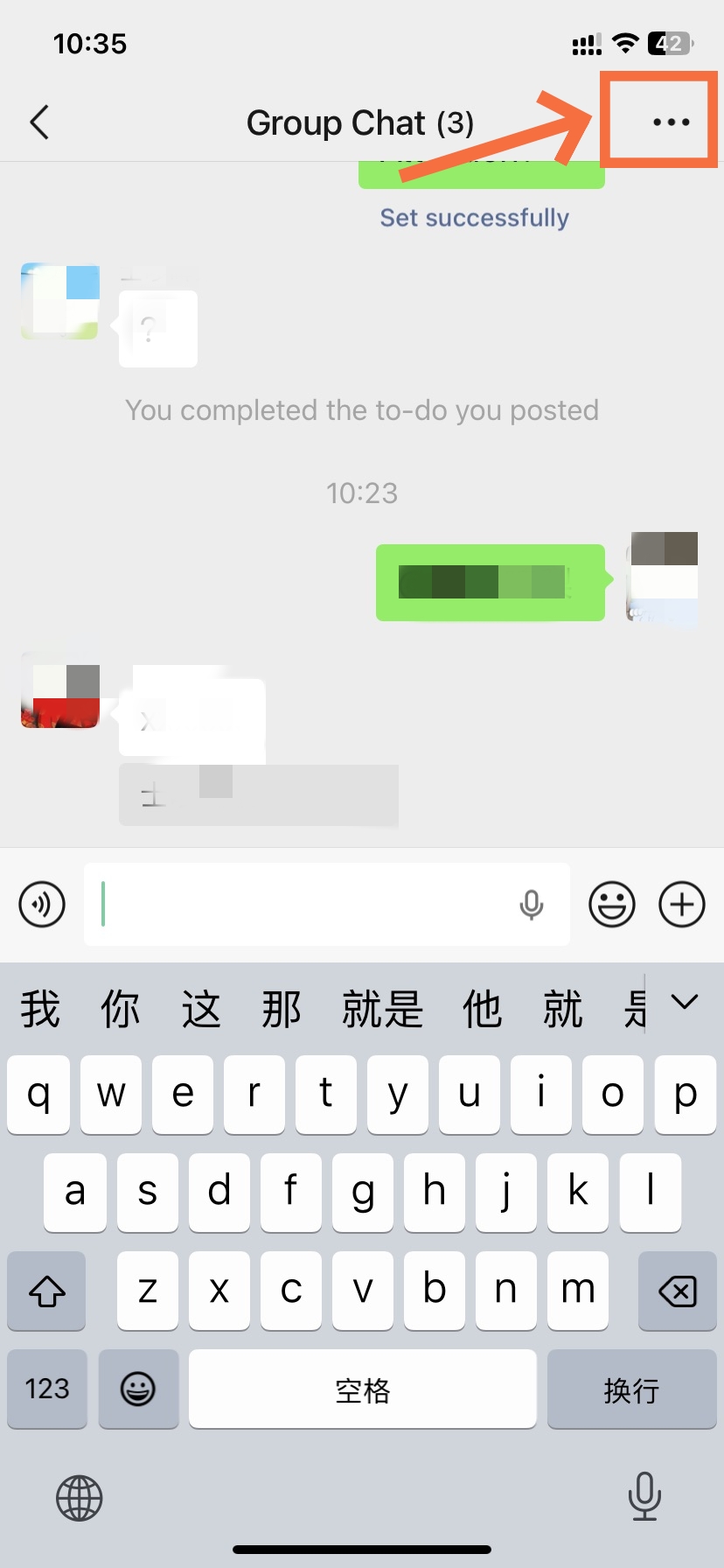
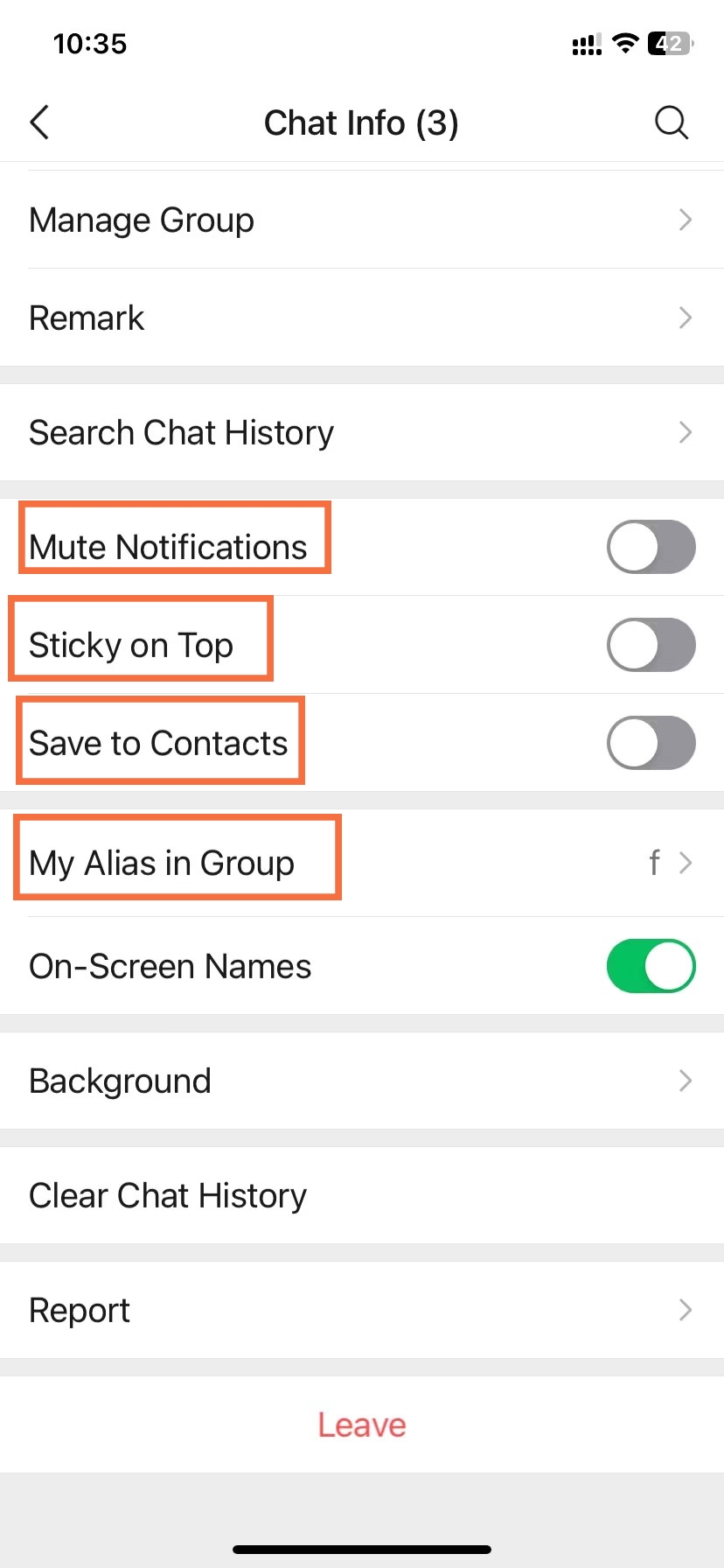
Every setting here is personal — changes affect only your own experience and are invisible to other members. Access all of them via ··· in the top-right corner of the group chat.
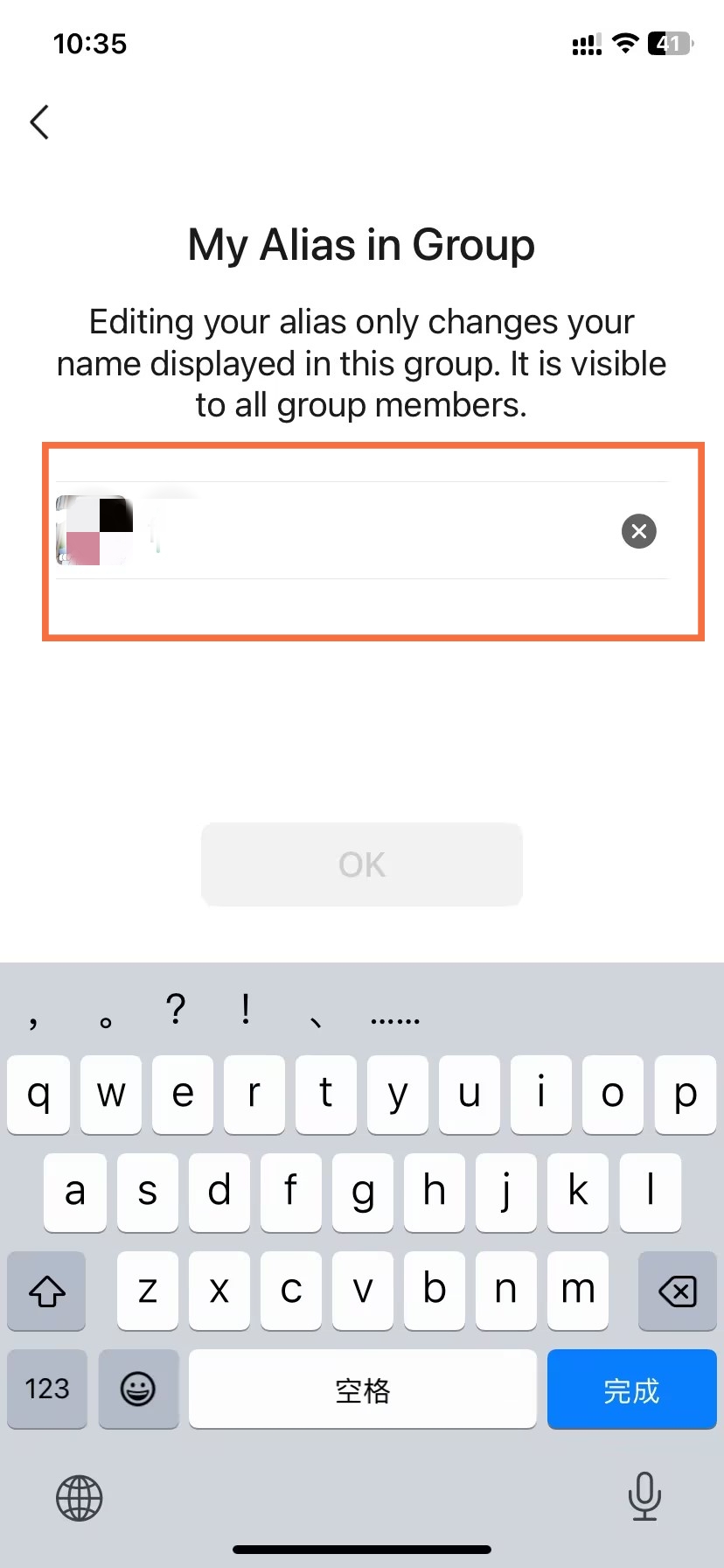
- My Group Nickname: Tap ··· → your avatar → My Group Nickname. Applies only in this group; your main profile is unaffected. Use a full name professionally, a nickname socially.
- Do Not Disturb: Toggle on to silence notifications while keeping badge counts. Enable Notify on @mention in the same menu to stay alert only when directly mentioned.
- Pin to Top: Long-press the group in your chat list → Pin on Top.
- Search Chat History: Tap ··· → Search Chat History. Filter by keyword, sender, date, or media type.
- Save to Contacts: Toggle on via ··· to keep the group permanently visible under Contacts → Groups, even when inactive.
In-Group Payments and Reporting
-
- Transfer Money to Group Member
-
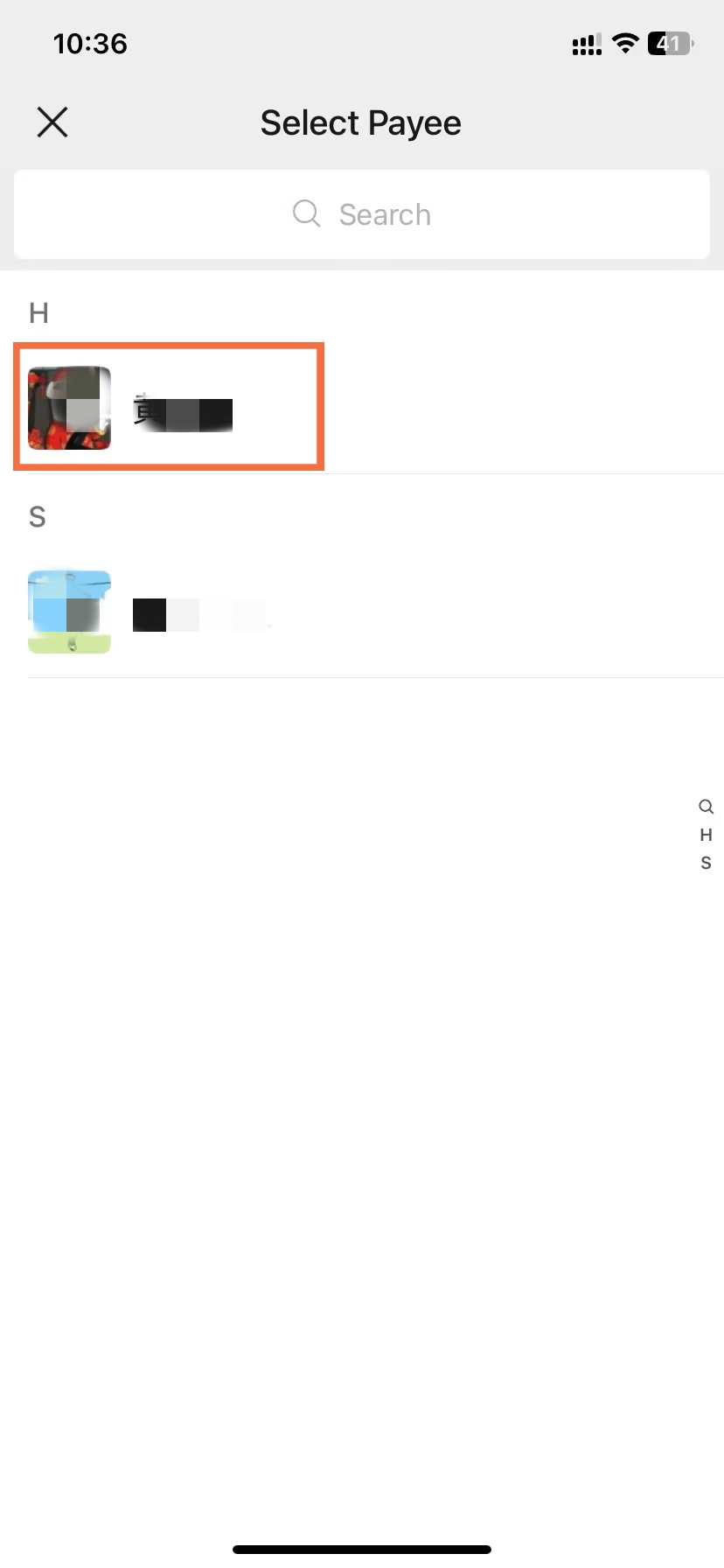
- Select Payee
-
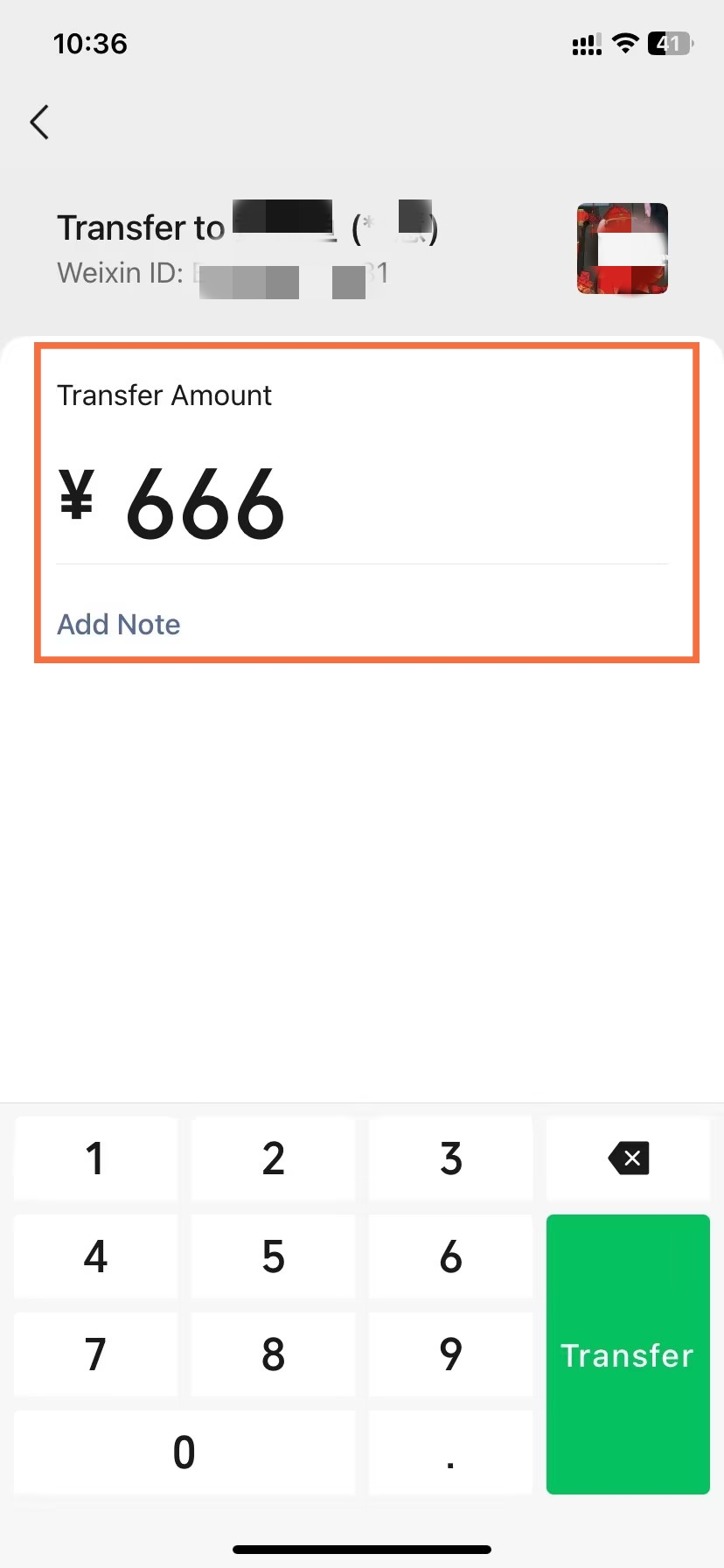
- Finish to Transfer
🧧 PAY AND REPORT WITHOUT LEAVING THE CHAT
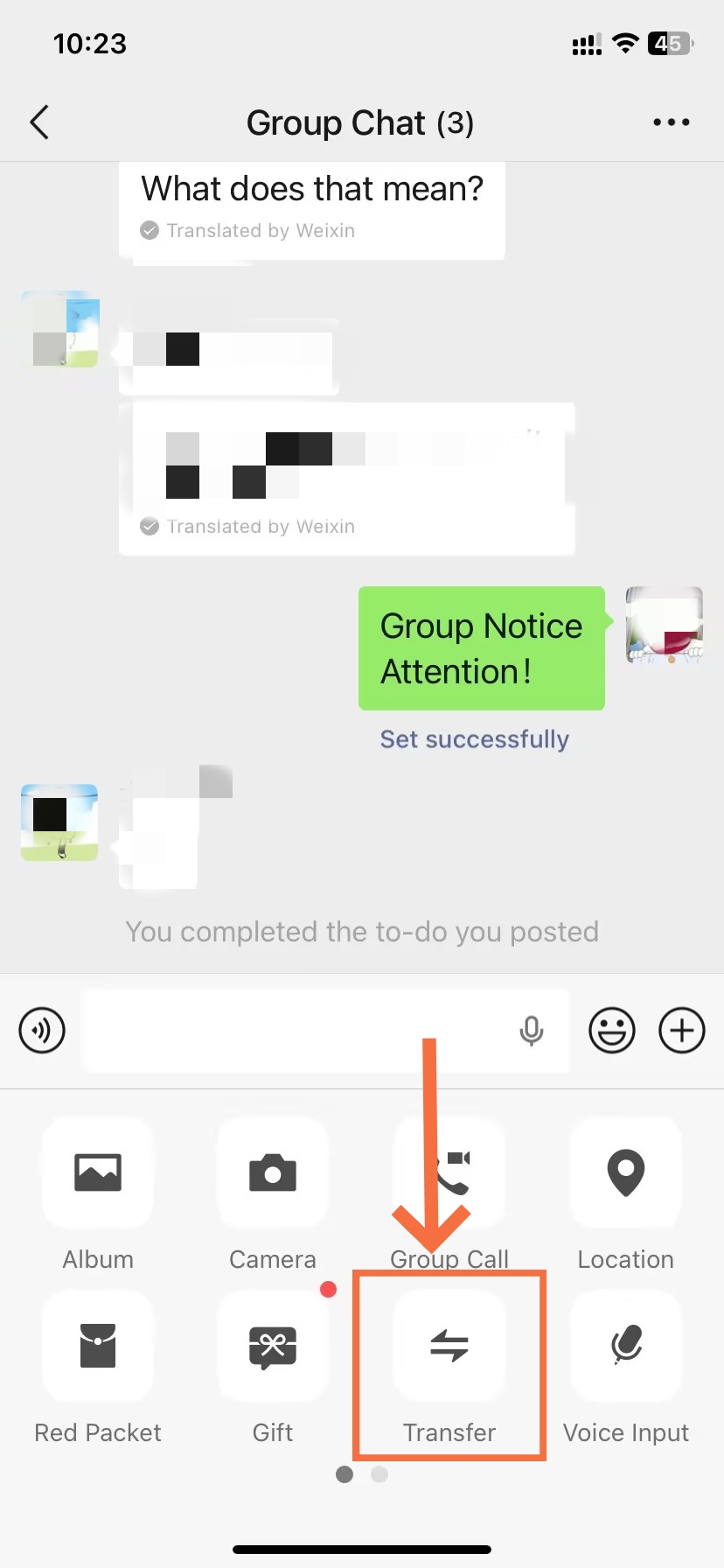
WeChat Pay is built directly into every group. Red packets require no Friend status and are the default for social payments. Direct transfers do require mutual Friend status and are handled via the private chat. Reporting bypasses the group owner and goes straight to WeChat's platform team.
- Red Packet: Tap + → Red Packet. Choose Lucky Draw (random split) or Standard (equal split). Confirm with payment password and send. Any group member can receive — no Friend relationship needed.
- Transfer: Tap the recipient's avatar → Send Message → in the private chat, tap + → Transfer. Both parties must be WeChat Friends for this to work.
- Report: Long-press any message → Report → select the reason and submit. Reports are reviewed by WeChat's safety team independently of the group owner.
New Features Worth Knowing in 2026
WeChat continues to release meaningful improvements to its group chat experience. The following features are verified as of 2026 and address real friction points in high-volume group communication. Each one changes how the platform feels to use daily.
Fold and Send Multiple Images
🖼️ NO MORE PHOTO FLOODS
WeChat is doing something fabulously simple: if several images are sent at once, it will collapse them into a single row of thumbnails that you can swipe through rather than sending a pile of notifications that look like this: if you have groups of people sharing images—wedding groups, vacation groups, or ecommerce groups—you can see how this one small UX change cuts down on flooding all that out.
- Select multiple photos from the image picker in the group chat input area.
- WeChat groups them automatically into one collapsed message before sending.
- Recipients tap the thumbnail grid to expand and view individual images.
Voice Message Playback Controls
🎙️ SCRUB AND SPEED UP VOICE CLIPS
Voice messages now include a playback visual bar and allow switching between 1x / 1.5x speeds. One of the most common criticisms of Tencent’s WeChat is the inability to fast-forward through long voice clips - in groups that heavily use voice, this saves a ton of time.
- Tap a voice message to begin playback. The progress bar appears below the waveform.
- Tap the speed icon to toggle between 1x and 1.5x playback speed.
- Tap anywhere on the progress bar to jump to that point in the recording.
Smart Summary for Long Chats
🤖 CATCH UP IN SECONDS
For those in an active group with hundreds of messages sent all day, WeChat’s Smart Summary takes a look at content sent in the last few hours and pops up an on-device AI summary highlighting the main topics, decisions, and links sent. No more scrolling through a few hundred messages when you’ve been out of the loop for a while.
- On the mobile app, look for the Summary prompt that appears with a large volume of unread messages.
- Tap it to generate an AI digest of the recent conversation thread.
- The summary highlights key topics, decisions, and shared links from the unread period.
Batch Message Recall
↩️ RECALL MULTIPLE MESSAGES AT ONCE
WeChat now allows users to recall multiple messages at once within that same 2-minute time window. Before, users had to long-press and recall each of the messages one by one — a real pain if you accidentally bulk sent a message! The batch recall path slices right through that bottleneck.
- Long-press any message you want to recall within 2 minutes of sending.
- Tap Select to enter multi-select mode.
- Check all messages you want to recall (within the 2-minute window).
- Tap Recall at the bottom of the screen. All selected messages are removed simultaneously.
Announcement Read Receipts
✅ KNOW EXACTLY WHO SAW YOUR MESSAGE
Group owners now know which members have viewed a pinned announcement. This read confirmation is private to the owner via the announcement detail screen. For operational groups where confirming all members have received a critical update is important, this saves the hassle of dotting roll-call messages.
- Post a Group Announcement via ··· → Group Announcement.
- Open the posted announcement and tap the Read Receipts or viewer count icon.
- A list of members who have viewed the announcement appears, separated from those who have not.
Granular Mute and Group Tools
🔕 SMARTER NOTIFICATIONS AND COLLABORATION
WeChat not only now has a proper mute switch, but also allows you to adjust notifications in a group so that you get alerted to only @mentions or messages from select members — keeping you from getting distracted, but not fully muting the group. Group Tools offers collaboration ideas like polls, relay lists, and joint sign-ins, accessible without leaving your chat.
- Standard Do Not Disturb: Tap ··· → toggle Do Not Disturb. Silences all notifications; badge counts still appear.
- @Mention alerts only: In the notifications menu, enable Notify on @mention. You receive alerts only when someone specifically @mentions you.
- Group Tools: Tap + in the input bar → Group Tools. Access shared features including group sign-ins, relay lists (接龙), shared documents, and voting — all without leaving the group chat.
Faqs: Common Questions and Practical Answers
Q: How many members can a group hold?
A WeChat group holds a maximum of 500 members. Groups under 100 allow direct invites from any member; beyond that threshold, new joins require a QR code or group link. If your audience outgrows the cap, knowing how to create a WeChat group from scratch for overflow members is the fastest practical solution.
Q: Can foreigners create groups without a Chinese number?
Absolutely. Knowing how to create a WeChat group only requires a personal account verified with any international phone number — no Chinese SIM needed. WeChat supports registration from most countries. Note that WeChat Pay features may require additional verification for non-Chinese residents, but group creation itself carries no geographic restriction.
Q: Why did my WeChat group disappear?
WeChat hides inactive groups from your main chat list but never deletes them. Go to Contacts → Groups to find it. To prevent this from happening again, open the group, tap ···, and toggle Save to Contacts on. Once enabled, the group stays permanently visible regardless of activity — a small step that anyone learning how to create a WeChat group should take immediately.
Q: Why can't I add people to my group?
Three situations cause this: the group has passed 100 members (switch to QR code or link), it has hit the 500-member cap (no one new can join), or the person is not yet in your contacts. Resolving whichever condition applies unblocks the process. Anyone revisiting how to create a WeChat group for an overflow audience will find the same prerequisites apply from the start.
Q: How do I run a poll inside a group?
Tap + in the input bar → Group Tools → Voting. Add your question and options, choose whether responses are anonymous, and send. Members vote directly in the chat without leaving the conversation. This feature works in any existing group and requires no additional setup beyond understanding how to create a WeChat group and getting your first members inside.
Q: How do I leave without notification?
WeChat does not support silent exits — a system message notifies the group when you leave. The practical workarounds are toggling Do Not Disturb to stay silently or changing your group nickname to something generic before exiting. The exit path is ··· → Delete and Exit → confirm. Unlike learning how to create a WeChat group, leaving one always leaves a visible trace.
Q: How do I start a group voice or video call?
Tap + in the input bar → Voice Call or Video Call, then select participants. Group video calls support up to 9 people simultaneously, with no third-party app required. This feature is built into every group from the moment of creation. Once you know how to create a WeChat group, multi-person calls are accessible immediately from the same input toolbar.
Q: What happens at the 500-member limit?
All join methods — QR code, link, direct add, and invitation cards — stop working once a group hits 500 members. The group is full until someone leaves. The most straightforward solution is knowing how to create a WeChat group quickly for the overflow audience, which takes under a minute and gives your expanded community a functional new home right away.
Q: How do I generate a QR code for offline use?
Open the group chat → tap ··· → Group QR Code → save the image to your gallery. Print it on table cards, banners, or slides for offline distribution. The code expires after 7 days, so regenerate it before each event. This QR path is also the primary join method once a group you know how to create a WeChat group for grows beyond 100 members.
Q: How do I change my name in one group only?
Inside the group, tap ··· → tap your own avatar → My Group Nickname → edit and save. The change applies only to that group; your main profile and all other groups are unaffected. This per-group identity feature is one of the most useful things to configure right after you learn how to create a WeChat group — use your full name professionally, a nickname socially.