WeChat Night Mode
WeChat Dark Mode is not simply a visual style at your discretion - it’s the hidden weapon you’ll need to navigate China at night. Whether you find yourself in the tiny glow of a Chengdu night market at 9pm with 20% battery left, or fumbling to scan a payment QR code on the dark table of a table in a restaurant, this simple switch yields the difference of a pleasant transaction or phone-in-face frustration. Not only does dark mode save 2-3 hours of battery on modern phones, it cuts down on strain during late rides in your DiDi, and means you can blend in with a properly set phone, not blind everyone with bright white space in hushed conversations.
This guide holds you by the hand through the complete set up process for iPhone, Android, and PC users, shows you the fastest way to flick the switch before your flight, and reveals just five real travel scenarios where it’s necessary (from scanning payment codes at Shanghai night markets, to identifying group chat messages in dark hotel rooms). You’ll also learn just six common problems faced by foreign travelers, and how to fix them. Absolutely no fluff and no technical messaging - just simple, actionable steps you can go through in under 10 minutes.
WeChat Night Mode 101: Three Critical Terms Every Traveler Should Know
Before you search through settings menus, here's what matters—WeChat officially calls it "Dark Mode," not "Night Mode." This naming confusion trips up many travelers who then wonder why their settings look different from online screenshots.
Dark Mode vs Night Mode vs Theme: One Feature, Three Different Labels
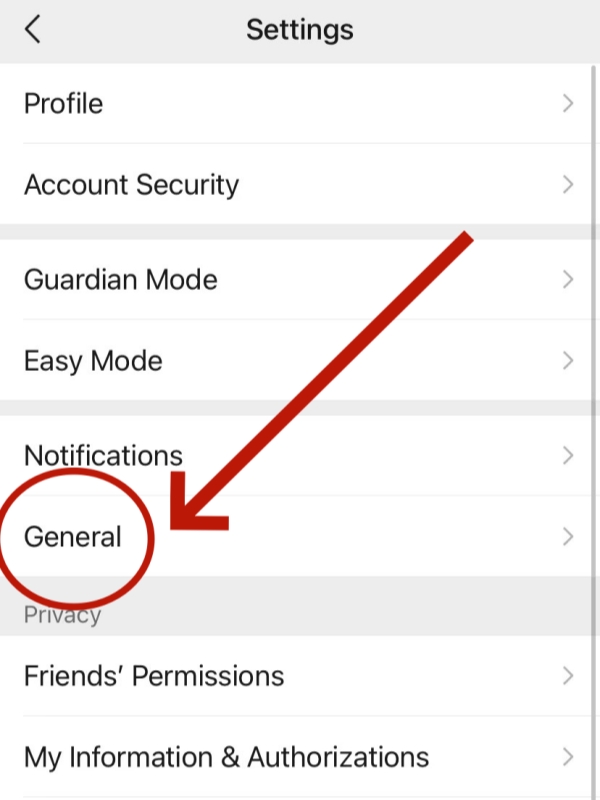
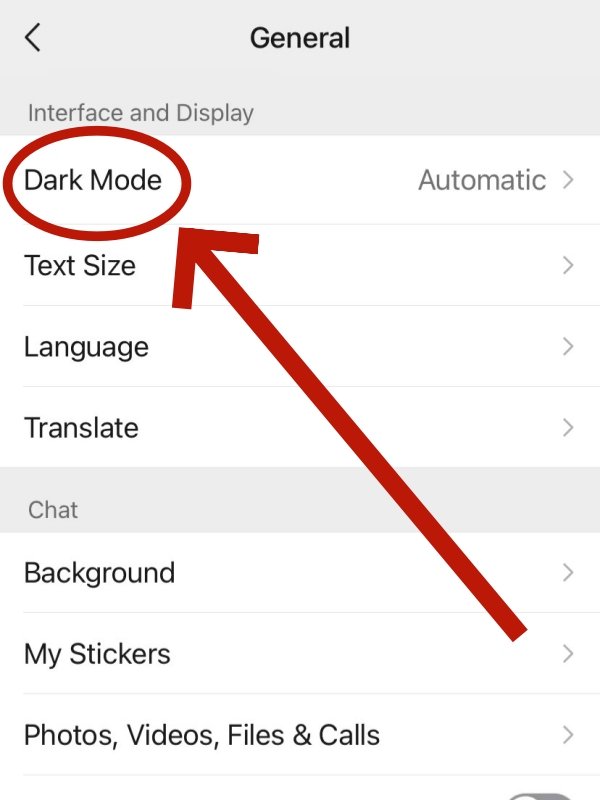
Dark Mode (深色模式) is WeChat's official term at Me > Settings > General > Dark Mode. This transforms your entire interface—white backgrounds become dark gray, affecting chat windows, payment screens, and everything else. It syncs with your phone's system settings automatically.
Night Mode (夜间模式) is what users call the same feature—different name, emphasizing when you'd use it. You'll see "Night Mode" across travel blogs, but WeChat's settings won't show that exact phrase.
Theme (主题/聊天背景) only changes wallpaper behind individual conversations—the rest stays bright white, your eyes still strain, and battery drains just as fast. Not what you want.
| Platform | Official Support | Auto-Switch | Manual Toggle |
|---|---|---|---|
| iOS | ✅ Yes | ✅ Yes | ✅ Yes |
| Android | ✅ Yes | ✅ Yes | ✅ Yes |
| Windows | ❌ No | ❌ No | ⚠️ 3rd Party |
| Mac | ❌ No | ❌ No | ⚠️ 3rd Party |
| Web | ❌ No | ❌ No | ⚠️ Extension |
iOS and Android both get complete support, though some Android manufacturers require an extra restart. Windows and Mac desktop apps? No official support as of January 2025—you'll need third-party extensions, though most travelers use WeChat on phones anyway.
WeChat Night Mode on iPhone: 3-Minute Setup
-

- Settings in WeChat
-
- Select the “Dark Mode“
-
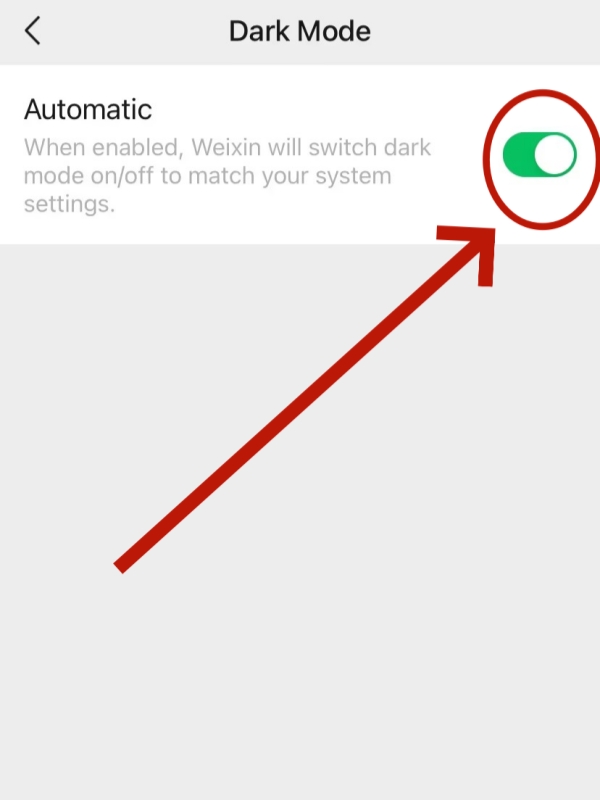
- Open the Automatic Bottom
-
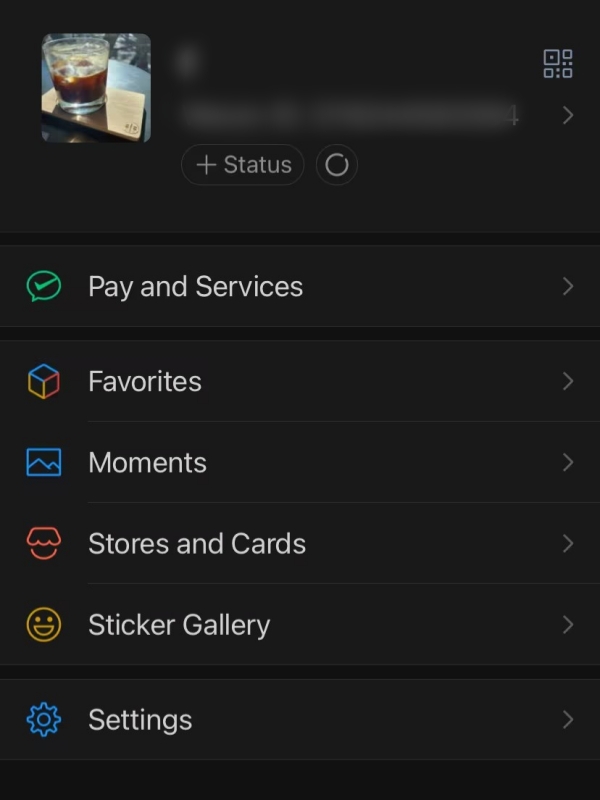
- WeChat Night Mode
Pre-Flight Checklist: 2 Things to Verify
Before you board your flight to China, confirm two quick requirements: check the iOS version on your phone; go to Settings > General > About. If you see “Software Version,” then tap it. You’ll need to at least iOS 13—most iPhone devices from 2019 onward will clear this hurdle. Second, make sure you have the correct version of WeChat. Open the app and tap Me > Settings > About. You should see “7.0.12 or higher.” If either of these are out of touch, update now while you’re on a reliable home Wi-Fi connection. Chinese airports can have slow connections, and you’ll not want to spend your first hour in Beijing on the download while you should be calling a DiDi!
Automatic WeChat Night Mode Setup (Recommended for Travelers)
Step 1: Configure iOS system dark mode Open Settings > Display & Brightness > select "Dark." Then tap "Automatic" and set your schedule to 7:00 PM to 7:00 AM—this matches typical China evening activities, from dinner through night markets. The system now switches modes based on time rather than sunset, which is crucial since China spans multiple time zones despite using a single standard time (UTC+8).
Step 2: Link WeChat to system settings Launch WeChat and navigate to Me > Settings > General > Dark Mode. Toggle ON the option labeled "Follow System." This creates a seamless connection—when your iPhone switches to dark mode at 7 PM, WeChat automatically follows without requiring separate adjustment. You set it once and forget it.
Step 3: Test the setup Open WeChat's payment page (Me > Services > Wallet) and check if the background displays as dark charcoal rather than bright white. Try scanning a sample QR code with your camera pointed at any printed code. Both functions should work smoothly in dark mode. If you see glitches, restart the WeChat app and verify again. The test confirms everything's working before you need it in a real Chinese night market.
Quick tip: Complete this setup on your flight to China. The moment you land and turn off airplane mode, your WeChat will already be optimized for China's timezone and evening activities.
Manual Toggle for Specific Situations
There are a few scenarios where we need to quickly switch modes. When shooting night scenes at The Bund in Shanghai or Xi’an City Wall in China, for example, switch to light mode temporarily—the camera preview with its brighter look indicates more accurate exposure and color. Switch back to dark mode when you’re done shooting so that reviewing photos on the camera, or updating WeChat Moments, is pleasant to your eye.
You can quickly toggle dark mode this way. Control Center: swipe down from the top-right of the screen (iPhone X or later) or swipe up from the bottom of the screen (older models), long-press the brightness slider, and tap the Dark Mode icon. That takes three seconds. You might do this when entering museums that request you turn on dimmed screens, or you need your screen to be a flashlight so that you can read physical menus in dark restaurants.
iPhone Common Issues: 3 Quick Fixes
Problem 1: Dark mode activates but WeChat stays bright Solution: WeChat's internal setting overrode your system preference. Go to Me > Settings > General > Dark Mode and verify "Follow System" shows as enabled (green toggle). If it's off, turn it on. Restart WeChat. The app should now mirror your system's dark mode status.
Problem 2: Certain pages remain white in dark mode Explanation: Third-party mini-programs (like small restaurant ordering systems or local attraction tickets) often haven't adapted to dark mode yet. This affects about 30% of mini-programs as of January 2025. Major services—DiDi, Meituan, 12306 train tickets—all support dark mode properly. The issue resolves when developers update their mini-programs; nothing's wrong with your settings.
Problem 3: Automatic switching stops working after iOS update Fix: iOS updates occasionally reset some app permissions. Delete WeChat (hold the app icon > Remove App), restart your iPhone, then reinstall from the App Store. Sign back in and reconfigure dark mode settings—this time they'll stick. Back up important chat conversations through Me > Settings > Chats > Chat History Migration before deleting.
Android Setup: Brand-Specific Instructions
Universal Method for All Android Phones
Android 10 and later versions support system-wide dark themes. Start by confirming your Android version: Settings > About Phone > Android Version (look for 10, 11, 12, 13, or 14). For WeChat, you need version 7.0.13 or higher—check this at Me > Settings > About within the app.
Step 1: Enable system dark theme Navigate to Settings > Display > Dark theme and toggle it on. Some manufacturers use different labels: Samsung calls it "Night mode," Xiaomi uses "Dark mode," and Huawei labels it "Dark mode" under Display & Brightness. The function remains identical regardless of naming.
Step 2: Configure WeChat to follow system Open WeChat, then Me > Settings > General > Dark Mode. You'll see three options: Automatic (recommended—follows system settings), Always On (stays dark regardless), and Always Off (stays light regardless). Select "Automatic" for the seamless experience travelers need.
Step 3: Set automatic schedule Return to Settings > Display > find "Schedule" or "Automatic dark mode" option. Set it to activate at 7:00 PM and deactivate at 7:00 AM Beijing time. If your phone supports location-based scheduling, use that instead—it adjusts for your actual local sunset, which varies across China's vast geography (sunset in Guangzhou happens 30 minutes later than in Beijing).
Samsung Users: One Extra Step
Samsung Galaxy phones offer Bixby Routines—automation that triggers dark mode based on location. Set up a routine: open Settings > Advanced Features > Bixby Routines > create new. Set "If location = hotel address" then "Enable dark mode." This automatically darkens your screen when you arrive at your accommodation after evening sightseeing.
Quick Panel access speeds up manual switching. Swipe down from the top of your screen once to reveal Quick Settings. If you don't see the Dark Mode tile, tap the three dots > Button Order, then drag the Dark Mode toggle into your visible shortcuts. One tap now switches modes instantly.
Xiaomi & Huawei Phones: Pre-Installed Optimization
Chinese brand smartphones often come with WeChat pre-installed and pre-optimized. If you bought your Xiaomi, Huawei, Honor, or OnePlus device in China, check whether dark mode is already configured before changing anything. Open WeChat at night—if it's already dark, leave the settings alone.
Xiaomi's MIUI offers "Reading Mode" as a companion feature. Find it at Settings > Display > Reading Mode. When combined with dark mode, it reduces blue light and adjusts contrast for extended reading of group chat messages or WeChat articles. Huawei's EMUI includes similar "Eye Comfort" mode.
Android-Specific Troubleshooting: Battery Conflicts
Android's aggressive battery optimization can disable dark mode's automatic switching. Symptoms: dark mode turns off randomly, requiring manual re-activation multiple times per day.
Fix: Navigate to Settings > Apps > WeChat > Battery (or Power/Battery Usage depending on brand). Change the setting from "Optimized" to "Unrestricted" or "No restrictions." This allows WeChat to maintain its dark mode settings without interference. Your battery life won't suffer—the power WeChat uses for mode-switching is negligible compared to screen brightness and data usage.
WeChat PC Dark Mode: Realistic Solutions
WeChat Download
Official Status: No Native Support in 2025
As of January 2025, there’s no official dark mode available on WeChat for Windows or Mac. Tencent hasn’t shared an ETA for this feature. This is a smaller issue for travelers than it seems—you’ll conduct 95% of your WeChat business on your mobile device while you’re in China.
Workaround 1: System-Level Dark Theme
Windows 11: Settings > Personalization > Colors > "Choose your mode" > select Dark. This darkens window borders, title bars, and the taskbar, though WeChat's main content area stays white.
Mac: System Preferences > General > Appearance > Dark. Similar to Windows, this darkens the OS chrome around WeChat but leaves the chat window bright. Mac users can additionally enable Night Shift which reduces blue light.
Workaround 2: Browser Extensions (For Web WeChat)
Access web.wechat.com instead of the desktop app and use browser extensions to force dark mode. Dark Reader (for Chrome, Edge, Firefox) and Night Eye (paid, more polished) both work.
Important limitations: Web WeChat lacks several features travelers need. You can't make voice or video calls, file transfers run slower than the desktop app, and some mini-programs won't load. Use this workaround only for reading messages and sending text replies.
Smart Alternative: Hybrid Workflow for Hotel Use
The optimal setup combines phone and computer: use your smartphone for all WeChat Pay, voice messages, QR code scanning, and mini-programs. Use your laptop for typing long messages, and that’s it. Use your computer for photo editing before posting, and nothing else!In the evenings when you are on desktop WeChat, switch on your built-in blue light filter on your computer (Night Light on Windows 11 or Night Shift on Mac). Dim your monitor down to 40-50%, and keep a small lamp next to your monitor rather than working in the dark.
WeChat Night Mode in China's 5 Key Travel Scenarios
-
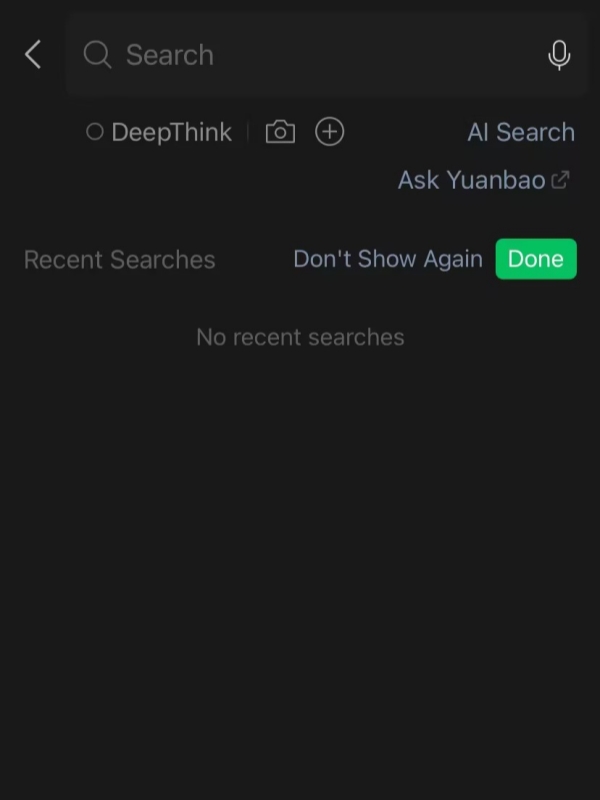
- Search in WeChat Night Mode
-
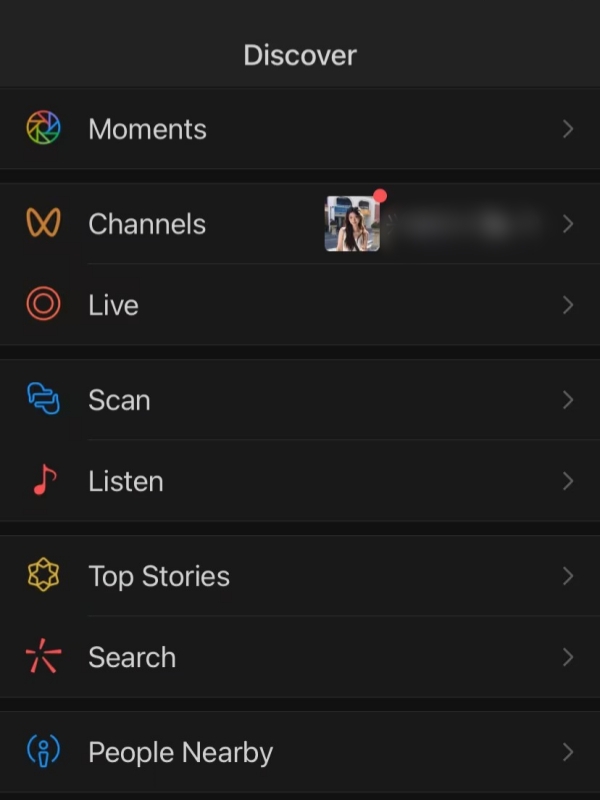
- Discover in WeChat Night Mode
-
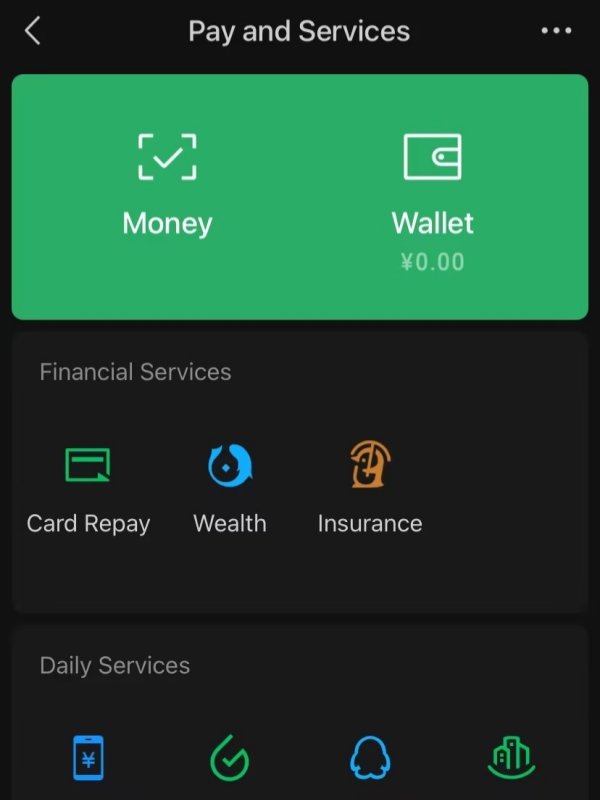
- Pay and Services in Dark Mode
Night Markets: Smooth QR Code Payments
China's night markets hit peak activity between 8 PM and 10 PM. Chengdu's Jinli Ancient Street, Shanghai's Yuyuan Tourist Mart, Xi'an's Muslim Quarter—all share similar lighting: dim ambient illumination from lanterns and shop fronts, with vendors relying on small lamps at their payment stations.
Your dark mode workflow: Switch to night mode at 7 PM, before leaving your hotel. Navigate to the night market using WeChat's integrated map. When you spot food you want, check the price display, then open WeChat Pay. The dark interface produces significantly less glare than white screens, making it easier for the vendor's scanner to read your payment QR code.
Pro tip: Screenshot your WeChat Pay QR code before entering crowded markets. If you temporarily lose network signal (common in packed tourist areas), you can still display the static code for scanning.
Late-Night DiDi Rides: Safe & Battery-Efficient
You've finished dinner in Beijing's Houhai bar district at 11 PM. Your hotel is 25 minutes away. You need to call a DiDi, track the driver's arrival, and share your live location with a friend for safety.
During the ride: Once you're in the vehicle, dark mode serves three purposes. First, the dimmed screen doesn't disturb the driver's night vision or reflect in the windshield. Second, if you're sharing your live location with another traveler, you can monitor the route without that bright-white map glowing conspicuously. Third, extended use during a 20-30 minute ride consumes 15-20% less battery in dark mode versus light.
Safety protocol: Before getting in any taxi, tap the chat with a trusted contact and select "Share Live Location." Select duration—for most city trips, 1 hour suffices. Your friend can track your route in real-time.
Hotel Check-Ins: Discreet & Efficient
Most Chinese hotels set a more ‘mood lighting’ vibe in their lobbies than their Western counterparts so if you arrive wheezing at 10 PM after a long day of travel, you’ll also probably need to show the email confirmation of your booking, scan the hotel’s WI-Fi QR code and perhaps scan codes for the digital key to access your room.
Arrival workflow: As you approach the check-in desk, pull up your hotel booking confirmation from WeChat. Dark mode displays this information clearly without blasting the front desk staff with light. Show your confirmation, then open WeChat's built-in QR scanner when they point to the Wi-Fi password code.
Night Photography: Strategic Mode Switching
The Shanghai Bund, West Lake at Hangzhou, Guangzhou Tower—China's night scenes are spectacular. Night mode complicates photography if you don't know when to toggle it off.
Capture phase: Switch to light mode Before taking photos, disable dark mode. Camera apps interpret scene brightness based partly on screen display. Light mode keeps the camera properly calibrated.
Review phase: Back to dark mode After capturing 10-20 shots, toggle dark mode back on to review your photos. The dark background makes colors pop more dramatically.
Edit phase: Light mode again When you're ready to edit selected photos for WeChat Moments, switch back to light mode. Color grading and exposure adjustment require accurate perception of brightness and hue.
Group Tours: Reading Group Chats Comfortably
Chinese tour guides create WeChat groups for every tour. The guide uses these groups to share meeting times, location pins for pickups, restaurant recommendations, and emergency updates.
During the tour: Tour buses in China often dim their interior lights. Reading a bright phone screen in this environment bothers other passengers. Dark mode lets you check group messages discreetly.
Evening check-ins: Tour guides typically send the next day's itinerary between 8 PM and 10 PM. In your hotel room with lights low, reading this on a bright screen strains your eyes after a long day. Dark mode makes scanning these updates comfortable.
Battery & Automation: Advanced Travel Hacks
Battery & Automation
The Ultimate Power-Saving Combo
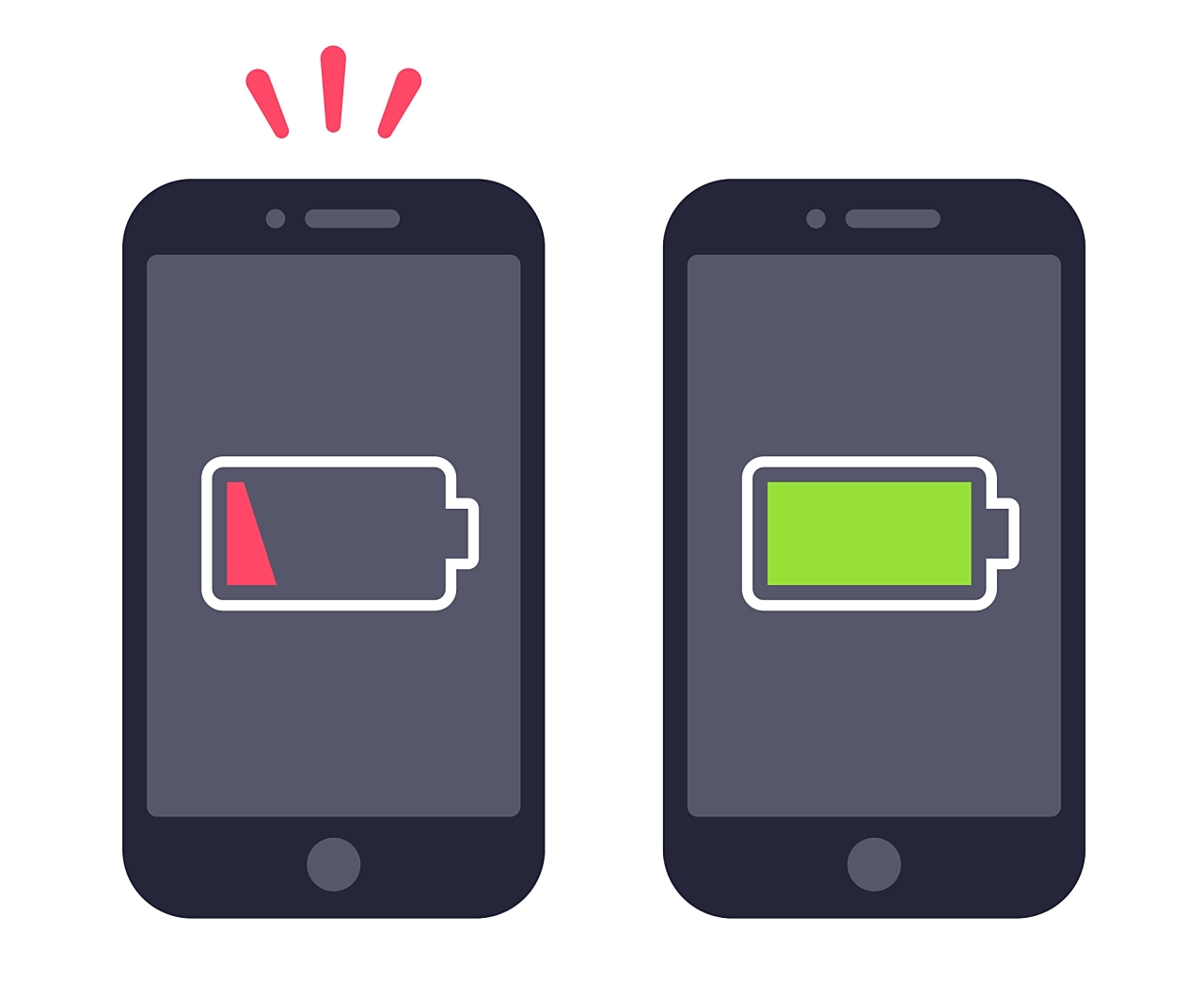
Chinese sightseeing days can last 8-12 hours. The Great Wall, Terracotta Warriors, and giant Buddha all threatened limits on access to power outlets. Even simply turning on dark mode alone adds 2-3 hours of battery life to your day on modern OLED screens, but activating it alongside two other settings leads to some startling consequences.
Layer 1: Dark mode + Low power mode iOS: Settings > Battery > Low Power Mode. Android: Settings > Battery > Power saving mode. These system features reduce background activity and throttle processor speed slightly. Combined with dark mode, total effect: 40-50% longer battery life.
Layer 2: Manual brightness control Disable auto-brightness. Set brightness manually to 30-40%—surprisingly readable outdoors when combined with dark mode's high contrast. Auto-brightness often overreacts to sunlight, spiking to 100% and destroying your battery in hours.
Layer 3: WeChat-specific optimizations Open WeChat settings and disable automatic media downloads: Me > Settings > General > Photos, Videos, and Files > turn OFF both "Auto-Download" options. Also disable autoplay for Moments videos: Me > Settings > General > Video autoplay > Never.
Smart Scheduling for Different Travel Phases
Most travelers use WeChat night mode all-or-nothing, but strategic phase-based scheduling optimizes for different situations.
Phase 1: Transit & flights (Always Dark) From the moment you board until you reach your hotel, keep dark mode permanently active. Dark mode serves triple duty—battery conservation, eye comfort, social courtesy.
Phase 2: Daytime sightseeing (Light or Auto) 8 AM to 6 PM, use light mode or automatic switching. Outdoor activities in bright Chinese sun make light mode more readable.
Phase 3: Evening activities (Auto to Dark) 6 PM to 11 PM covers the prime period for night markets, restaurants, bars, and shows. Automatic mode should switch you to dark by 7 PM.
Phase 4: Pre-sleep wind-down (Dark + Blue light filter) 11 PM until sleep, enable both dark mode and your phone's blue light filter. iOS: Night Shift. Android: Night Mode or Eye Comfort.
Accessibility Features That Boost WeChat Night Mode
Enlarged text: WeChat > Me > Settings > General > Font Size > select "Large" or "Extra Large." Chinese characters are intricate; larger font size maintains readability without reducing information density.
High contrast mode: iOS: Settings > Accessibility > Display & Text Size > Increase Contrast. Android: Settings > Accessibility > High contrast text. This feature sharpens text edges and increases the difference between text and background.
Troubleshooting: 6 Problems Foreigners Actually Face
Payment QR Code
Problem 1 - Dark Mode Keeps Turning Off
You enable dark mode, it works for an hour, then suddenly reverts to light. This happens most commonly on Android phones with aggressive battery management.
Permanent fix for Android: Navigate to Settings > Apps > WeChat > Battery. Change to "Unrestricted" or "No restrictions." This allows WeChat to maintain its settings without interference.
Fix for iOS: Settings > Battery > disable Low Power Mode temporarily, reconfigure dark mode in WeChat, then re-enable Low Power Mode.
Problem 2 - QR Codes Won't Scan in Dark Mode
Your payment QR code won't scan at a restaurant. You toggle to light mode and suddenly it works.
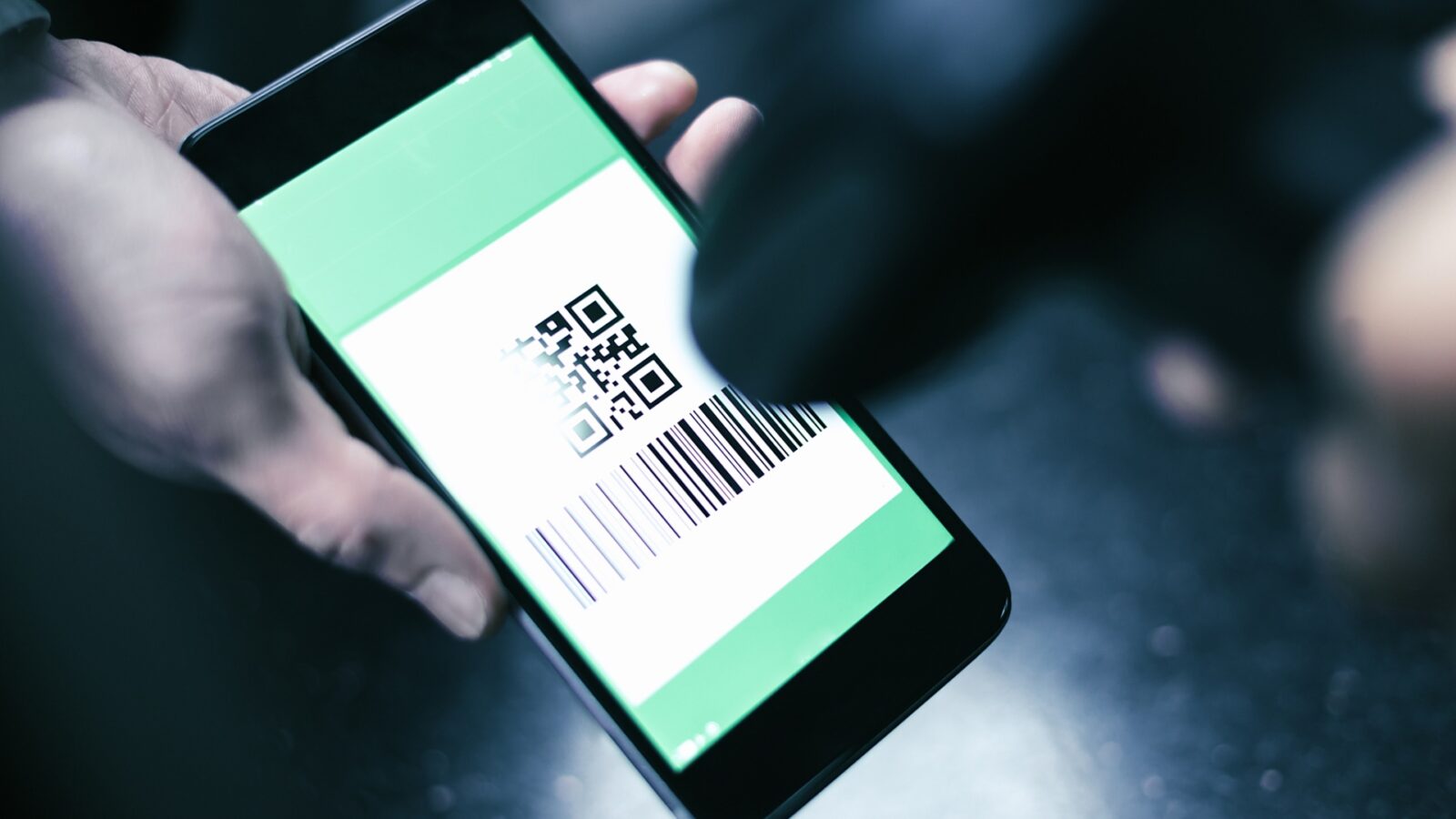
Reality check: This is almost never caused by dark mode—it's a coincidence. QR code scanning depends on camera focus, lighting conditions, code quality, and scan distance. If you are looking to master the essential functions of your WeChat QR code while traveling, this Step-by-Step Guide provides everything foreigners need to know about navigating China efficiently.
Actual causes checklist: Is the QR code clearly printed? Is your camera lens clean? Is there enough light? Check distance and angle—QR codes scan best when centered on your screen occupying 50-70% of the frame.
Problem 3 - Chat Backgrounds Look Unreadable
You customized your WeChat chat backgrounds with photos. In light mode, text remained readable. Now in dark mode, white text vanishes against light-colored portions of your background image.
Immediate fix for one chat: Open the problematic chat, tap the three-dots menu, select "Set Chat Background," then choose "Select from Default Backgrounds." Pick a dark blue, gray, or black option.
Fix for all chats: Me > Settings > Chats > Chat Background > "Select from Default Backgrounds" > choose a dark-mode-compatible option > "Apply to All."
Problem 4 - International vs Chinese Version Differences
WeChat exists in two main versions: international ("WeChat") and Chinese domestic ("微信"). Dark mode implementation differs slightly between versions.
Identify your version: Me > Settings > About > check the app name at the top.
For short trips: Stick with whatever version you have. Don't create unnecessary complications switching versions when you're only visiting for 5-10 days.
Problem 5 - VPN Causes Display Glitches
You're using a VPN to access blocked Western websites. Your WeChat dark mode starts flickering, colors invert randomly, or certain menus display in wrong colors.
Good news for WeChat users: WeChat doesn't require VPN access within China. Save your VPN for Google, WhatsApp, Instagram, and international news sites. When using WeChat, disconnect the VPN entirely.
Problem 6 - Payment Display Issues
You successfully bound your international credit card to WeChat Pay. Payments worked fine initially. Now in dark mode, the payment confirmation screen shows garbled colors.
Prevention strategy: Always configure WeChat Pay in light mode. Complete the entire binding workflow in light mode. Only after you've verified the card works properly should you switch to dark mode for daily use.
FAQs: What Travelers Really Ask About WeChat Night Mode
Q: Does WeChat for PC have night mode?
As of January 2025, there’s no official dark mode for WeChat on Windows and Mac, so every chat interface is white. If you’re using these in a hotel room, combining the system dark theme with Night Light (Windows) or Night Shift (Mac) should help you eye strain some. Or, get into WeChat via the browser and use Dark Reader to get a totally dark custom view the next time you're travelling over winter.
Q: Will WeChat night mode drain my battery faster?
Dark mode is a battery-saving essential for modern smartphones. Because OLED and AMOLED screens illuminate pixels individually, displaying dark colors consumes significantly less power, extending battery life by 25–30%. During an 8-hour sightseeing day with heavy WeChat use, switching to dark mode can be the difference between finishing your night with a comfortable 55% charge or a critical 35%.
Q: Can I use dark mode with WeChat Pay?
WeChat Pay functions identically in dark and light modes, ensuring your payment QR codes, transaction history, and security features remain fully operational. One practical tip: complete the initial international credit card binding process in light mode to avoid any rare interface glitches. Once successfully linked, switch back to dark mode for daily use to enjoy significant battery savings during your travels.
Q: Some mini-programs stay bright in WeChat dark mode. Is this normal?
It is completely normal for some apps to appear bright while others are dark. As of early 2025, roughly 30% of WeChat mini-programs have not yet adapted to dark mode, as developers must manually implement the theme-switching code. Fortunately, most essential services for travelers—including DiDi (ride-hailing), Meituan (delivery), 12306 (trains), Trip.com, and Dianping—support dark mode seamlessly. If a specific mini-program remains stubbornly white, it is simply because the vendor hasn't updated its specific UI settings yet.
Q: My WeChat night mode keeps turning off randomly. Fix?
If your dark mode isn't functioning properly, there are three common culprits to check. First, ensure you are running an up-to-date WeChat version (8.0.42 or higher) to support the latest UI patches. Second, check for battery optimization interference; on Android, go to Settings > Apps > WeChat > Battery and select "Unrestricted" to prevent the system from force-disabling visual features. Finally, look for system settings conflicts, specifically ensuring "Invert Colors" is turned off in your phone's Accessibility settings, as this can override app-specific themes.
Q: Can I schedule automatic WeChat night mode for China's timezone?
Scheduling dark mode is highly recommended for travel, ensuring WeChat switches automatically as China's evening activities begin. On iOS, navigate to Settings > Display & Brightness, toggle "Automatic" on, and use "Custom Schedule" to set 7:00 PM to 7:00 AM. On Android, go to Settings > Display > Dark theme and schedule the same window. This automation reduces eye strain during late-night dining and preserves battery for your return trip to the hotel.
Q: Does night mode affect photo quality when I share on WeChat?
Dark mode is strictly an interface change and does not modify your photo files, compression, or upload quality. However, it can significantly affect your perception during the editing process; working against a dark background can trick your eyes into over-processing brightness or saturation. For the best results when sharing your Shanghai winter photos, consider temporary switching to light mode to ensure your edits look natural to all viewers.
Q: I'm using a VPN. Will it interfere with WeChat night mode?
WeChat does not require a VPN within China, as it is designed for the local network infrastructure. To ensure the best performance, save your VPN bandwidth for blocked Western services and disconnect it when using WeChat. If you prefer keeping your VPN active, use a premium service with "Split Tunneling" or "Bypasser" features to exclude WeChat from the encrypted tunnel, preventing connection lags or account flagging.